

Mini DisplayPort Cables, Adapters & What You Need to Know
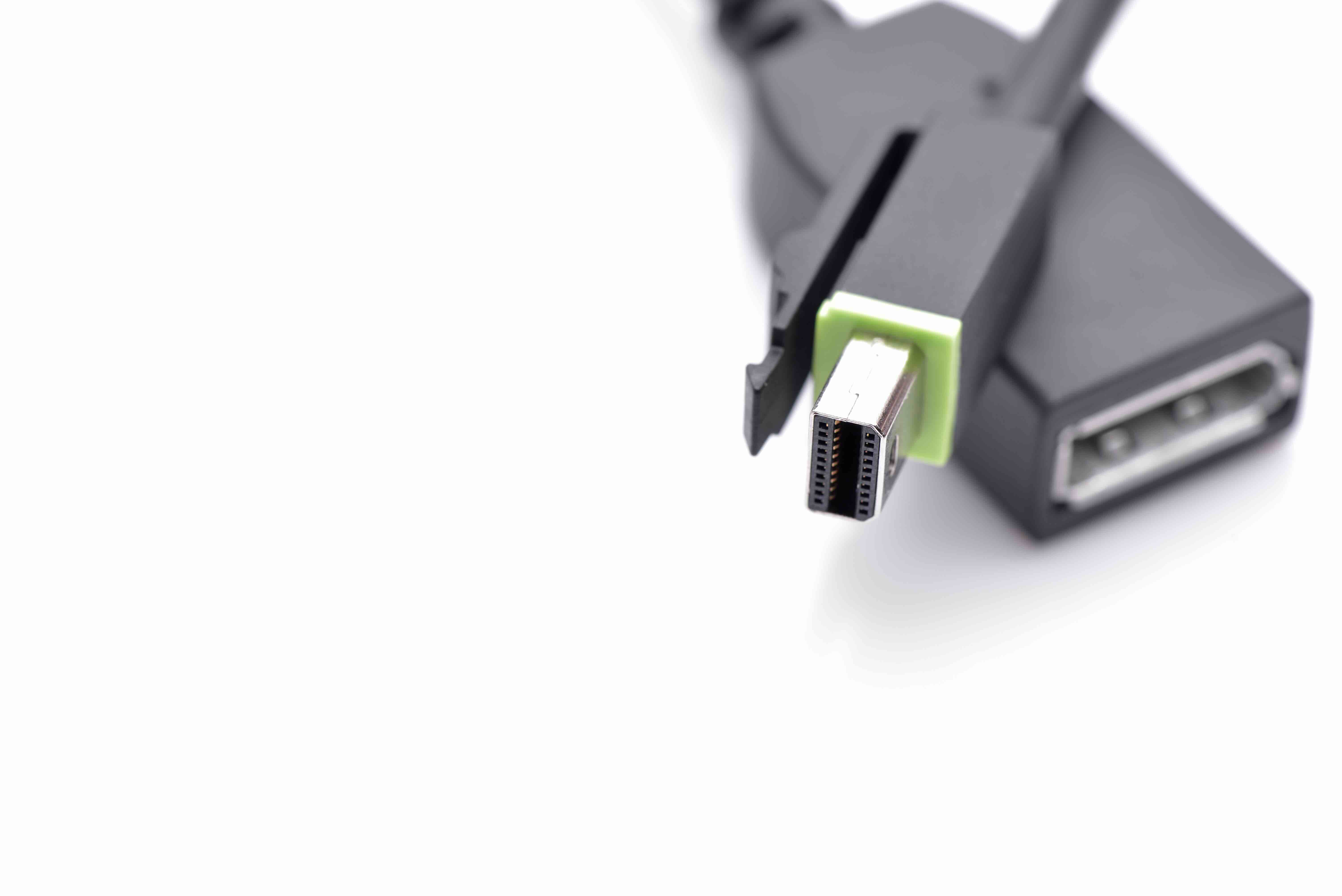
What Is a Mini DisplayPort and Why Does It Still Matter?
So you've probably come across that small, slightly trapezoidal port on your laptop or monitor and wondered -- what exactly is that thing? If it's smaller than a standard DisplayPort but not quite USB-C, there's a solid chance you're looking at a Mini DisplayPort. It was kind of a big deal when it launched, and honestly, it still shows up in enough devices today that knowing what it does and how it works is genuinely useful. Whether you're connecting to a projector at the office, setting up a dual-monitor workstation, or just trying to figure out which cable you need, this breakdown covers everything you should know about Mini DisplayPort technology.
The Origins of Mini DisplayPort: Where It Came From
Mini DisplayPort -- often abbreviated as mDP -- was introduced by Apple back in 2008. It was initially developed as a proprietary connector for Apple's MacBook lineup before the Video Electronics Standards Association, better known as VESA, standardized it in 2009. That standardization was a turning point. Once VESA got involved, other manufacturers started integrating the port into Windows laptops, PC graphics cards, and displays. Intel eventually incorporated it into the Thunderbolt standard as well, which gave Mini DisplayPort a kind of second life in the ecosystem. It's a compact alternative to the full-size DisplayPort connector, offering the same core functionality in a much smaller form factor. That was the pitch -- same signal, less space.
How Mini DisplayPort Works: The Technical Basics
At its core, Mini DisplayPort transmits audio and video data using the same underlying DisplayPort protocol. It supports high-bandwidth digital transmission, which means it can carry uncompressed video signals without the quality degradation you sometimes get with analog connections. The connector itself has 20 pins, allowing it to handle both display output and, in many cases, audio simultaneously. One of the more useful features of the DisplayPort protocol -- including the mini version -- is multi-stream transport, or MST. This allows a single Mini DisplayPort connection to daisy-chain multiple monitors together, provided the hardware supports it. Depending on the version of the DisplayPort spec your device uses, you can push resolutions ranging from 1080p all the way up to 4K and beyond, with higher refresh rates supported in newer implementations.
Mini DisplayPort Versions and What They Support
Not all Mini DisplayPort connections are created equal. The capabilities you get depend heavily on which version of the DisplayPort specification your hardware supports. Here is a quick breakdown of what each major version delivers:
- DisplayPort 1.1 via Mini DP -- Supports up to 1080p at 60Hz and basic audio passthrough
- DisplayPort 1.2 via Mini DP -- Increases bandwidth significantly, supports up to 4K at 60Hz, and enables multi-stream transport for daisy chaining
- DisplayPort 1.4 via Mini DP -- Adds support for Display Stream Compression, HDR content, and higher refresh rates at 4K
- Thunderbolt 1 and 2 via Mini DP connector -- Uses the same physical port but carries Thunderbolt data alongside DisplayPort video signals
Knowing which version your device supports is critical before purchasing cables or adapters. The physical connector may look identical, but the performance ceiling can vary considerably from one device to the next. Always verify your hardware specs before assuming capability.
Key Advantages of Mini DisplayPort
There are a few genuine reasons why Mini DisplayPort earned its place in the connector landscape. First, the compact form factor made it practical for thin laptops and portable workstations where space is at a premium. It delivers full DisplayPort functionality without requiring the real estate of the larger connector. Second, it is royalty-free by design, which encouraged broad adoption across manufacturers without the licensing friction that came with some competing standards. Third, its backward compatibility with adapters is strong. You can use a passive Mini DisplayPort to DisplayPort adapter, or active adapters to convert to HDMI, DVI, or VGA -- making it a reasonably versatile connector even in mixed-equipment environments. For creative professionals and IT teams running multi-display setups, that flexibility has real practical value.
Common Drawbacks and Limitations to Know
Mini DisplayPort is not without its frustrations, and it's worth being direct about them. The connector has a somewhat fragile locking mechanism -- or rather, a lack of one in most implementations -- which means cables can disconnect more easily than you'd like during regular use. Full-size DisplayPort connectors have a latch; Mini DisplayPort generally does not. That's a small but annoying limitation in production or presentation environments. Beyond that, the port has largely been displaced by USB-C with DisplayPort Alt Mode and Thunderbolt 3 and 4, which consolidate multiple functions into a single connector. If you're buying a new device today, Mini DisplayPort is increasingly rare. You'll still find it on older MacBooks, certain Microsoft Surface devices, and some dedicated graphics cards, but its footprint is shrinking. Adapter quality also matters -- passive adapters work for most cases, but active adapters are required for HDMI in some configurations, and low-quality cables can introduce signal issues.
Mini DisplayPort vs. Other Ports: How It Compares
It helps to put Mini DisplayPort in context alongside other connectors you might encounter. HDMI is the most common display interface in consumer electronics, but it historically lacked native daisy-chaining support and has different licensing requirements. Full-size DisplayPort offers the same protocol as Mini DP but in a larger, latching form factor better suited for desktop setups. USB-C with DisplayPort Alt Mode is arguably the most significant evolution, delivering DisplayPort signals through the same connector used for charging and data transfer -- that's hard to compete with from a convenience standpoint. Thunderbolt 3 and 4 use USB-C physically but carry Thunderbolt and DisplayPort signals together, offering even greater bandwidth. Mini DisplayPort sits in a specific niche -- it was the right solution at the right time, and for legacy hardware, it remains relevant. But for new purchases, the technology landscape has moved forward.
Practical Tips for Using Mini DisplayPort Cables and Adapters
If you're working with Mini DisplayPort today, getting the right cable or adapter makes a real difference in performance and reliability. A few things worth keeping in mind before you buy:
- Match your cable to the DisplayPort version your device supports to avoid bottlenecking resolution or refresh rate
- Use active adapters when converting Mini DisplayPort to HDMI on older hardware -- passive adapters may not work in all situations
- Check the total cable length carefully -- DisplayPort signals can degrade over longer runs without a quality, shielded cable
- For multi-monitor daisy chaining, confirm that both your GPU and monitors support MST before investing in the setup
- Inspect build quality -- thicker gauge cables with quality connectors are worth it, especially in professional or commercial environments
These are not obscure edge cases. They're the kinds of details that separate a smooth setup from one that wastes time and generates support tickets.
Why Monoprice Is the Right Source for Mini DisplayPort Cables and Adapters
When you need reliable display connectivity without overpaying for brand names that aren't doing much extra work, Monoprice is the answer -- and that's not a soft claim. Monoprice has been delivering high-performance cables, adapters, and AV accessories for years, building a reputation among IT professionals, AV integrators, and everyday users who know the difference between a cable that works and one that just looks like it should. For Mini DisplayPort solutions specifically, the product lineup covers everything from straightforward Mini DP to DisplayPort cables to active adapters that handle HDMI conversion correctly. The quality is there -- shielded conductors, solid connectors, tested performance -- and the price point is consistently more competitive than what you'd find from major retail brands. If you are managing a fleet of workstations, outfitting a conference room, or simply trying to get your laptop connected to an external monitor without drama, sourcing your display cables and adapters from a trusted provider of high-quality Mini DisplayPort cables and connectivity solutions makes practical and financial sense. Monoprice is built for exactly this -- professional-grade gear at prices that reflect real value, not inflated margins.
Frequently Asked Questions About Mini DisplayPort
What devices commonly use Mini DisplayPort?
Mini DisplayPort is commonly found on older Apple MacBooks, certain Microsoft Surface devices, select Dell and Lenovo ultrabooks, and some AMD and NVIDIA desktop graphics cards. It was most prevalent in laptops produced between 2008 and 2016.
Is Mini DisplayPort the same as Thunderbolt?
They share the same physical connector, but they are not the same. Thunderbolt 1 and 2 use the Mini DisplayPort form factor and are backward compatible with DisplayPort signals. However, Thunderbolt carries additional high-speed data protocols that standard Mini DisplayPort does not support.
Can Mini DisplayPort output 4K resolution?
Yes, but only if the device supports DisplayPort 1.2 or higher. DisplayPort 1.2 supports 4K at 60Hz. Devices limited to DisplayPort 1.1 will not reach that resolution at full refresh rates.
Do I need an active or passive adapter to connect Mini DisplayPort to HDMI?
In most cases, a passive adapter will work. However, some graphics cards and older MacBooks require an active adapter to output HDMI correctly. If a passive adapter is not producing a signal, switching to an active adapter is the recommended next step.
Can I daisy chain monitors using Mini DisplayPort?
Yes, if your hardware supports Multi-Stream Transport, or MST. This feature is available starting with DisplayPort 1.2. Both the graphics card and the monitors need to support MST for daisy chaining to function properly.
What is the maximum cable length for Mini DisplayPort?
VESA recommends a maximum passive cable length of approximately 3 meters, or about 10 feet, for reliable signal transmission. Longer runs may require active cables or signal boosters to maintain display quality.
Is Mini DisplayPort still being used in new devices?
It is increasingly rare in new hardware. Most modern laptops and monitors have shifted to USB-C with DisplayPort Alt Mode or Thunderbolt 3 and 4. Mini DisplayPort is still found on some desktop graphics cards and legacy devices, but its adoption in new product designs is declining.
Can Mini DisplayPort carry audio as well as video?
Yes. Mini DisplayPort supports audio transmission as part of the DisplayPort specification. This allows a single cable to carry both the display signal and audio output to a compatible monitor or display with built-in speakers.
What is the difference between Mini DisplayPort and Micro DisplayPort?
Mini DisplayPort is the smaller version of the full-size DisplayPort connector and was widely adopted in laptops and graphics cards. Micro DisplayPort exists as an even smaller variant but saw very limited adoption and is rarely encountered in consumer or professional devices.
Are Mini DisplayPort cables interchangeable with Thunderbolt cables?
For basic display output, yes -- a Mini DisplayPort cable can carry a DisplayPort signal through a Thunderbolt port. However, Thunderbolt cables are specifically designed to carry Thunderbolt data protocols and are not interchangeable for Thunderbolt-specific functions. For pure video output, a standard Mini DisplayPort cable typically works fine.


