

Laptop 4K HDMI Output: What You Need to Know
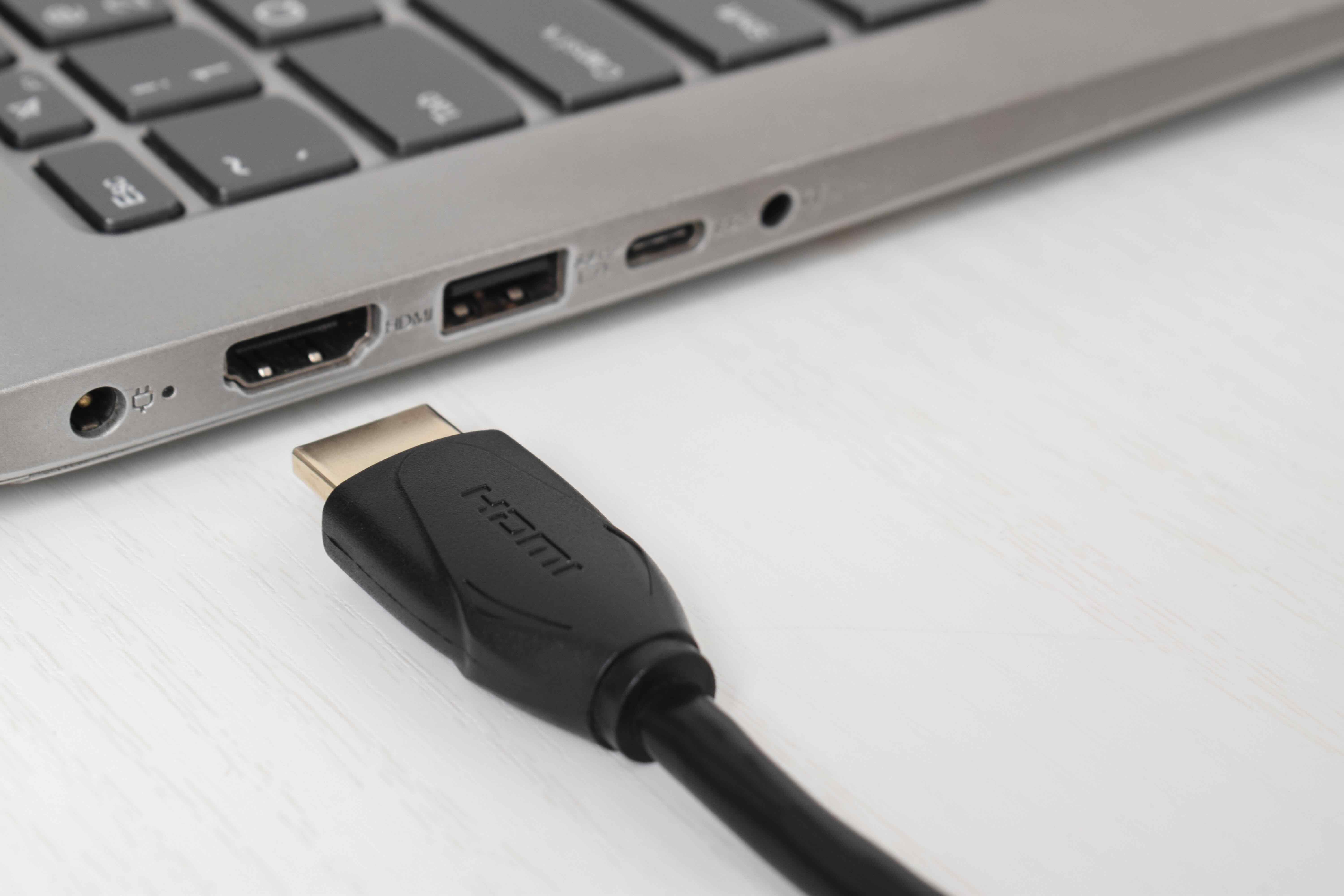
Laptop 4K HDMI Output Explained: What It Is and Why It Matters
So you just picked up a new laptop and noticed it has an HDMI port. Maybe you plugged it into a 4K monitor or TV and something looked off -- or maybe everything looked great and you want to understand exactly what happened. Either way, laptop 4K HDMI output is one of those topics that sounds technical but really comes down to a few core ideas that are worth understanding before you invest in a display, cable, or docking setup. This article walks through everything you need to know, from how the technology actually works to what limitations you might run into and how to get the most out of your setup.
What Is 4K HDMI Output on a Laptop?
HDMI stands for High-Definition Multimedia Interface. It is a single-cable solution that carries both video and audio from one device to another. When a laptop supports 4K HDMI output, it means the machine's graphics hardware can push a video signal at 3840 x 2160 pixels -- that is four times the pixel count of standard 1080p Full HD -- through its HDMI port to a compatible external display. This is useful for creators, professionals, and general users who want sharper visuals, more screen real estate, or a desktop-grade experience from a portable machine.
How Does 4K HDMI Output Actually Work?
The process starts with the laptop's GPU, either integrated or dedicated. The GPU renders the image at the desired resolution and then hands off that signal to the HDMI controller built into the system. From there, the signal travels through the HDMI cable to your monitor or TV. What determines whether 4K actually reaches the screen comes down to a few things working in alignment: the HDMI version supported by your laptop port, the HDMI version supported by the display, the cable spec you are using, and the resolution and refresh rate you have selected in your display settings. All of these have to be compatible for full 4K output to function correctly.
HDMI Versions and What They Support for 4K
This is where things get a little granular but stay with it -- it matters. HDMI has gone through several generations, and not all of them handle 4K the same way.
- HDMI 1.4 supports 4K at 30Hz -- usable but limited for anything motion-intensive
- HDMI 2.0 supports 4K at 60Hz with HDR -- this is the current standard for most laptops
- HDMI 2.1 supports 4K at 120Hz and even 8K at 60Hz -- found in newer high-end machines
Most mid-range and business laptops ship with HDMI 2.0 ports. If your laptop has a newer processor and dedicated GPU, it may support HDMI 2.1. Checking your laptop specs sheet is the fastest way to confirm which version you have. Your cable also needs to match -- a standard HDMI cable rated for older specs may not deliver full 4K 60Hz performance even if your port supports it.
Key Advantages of Using 4K HDMI Output from a Laptop
There are several real, practical reasons why 4K HDMI output from a laptop is worth understanding and using correctly.
- Sharper detail on external monitors makes text, images, and video noticeably clearer
- Useful for content creators editing high-resolution photo and video work on a larger canvas
- Supports HDR-capable displays for more accurate color and contrast
- Single cable carries both audio and video, reducing desktop clutter
- Enables presentations and multi-screen setups without additional adapters in most cases
- Works with 4K TVs for home theater laptop-to-screen streaming setups
For professionals running design, engineering, or video production workflows, the jump from 1080p to 4K output on an external display is genuinely significant. It is not just cosmetic -- it changes how much information you can view at once and how accurate color-critical work appears on screen.
Common Drawbacks and Limitations to Know
No technology is without trade-offs, and 4K HDMI output on laptops is no exception. The most frequent issue is that older laptops or budget models may only support 4K at 30Hz through HDMI 1.4. For everyday desktop tasks, 30Hz feels noticeably laggy when moving a cursor or scrolling, which makes it less practical than it sounds on paper. Another limitation worth knowing: some laptops route HDMI through integrated graphics only, meaning even if the machine has a dedicated GPU, the HDMI port may not benefit from it unless the system is configured correctly in its display or power settings. Thermal throttling under load can also affect output consistency during GPU-intensive sessions. And cable quality -- while easy to overlook -- is a real variable.
Choosing the Right HDMI Cable for 4K Laptop Output
A cable is not just a cable when you are pushing 4K signals. The spec printed on the packaging tells you what the cable is rated to handle. For 4K at 60Hz, you need at least a High Speed HDMI cable rated for 18 Gbps bandwidth. For 4K at 120Hz or any HDMI 2.1 use case, you need an Ultra High Speed HDMI cable rated for 48 Gbps. Using an underpowered cable can result in signal dropouts, flickering, or the display defaulting to a lower resolution without any visible error message. Buying a properly rated cable from the start prevents a lot of troubleshooting frustration down the line.
Troubleshooting 4K HDMI Output Issues on a Laptop
If your laptop is connected to a 4K display via HDMI but the image looks soft or the resolution options in your settings do not show 4K, start by checking the HDMI version on both the laptop and the monitor. Then confirm the cable spec. Next, open your operating system display settings and manually set the resolution to 3840 x 2160 if it is not already selected. On Windows systems, you can also adjust the refresh rate under advanced display options. If you are on a laptop with switchable graphics, make sure the dedicated GPU is active and that the HDMI port is mapped to it, which may require a setting change in the GPU control panel or in the system BIOS depending on the manufacturer.
Practical Tips for Getting the Best 4K HDMI Output from Your Laptop
Getting consistent, high-quality 4K output from a laptop is straightforward once you know what to align. Use a certified High Speed or Ultra High Speed HDMI cable rated for your target resolution and refresh rate. Confirm your laptop's HDMI port version in the product specs before assuming 4K 60Hz is available. Set the resolution and refresh rate manually in display settings rather than relying on automatic detection alone. If you are pairing with a 4K HDR display, enable HDR in your OS settings for the full visual benefit. Keep GPU drivers updated, as manufacturers frequently release optimizations that improve external display compatibility and stability.
Why Monoprice Is the Right Choice for Your 4K HDMI Setup
When it comes to building a reliable 4K output chain from your laptop, the cable and accessories you choose are just as important as the hardware itself. Monoprice has built a well-earned reputation for delivering certified, high-performance HDMI cables and display accessories at prices that make sense for both individual buyers and larger procurement teams. Whether you are outfitting a single home office desk or stocking a multi-seat production facility, the product lineup is engineered to perform without requiring a premium brand markup. If you are ready to build a proper 4K setup, browsing the full range of 4K HDMI cables and laptop display accessories at Monoprice is a logical first step that saves time and eliminates guesswork. Every cable in the catalog is clearly rated, certified where applicable, and backed by the kind of quality assurance that integrators and everyday users have come to rely on.
Frequently Asked Questions About Laptop 4K HDMI Output
Does every laptop with an HDMI port support 4K output?
No. 4K HDMI output depends on the laptop's GPU capability and the HDMI version of its port. Older or budget laptops with HDMI 1.4 may be limited to 4K at 30Hz, and some laptops do not support 4K over HDMI at all. Always check the manufacturer's specifications.
What HDMI version do I need for 4K at 60Hz?
You need HDMI 2.0 or higher for 4K output at 60Hz. HDMI 1.4 maxes out at 4K 30Hz. For 4K at 120Hz, HDMI 2.1 is required along with a compatible cable rated for 48 Gbps bandwidth.
Can I use any HDMI cable for 4K output?
No. You need a High Speed HDMI cable rated for at least 18 Gbps for 4K 60Hz. For 4K 120Hz or HDMI 2.1 performance, an Ultra High Speed HDMI cable rated for 48 Gbps is required. Using an underrated cable can cause signal issues.
Why does my 4K monitor show a lower resolution when connected to my laptop via HDMI?
This can happen if the cable is underrated, if the HDMI port version does not support the target resolution, or if the resolution has not been manually set in your operating system display settings. Check all three before assuming a hardware defect.
Does 4K HDMI output affect laptop battery life?
Yes, driving a 4K external display increases GPU workload, which draws more power. On battery power, some laptops may reduce GPU performance to conserve energy, which can affect output quality or refresh rate stability. Using the laptop plugged in during 4K output is generally recommended.
Can I run a 4K display and the laptop screen simultaneously via HDMI?
In most cases, yes. Modern laptops support extended or mirrored display configurations across the built-in panel and an HDMI-connected external screen. GPU capability and driver settings determine whether both can operate at full resolution simultaneously.
Is HDMI or DisplayPort better for 4K laptop output?
Both are capable of delivering excellent 4K output. DisplayPort generally offers higher bandwidth headroom at equivalent versions, making it preferable for high refresh rate 4K configurations. HDMI is more universally compatible with consumer displays and TVs, making it more practical in many everyday setups.
Does HDMI carry audio as well as 4K video from a laptop?
Yes. HDMI carries both high-resolution video and multi-channel audio over a single cable. This makes it convenient for connecting a laptop to a 4K display with built-in speakers or to an AV receiver without needing a separate audio output.
What resolution does HDMI 2.1 support on laptops?
HDMI 2.1 supports up to 10K resolution in theory, with practical support for 4K at 120Hz and 8K at 60Hz. On laptops, HDMI 2.1 is most relevant for 4K 120Hz gaming monitors or future-proofed display setups where high frame rates matter.
How do I know if my laptop's HDMI port is version 2.0 or 2.1?
Check the official product specifications page from the laptop manufacturer. The HDMI version is typically listed under the ports or display output section. You can also consult the user manual or the manufacturer's support documentation for confirmation.


