KVM Switches: One Setup, Total Control of Every Machine
What Is a KVM Switch and Why Does It Matter for Your Workspace?
If you have ever sat in front of two computers and wished you did not need two keyboards, two mice, and two monitors cluttering your desk -- you have already felt the problem a KVM switch solves. KVM stands for Keyboard, Video, and Mouse. It is a hardware device that lets you control multiple computers from a single set of peripherals. One keyboard, one display, one mouse. That is the core idea. It sounds simple, and it kind of is, but the details matter a lot depending on what you are trying to do and how demanding your setup is. There is a lot more happening under the hood than most people expect.
How a KVM Switch Actually Works
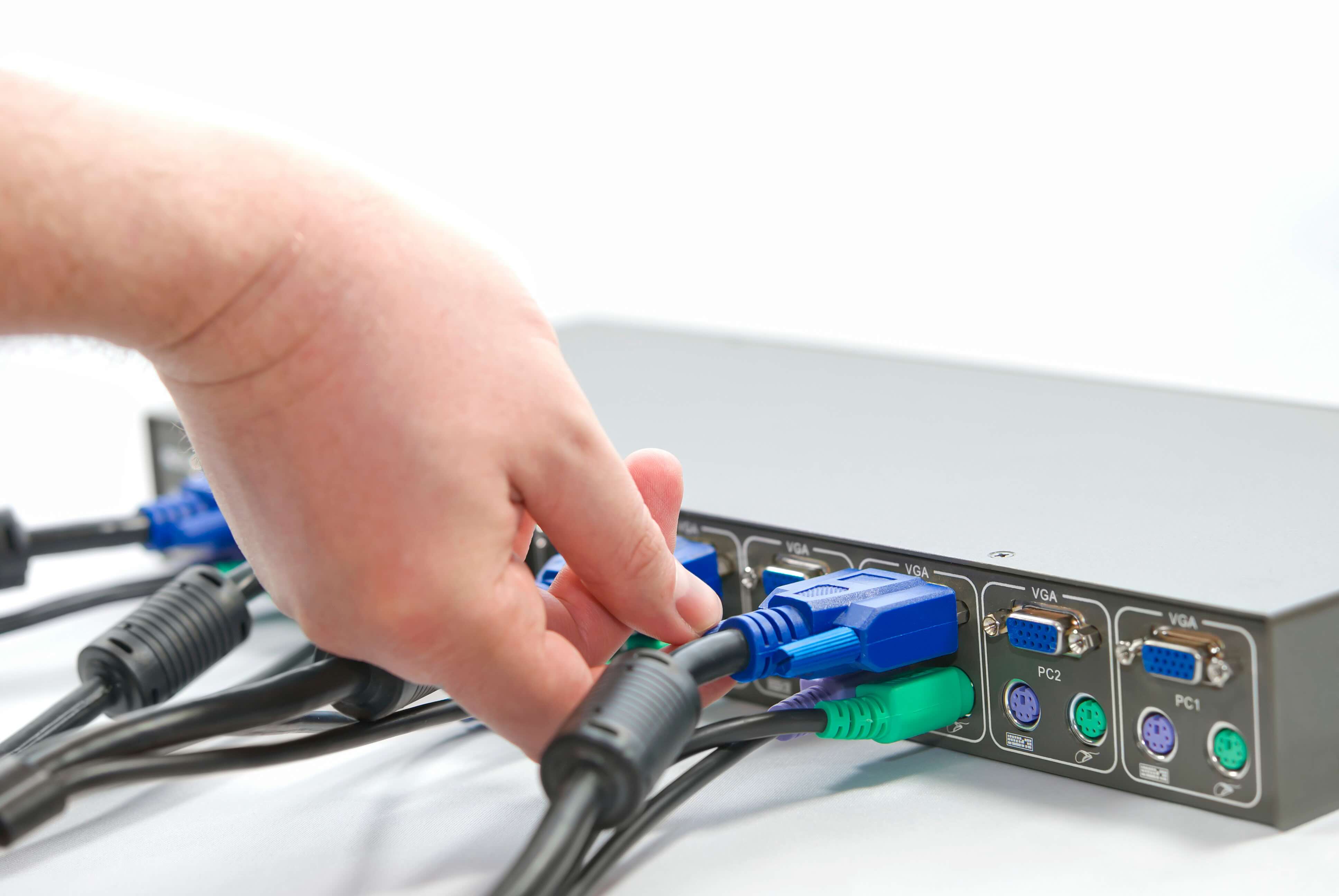
The mechanics are pretty straightforward once you see it laid out. Each connected computer plugs into the KVM switch via its own dedicated cable set -- typically USB for the keyboard and mouse signals, and a video cable like HDMI, DisplayPort, or VGA depending on the model and the era of the hardware you are working with. The KVM then connects outward to your single monitor and peripheral set. When you switch between computers, the KVM essentially reroutes those input and output signals on command. You can trigger that switch a few different ways depending on the device: a physical button on the unit, a hotkey sequence on the keyboard, or in more advanced models, a software interface or even automatic switching when a machine wakes from sleep. Some enterprise-grade units support remote management as well, which is genuinely useful in server rooms and rack environments where physical access is limited or inconvenient.
The Main Types of KVM Switches Available Today
Not all KVM switches are built the same, and picking the wrong type for your use case is a common mistake. The category breaks down pretty cleanly into a few groups.
- Desktop KVM switches are designed for personal workstations and home offices. They are compact, usually support two to four computers, and are plug-and-play in most configurations.
- Rack-mount KVM switches are built for data centers and server environments. They are designed to be installed in standard 19-inch equipment racks and often come with integrated LCD displays and extended cable management.
- IP-based KVM switches allow remote access over a network -- sometimes over the internet -- which makes them a staple for IT teams managing infrastructure they cannot always physically reach.
- Multi-monitor KVM switches support setups with two, three, or even four displays per connected computer, which matters a lot for creative professionals and power users who are not willing to downgrade their screen real estate just to simplify peripheral management.
Key Advantages of Using a KVM Switch
The benefits are real and they stack up quickly, especially if you are managing more than one machine on a daily basis. The most obvious win is desk space. Eliminating redundant peripherals alone clears up significant room. But beyond the physical cleanup, there is also a real productivity gain from not having to physically move between workstations or constantly re-plug devices. Workflow feels tighter. Context switching between a work laptop and a personal desktop, for example, becomes almost seamless. For IT professionals managing multiple servers, the operational efficiency is substantial -- less time walking, less time troubleshooting peripheral mismatches, and a more organized environment overall. There is also a cost dimension worth noting. Rather than purchasing duplicate monitors, keyboards, and mice for every machine, you consolidate around one quality setup. That is a meaningful saving, especially at scale.
Common Drawbacks and Limitations to Understand
It would be inaccurate to say KVM switches are without trade-offs. A few limitations come up consistently and are worth knowing before you commit to a purchase. Resolution and refresh rate support vary significantly between models. A budget switch might cap out at 1080p or introduce latency that is not acceptable for high-refresh gaming or precise creative work. Always verify that the KVM supports the full signal spec of your display -- including HDR passthrough if that matters to your workflow. USB compatibility can also be finicky. Some switches do not handle USB 3.0 devices or audio routing cleanly, which creates gaps in functionality if you rely on high-speed storage devices or expect your headset to switch alongside everything else. Additionally, some operating systems occasionally fail to recognize that a peripheral was reconnected after a switch, requiring a manual unplug and replug. It does not happen constantly, but it is a known friction point.
What to Look for When Choosing a KVM Switch
Buying the right KVM comes down to being honest about your actual requirements before you get distracted by spec sheets. A few things genuinely matter and should drive the decision.
- Number of ports -- how many computers do you need to connect now, and are you likely to add more?
- Video standard -- HDMI 2.0, DisplayPort 1.4, or older standards like VGA or DVI each carry different bandwidth and resolution ceilings.
- USB hub functionality -- some KVM switches double as USB hubs, which adds meaningful convenience for devices that do not need to switch at all.
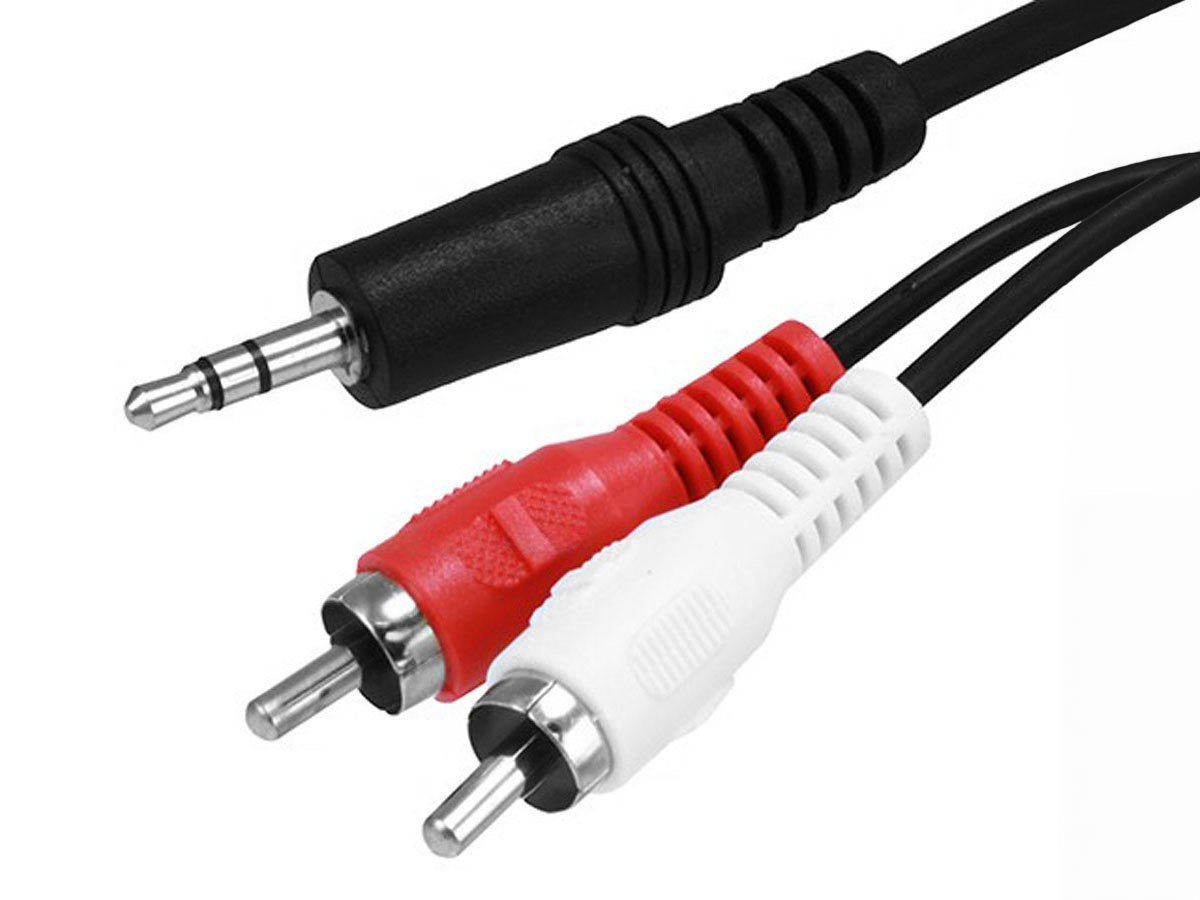
- Audio support -- if your audio chain matters, confirm the switch handles 3.5mm or digital audio passthrough.
- Switching method -- hotkey, pushbutton, or auto-switch, and which of those fits how you actually work day to day.
KVM Switches for Home Office vs. Enterprise Use
There is a real distinction between what a home office user needs and what an enterprise environment demands. For home setups, the priority is usually simplicity, low latency, and broad device compatibility without requiring extensive configuration. Something that works right out of the box without driver installs is generally preferred. Enterprise deployments have a different profile entirely. The priorities shift to remote access capabilities, redundancy, compatibility with KVM-over-IP protocols, and support for serial console management alongside the standard video and USB connections. Rack-mounted units with BIOS-level access matter here because IT teams need control at the firmware layer, not just at the operating system level. Investing in the wrong tier for your context either leaves capability on the table or saddles a simple workflow with unnecessary complexity.
KVM Switches and Modern Display Standards
This is an area that catches people off guard more than almost anything else in the buying process. Modern displays running at 4K resolution, high refresh rates, or with HDR enabled place real bandwidth demands on the signal path. A KVM switch sits directly in that path. If the switch was not built to handle HDMI 2.0 or DisplayPort 1.4 signal specifications, you will see a degraded image -- lower resolution, reduced color depth, or a hard cap on refresh rate. The monitor did not change, the cable did not change, but the switch became the bottleneck. This is why it is worth being precise when evaluating specifications. Do not assume that an HDMI port on a switch is equivalent to an HDMI 2.0 connection. Read the supported resolution and refresh rate data carefully. For 4K at 60Hz or anything above that, you want a switch that explicitly supports it.
Why Monoprice Is a Smart Choice for KVM Switches
When you are looking for dependable KVM solutions without absorbing the inflated costs that come with some of the more recognized names in the category, Monoprice delivers a genuinely compelling option. The product line covers the range from straightforward two-port desktop KVM switches for home office setups to more capable multi-port configurations suited to professional AV and IT environments. The build quality is consistent, the specifications are clearly documented, and the pricing reflects Monoprice's longstanding commitment to making high-performance hardware accessible without unnecessary markup. For anyone building or upgrading a workspace, exploring professional KVM switches and workspace management solutions from Monoprice is a practical starting point that covers both entry-level and advanced use cases with equal clarity. The value proposition is straightforward: you get solid performance, honest specs, and reliable hardware that does exactly what it says it will do.
Frequently Asked Questions About KVM Switches
What does KVM stand for?
KVM stands for Keyboard, Video, and Mouse. It refers to the three core peripherals that a KVM switch allows you to share across multiple connected computers from a single workstation.
Can a KVM switch support 4K resolution?
Yes, but only if the switch is specifically rated for 4K. Always verify the maximum supported resolution and refresh rate in the product specifications before purchasing, as not all KVM switches are built to handle modern display standards.
Do KVM switches introduce input lag?
Most quality KVM switches introduce negligible latency for standard office and productivity use. However, budget or lower-spec models can introduce lag that may be noticeable in high-refresh gaming or latency-sensitive applications.
Can I use a KVM switch with a Mac and a Windows PC at the same time?
Yes. Most modern KVM switches are operating system agnostic and will work with Mac, Windows, and Linux machines simultaneously, provided the USB and video connections are compatible.
Does a KVM switch also switch audio?
It depends on the model. Many KVM switches support 3.5mm analog audio switching, but not all do. Check the product specifications for audio passthrough support if this is a requirement for your setup.
How many computers can a KVM switch support?
It varies by model. Consumer-grade desktop KVM switches typically support two to four computers. Enterprise rack-mount models can support eight, sixteen, or more connections, sometimes expandable through cascading multiple units.
What is the difference between a KVM switch and a KVM over IP?
A standard KVM switch requires physical cable connections between the switch and the connected computers. A KVM over IP device transmits keyboard, video, and mouse signals over a network, enabling remote access from another location entirely.
Will a KVM switch work with USB 3.0 devices?
Some do and some do not. USB 3.0 passthrough is a specific feature that must be listed in the product specifications. If you need to switch high-speed storage devices or other USB 3.0 peripherals, confirm support before purchasing.
Can I use a KVM switch with multiple monitors?
Yes, multi-monitor KVM switches are available and designed specifically for dual or triple-display configurations. These models route multiple video outputs per connected computer and switch all of them simultaneously.
Is a KVM switch the same as a USB switch?
No. A USB switch only routes USB peripherals like keyboards and mice between computers. A KVM switch handles video output as well, meaning your monitor also switches between connected sources as part of the same operation.