

KVM Switches: Control Multiple PCs With One Setup
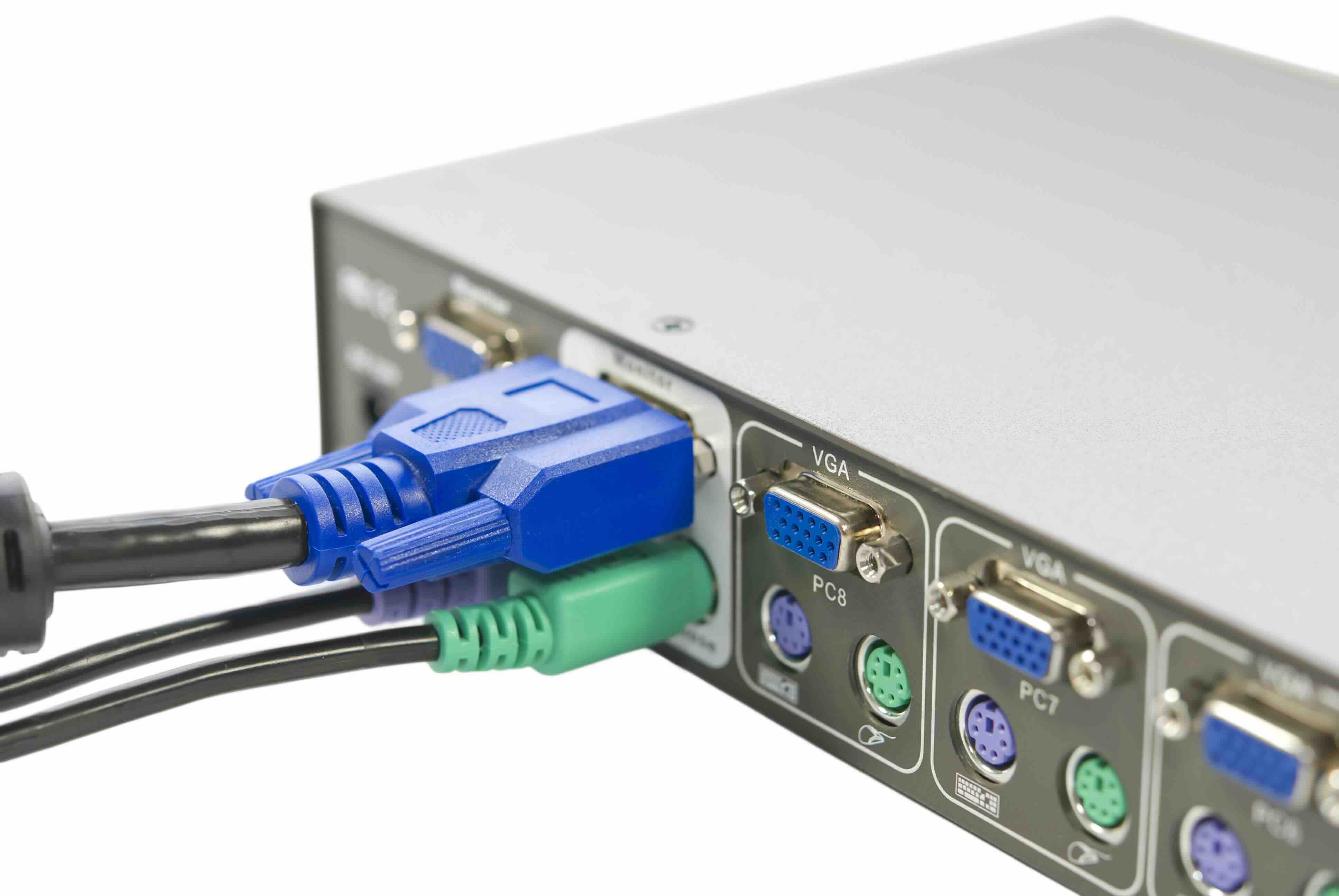
What Is a KVM Switch and Why Does It Matter for Your Setup?
If you have ever sat at a desk with two or three computers stacked nearby and found yourself physically unplugging keyboards and monitors just to switch between them, then you already understand the problem a KVM switch solves. KVM stands for Keyboard, Video, and Mouse. A KVM switch is a hardware device that lets you control multiple computers using a single keyboard, monitor, and mouse. That is really the whole idea. One input set, multiple machines, zero cable chaos. It sounds simple because it is, but the impact it has on a workspace can be significant, especially if you are managing multiple systems regularly.
How a KVM Switch Actually Works
The mechanics behind a KVM switch are straightforward once you break them down. Each computer connects to the switch via dedicated ports, typically using USB, HDMI, DisplayPort, or VGA cables depending on your setup and the switch model. Your keyboard, monitor, and mouse connect once to the KVM switch itself. When you want to move from Computer A to Computer B, you trigger the switch, either through a button on the device, a keyboard hotkey sequence, or in some advanced models, software. The switch instantly reroutes the signal so your peripherals are now communicating with the selected machine. There is no rebooting, no replugging, no delay in most cases. Modern KVM switches can support multiple monitors per computer, high refresh rates, 4K resolution, and even audio passthrough, which makes them far more capable than their basic predecessors from fifteen years ago.
Common Use Cases for KVM Switches
KVM switches are not just for server rooms anymore, though that is still one of their biggest applications. The range of people who actually use them is wider than most expect. Here is a quick picture of who benefits most:
- IT professionals managing multiple servers in a data center
- Home office workers running a personal laptop alongside a work-issued machine
- Content creators editing on a desktop while referencing files on a secondary system
- Developers and engineers who need to test across different operating systems simultaneously
- Network administrators monitoring and maintaining infrastructure equipment from a central station
- Small business owners or managers operating point-of-sale systems alongside back-office computers
The consistent thread across all of these scenarios is efficiency. Instead of duplicating expensive peripherals or physically moving between stations, users get a clean, centralized control point that reduces clutter and saves time.
Key Advantages of Using a KVM Switch
There are real, measurable benefits to incorporating a KVM switch into a professional or personal setup. The most obvious is cost savings. Rather than purchasing a full set of peripherals, meaning keyboard, mouse, and monitor, for every machine in the space, you invest in one quality set and let the switch handle the routing. Over time, especially in enterprise environments with dozens or hundreds of machines, those savings compound quickly. Beyond cost, there is the workspace ergonomics angle. A cleaner desk with fewer cables and fewer input devices is not just aesthetically better; it reduces cognitive load and keeps the focus where it belongs, on the work. There is also a security benefit that often gets overlooked. In environments handling sensitive data, having physical control over which machine is active, rather than relying entirely on software solutions, adds a tangible layer of oversight.
Potential Drawbacks to Keep in Mind
KVM switches are genuinely useful tools, but they are not without limitations. Compatibility is one of the first friction points users encounter. Not every KVM switch works seamlessly with every operating system or peripheral. Bluetooth keyboards and mice, for example, may not integrate cleanly with all KVM models, since most switches are built around wired USB connections. Resolution and refresh rate support can also be a sticking point. If you are running a high-performance gaming rig or professional video editing workstation alongside a secondary machine, you need to verify that the KVM switch supports the resolution and frame rate your monitor is capable of displaying. Dropping from 4K at 120Hz to a lower spec because your switch cannot handle the signal is a frustrating and avoidable mistake. Lastly, some users experience a brief moment of peripheral recognition lag when switching between machines, particularly with newer operating systems that take a second to re-register connected devices.
Single Monitor vs. Multi-Monitor KVM Switches
This is a detail that trips up a lot of first-time buyers, so it is worth spending a moment here. A single-monitor KVM switch routes video from multiple computers to one display. That covers a large portion of use cases. But if your workflow requires two or three monitors to be active at once, you need a multi-monitor KVM switch, which handles multiple display connections per source computer. These models are more expensive and slightly more complex to configure, but for creative professionals, developers, or power users who have grown accustomed to a wide multi-screen layout, there is really no substitute. Make sure you know your own monitor configuration before purchasing, and cross-reference it against the specific port layout and resolution specs of the switch you are considering.
What to Look for When Buying a KVM Switch
Picking the right KVM switch comes down to matching specs to your actual workflow. A few key factors to evaluate before buying:
- Number of computers you need to connect, ranging from 2-port to 16-port or more for enterprise use
- Video output resolution support, with 4K at 60Hz being a practical baseline for modern displays
- Connection types required, such as HDMI, DisplayPort, USB-C, or legacy VGA
- USB hub functionality for connecting additional peripherals like webcams or drives
- Audio support if you need shared speakers or headsets across machines
- Hotkey switching support for fast, keyboard-driven control without reaching for the unit
- EDID emulation, which prevents monitors from resetting resolution settings when switching between computers
Taking the time to map out your specific requirements before purchasing saves you from the frustration of buying a device that does not fit the environment it was meant for.
KVM Switches in Enterprise and IT Environments
At the enterprise scale, KVM switches function differently than they do on a home desk. Rackmount KVM switches are designed to sit inside server racks and give administrators access to multiple servers from a single console. IP-based KVM switches take this further by enabling remote access over a network, so an IT manager can manage servers in a different building or even a different country without being physically present. This kind of infrastructure is foundational to data center operations and is why KVM technology has remained relevant even as virtualization and remote desktop tools have expanded. There are tasks that require direct hardware-level access, particularly during a system failure or OS crash, when software-based remote tools become unavailable. That is exactly where a KVM switch remains indispensable.
Why Monoprice Is a Smart Choice for KVM Switch Solutions
If you are ready to simplify your workspace or upgrade your IT infrastructure, Monoprice has a lineup of KVM switches built to deliver real performance without requiring a premium budget. Whether you are outfitting a home office with a dual-monitor setup or sourcing equipment for a data center with rack-level access requirements, the product range covers both ends of the spectrum with the same commitment to quality and value. Monoprice has built its reputation by offering high-performance electronics at pricing that makes sense for both individual buyers and procurement teams. For anyone looking for reliable, high-quality KVM switches and professional workspace solutions, Monoprice KVM switches and multi-computer control accessories represent a practical, cost-effective starting point. Every product is backed by responsive customer support and a warranty structure that reflects the brand's long-standing commitment to standing behind what it sells. If the goal is to get more out of your existing hardware without overspending on peripherals or infrastructure, Monoprice deserves a serious look.
Frequently Asked Questions About KVM Switches
What does KVM stand for?
KVM stands for Keyboard, Video, and Mouse. It refers to the three core peripherals that a KVM switch allows you to share across multiple computers from a single connected set.
Can a KVM switch support 4K resolution?
Yes, many modern KVM switches support 4K resolution at 30Hz or 60Hz. Some advanced models support 4K at 120Hz or even 8K, but you need to verify the specifications of the specific switch before purchasing to ensure compatibility with your display.
Do KVM switches work with Mac and Windows computers simultaneously?
Most KVM switches are designed to work across different operating systems, including macOS and Windows, though it is worth checking for any compatibility notes in the product documentation, particularly around hotkey switching, which can vary by OS.
Will a KVM switch cause any lag or latency?
For standard keyboard and mouse input, lag is generally imperceptible in quality KVM switches. Video latency depends on the resolution and the quality of the switch. High-refresh-rate gaming setups may be more sensitive to this, so it is worth choosing a switch rated for the resolution and frame rate your system uses.
How many computers can a KVM switch handle?
Consumer-grade KVM switches typically support 2 to 4 computers. Enterprise and data center models can support 8, 16, or even 32 ports. The right number depends entirely on how many machines you need to manage from a single console.
Do I need a special KVM switch for dual monitors?
Yes. If your workflow requires two or more monitors to remain active simultaneously when switching between computers, you need a multi-monitor KVM switch. Standard single-monitor switches only route one video output per connected computer.
Can I use a wireless keyboard and mouse with a KVM switch?
It depends on the switch. Most KVM switches are designed for wired USB peripherals. Some models do support wireless receivers plugged into a USB port on the switch, but Bluetooth-only devices may not be compatible. Check the product specifications before assuming wireless support.
What is EDID emulation and why does it matter in a KVM switch?
EDID stands for Extended Display Identification Data. It is the communication protocol between a display and a video source. Without EDID emulation, switching between computers can cause monitors to reset resolution or refresh rate settings. KVM switches with EDID emulation prevent this by storing and forwarding display data consistently regardless of which computer is active.
Is a KVM switch the same as a video splitter?
No. A video splitter duplicates a single video signal to multiple displays. A KVM switch routes input from multiple computers to a single set of peripherals. They serve opposite purposes and are not interchangeable.
Are KVM switches difficult to install?
Most consumer and prosumer KVM switches are plug-and-play. You connect each computer to the switch using the appropriate cables, connect your peripherals to the switch, and power everything on. Some enterprise IP-based models require additional network configuration, but for typical desktop use, setup is usually straightforward and does not require technical expertise.


