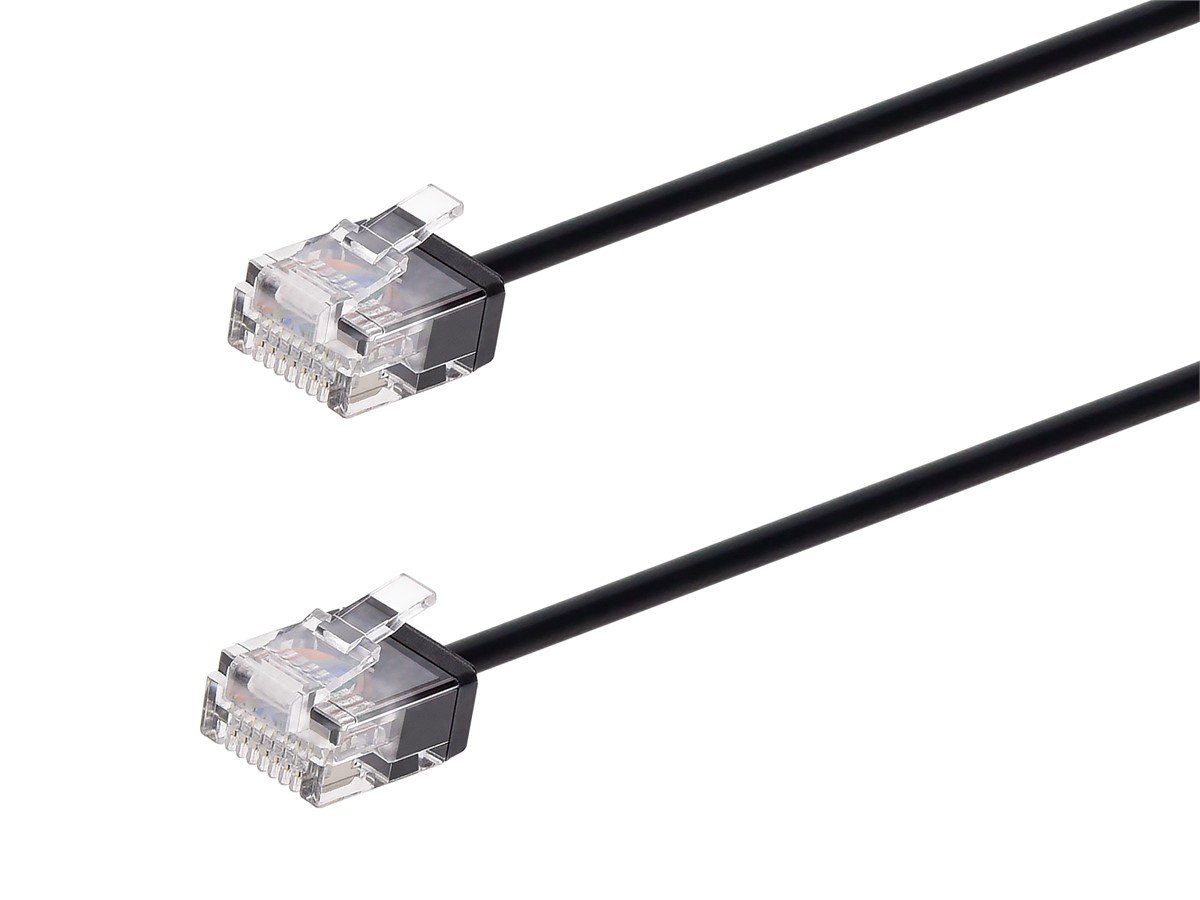
KC-KVM303DH USB Drop Grounded Dual Monitor KVM Switch
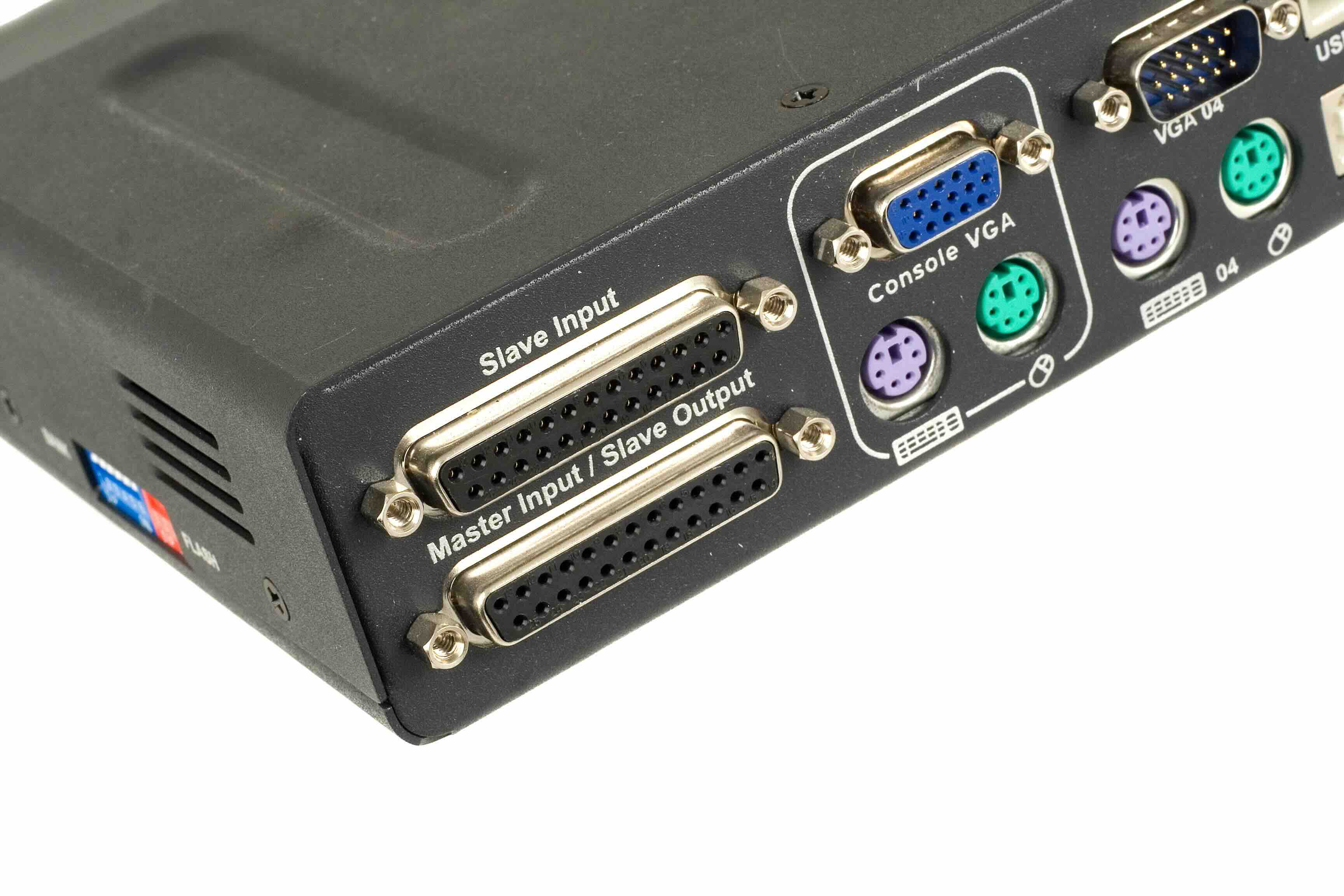
What Is a USB KVM Switch and Why Does It Matter for Your Setup?
So if you've ever found yourself juggling two computers at your desk, switching between keyboards and mice and monitors like some kind of IT acrobat, you already know the problem. It's messy, inefficient, and honestly kind of exhausting. A KVM switch, which stands for Keyboard, Video, and Mouse, solves this by letting you control multiple computers from a single set of peripherals. The KC-KVM303DH from Monoprice is a specific kind of KVM worth paying attention to, and it fits squarely into the USB drop and grounded category, meaning it handles USB connectivity without requiring a powered hub for every port. That's a practical distinction that matters more than people realize until they're mid-setup and frustrated.
Understanding USB Drop and Grounded Technology in KVM Switches
Here's where it gets a little technical, but bear with it because this actually impacts your day-to-day experience. USB drop and grounded refers to how the KVM switch handles USB signaling between connected devices and host computers. In a drop configuration, the switch momentarily drops the USB connection when switching between sources, then re-establishes it. Grounded configurations ensure the electrical reference point, or ground, is maintained consistently across the switch to minimize signal noise and interference. Together, these design principles affect data reliability, peripheral compatibility, and how smoothly devices like keyboards, mice, and USB-powered peripherals respond during and after a switch event. The KC-KVM303DH is engineered with this framework in mind, which puts it in a different category from cheaper, unmanaged options that can cause USB devices to misbehave or go unrecognized after a host switch.
What the KC-KVM303DH Actually Does
The KC-KVM303DH is a dual-monitor KVM switch with USB connectivity built to support two computers sharing a single workstation setup. What separates it from basic models is its support for dual HDMI outputs, which means both of your monitors stay active and fully functional regardless of which computer has control. This is a big deal for anyone running a dual-display workflow, which is pretty much the standard in professional and creative environments at this point. It handles USB peripherals through its drop and grounded USB architecture, supporting reliable keyboard, mouse, and basic USB device handoff between connected systems. You're not fighting your own equipment to get things working every time you switch sources.
Key Technical Specifications Worth Knowing
Before committing to any KVM, it helps to understand what you're actually getting on the spec side. The KC-KVM303DH supports high-definition video output across dual HDMI ports, USB peripheral sharing between two host computers, and hotkey-based switching so you're not reaching for a physical button every time you want to change sources. Compatibility extends to major operating systems including Windows and macOS, which covers the majority of mixed-environment workstations you'd find in offices or home offices today. The USB drop and grounded design contributes to a cleaner signal path, which matters especially if you're using precision peripherals like gaming mice or drawing tablets where latency and recognition accuracy are non-negotiable.
Who Should Be Using This Kind of KVM Switch
The honest answer is that the KC-KVM303DH is built for people who take their workspace seriously. That includes IT professionals managing multiple machines from a single station, remote workers running a personal and work laptop side by side, creative professionals who use one computer for production and another for communication, and small business owners who need to monitor or control two systems without the footprint of two complete setups. Dual-monitor KVM switches in the USB drop and grounded category are also popular in education and training environments where an instructor needs to toggle between demonstration and control machines. Really, if you're running two computers and you're tired of the chaos, this device exists specifically to address that problem.
Advantages of Choosing a USB Drop and Grounded KVM Switch
There are real, measurable benefits to choosing a KVM built around drop and grounded USB technology. Here is what you actually get out of it in practical terms:
- Reduced peripheral confusion when switching between hosts
- Stable ground reference that minimizes electrical noise across connected devices
- Faster re-enumeration of USB devices after a source switch
- Better compatibility with precision input devices
- Dual-monitor support without needing two separate display configurations
- Simplified desk management with fewer cables and no duplicate peripherals
These are not abstract marketing claims. Each of those points reflects a specific pain point that users of lower-quality KVM switches encounter regularly. The design decisions behind USB drop and grounded implementations are responses to real feedback from real users, and the KC-KVM303DH benefits from that engineering discipline.
Common Drawbacks to Be Aware Of
No product is without its tradeoffs and it would be doing you a disservice to skip over this part. The drop behavior in USB drop and grounded KVMs means there is a brief interruption in USB connectivity each time you switch hosts. For most users this is barely noticeable and devices reconnect within a second or two, but if you're running USB audio interfaces or other latency-sensitive equipment, that momentary disconnect can be disruptive. Additionally, the KC-KVM303DH is designed for two-computer setups specifically, so if your needs expand to three or four hosts down the road, you'll need a different solution. Some users also report that certain USB devices with aggressive power management settings can behave inconsistently in drop configurations, so testing your specific peripherals before committing to a workflow is always a good idea.
Practical Tips for Getting the Most Out of Your KVM Switch
Getting the most out of the KC-KVM303DH comes down to setup habits and a little bit of planning. Use high-quality HDMI cables rated for your display's resolution to avoid signal degradation. Assign consistent hotkey sequences and write them down somewhere accessible until switching becomes second nature. If you're using a USB audio interface or similar peripheral, consider keeping it connected directly to one host rather than routing it through the KVM. Keep firmware updated if updates are available, as manufacturers often release patches that improve USB handshake performance. And give the switch a consistent power environment, ideally on a surge-protected outlet, to maintain stable grounding throughout your workstation.
Why Monoprice Is the Right Choice for Your KVM and Workstation Needs
Monoprice has spent years building a reputation as the practical, performance-first choice for IT professionals, integrators, and serious home office users who want quality without overpaying for a brand name. The KC-KVM303DH is a strong example of that philosophy applied directly to a real workspace challenge. If you're looking for a reliable, dual-monitor USB KVM switch that handles peripheral switching cleanly and keeps your workstation organized, this is exactly the kind of product Monoprice was built around delivering. For anyone ready to simplify a multi-computer setup without sacrificing performance or blowing the budget, exploring the full range of professional KVM switches and workstation accessories from Monoprice is a logical and well-supported next step. The quality is there, the value is there, and the product lineup continues to grow around what users actually need in modern working environments.
Frequently Asked Questions About the KC-KVM303DH USB Drop and Grounded KVM Switch
What does USB drop and grounded mean in a KVM switch?
It refers to how the switch manages USB connections during a host change. Drop means the connection is briefly interrupted and then re-established. Grounded means the switch maintains a consistent electrical ground reference to reduce signal noise and improve stability across connected devices.
How many computers can the KC-KVM303DH support?
The KC-KVM303DH supports two host computers, allowing both to share a single set of peripherals and a dual-monitor display configuration through one KVM unit.
Does the KC-KVM303DH support dual monitors?
Yes. It is specifically designed for dual-monitor setups, with two HDMI outputs that keep both displays active and functioning regardless of which host is currently selected.
Will my USB peripherals work correctly after switching hosts?
In most cases, yes. Standard USB keyboards, mice, and basic peripherals re-enumerate quickly after a switch. Latency-sensitive devices like USB audio interfaces may experience brief disruption due to the drop behavior inherent in the USB switching process.
Can I use hotkeys to switch between computers?
Yes. The KC-KVM303DH supports hotkey switching, so you can toggle between connected host computers using a keyboard shortcut without pressing a physical button on the unit.
Is the KC-KVM303DH compatible with both Windows and macOS?
Yes. The switch is compatible with major operating systems including Windows and macOS, making it suitable for mixed-platform workstation environments.
What kind of HDMI resolution does the KC-KVM303DH support?
The switch supports high-definition HDMI video output across its dual ports. Refer to the product specifications for exact resolution and refresh rate ceilings to ensure compatibility with your specific displays.
Do I need external power for the USB ports on the KC-KVM303DH?
The drop and grounded USB design manages signaling without requiring a separately powered hub for standard peripheral operation, though power requirements can vary depending on the connected devices and their draw.
Is the KC-KVM303DH suitable for home office use?
Absolutely. It is well-suited for home office environments where users manage a personal and work computer from a single desk, eliminating the need for duplicate monitors, keyboards, and mice.
What should I do if a USB device is not recognized after switching hosts?
Try disconnecting and reconnecting the peripheral through the KVM. If the issue persists, check the device's power management settings, ensure cable connections are secure, and verify that the KVM firmware is up to date. Some devices with aggressive sleep settings may need configuration adjustments for consistent performance in a drop-based USB switching environment.