

Is an HDMI Cable Used for Both Audio and Video?
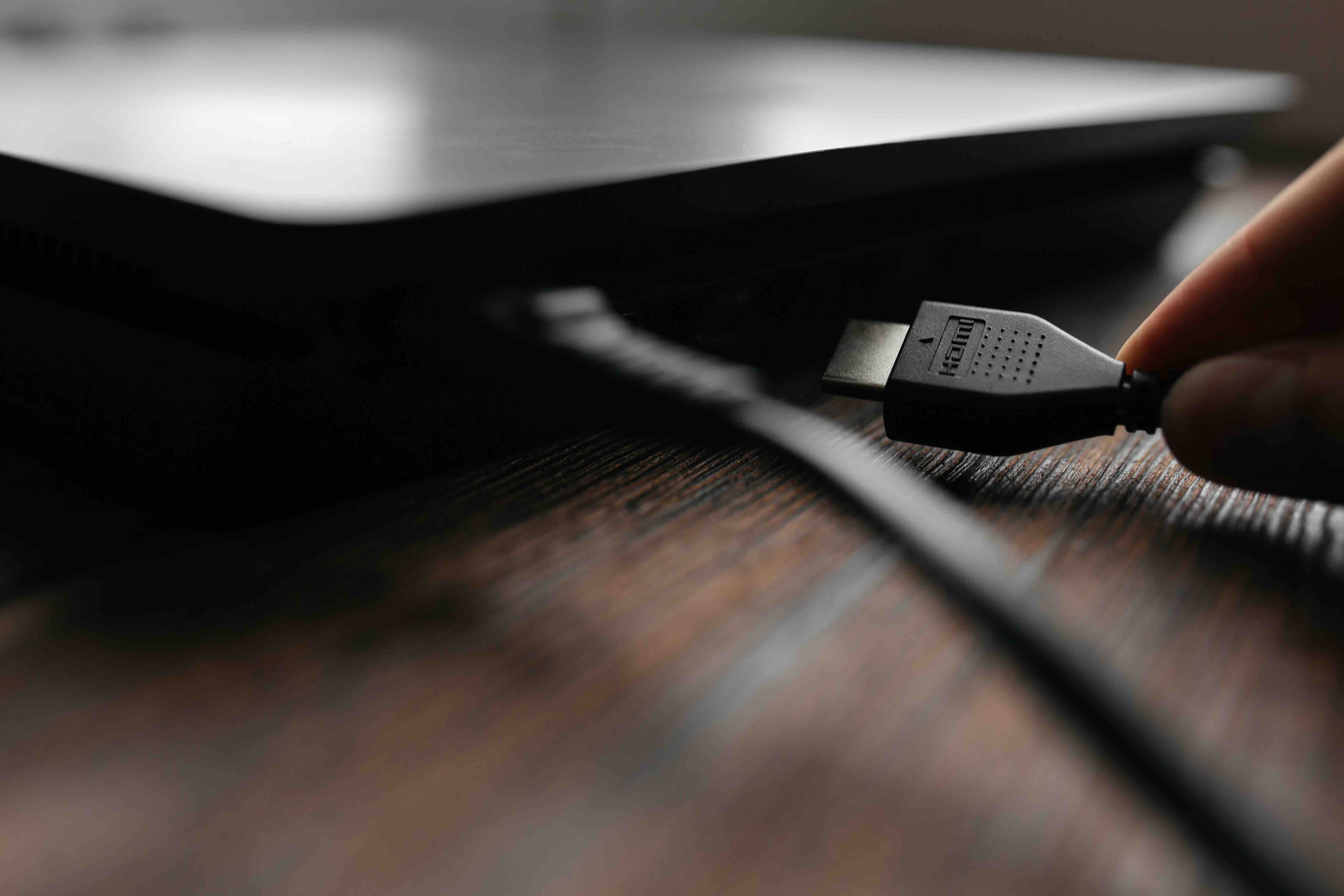
Is an HDMI Cable Used for Both Audio and Video?
Yes, and that single answer is honestly one of the most useful things to know about modern home and professional AV setups. HDMI, which stands for High-Definition Multimedia Interface, carries both audio and video signals through a single cable connection. Before HDMI became the standard, you needed separate cables for video and multiple audio channels. Red, white, and yellow composite connectors, component video cables, optical audio runs, you name it. The wiring was messy and the signal quality was often inconsistent. HDMI changed all of that, and it did so in a way that made things dramatically simpler without sacrificing performance. Whether you are connecting a gaming console to a display, routing a Blu-ray player through an AV receiver, or wiring up a conference room display, one cable handles the whole job. That is the core value of this technology, and it is worth understanding it fully before making any purchasing decisions.
How HDMI Combines Audio and Video Into One Signal
The technical side of this is actually worth a quick explanation because it clears up a lot of confusion people have when they first look at cable specs. HDMI uses a protocol called TMDS, Transition Minimized Differential Signaling, to carry high-bandwidth digital data. Inside that data stream, audio and video information are encoded together and transmitted simultaneously. The receiving device, your TV, projector, or AV receiver, decodes that combined signal and routes the audio and video to the appropriate outputs. This is fundamentally different from analog connections where audio and video had to travel on physically separate conductors. What makes this especially impressive is that a single HDMI cable can carry lossless surround sound formats like Dolby TrueHD and DTS-HD Master Audio alongside 4K or even 8K video, all at the same time, without any compromise to either signal. It is a genuinely elegant engineering solution.
The Different Versions of HDMI and What They Support
Not all HDMI cables are created equal, and the version number actually matters quite a bit when you are choosing a cable for a specific application. Here is a quick breakdown of what the major versions support in terms of audio and video capability:
- HDMI 1.4 supports 4K at 30Hz, 3D video, and Audio Return Channel (ARC)
- HDMI 2.0 supports 4K at 60Hz, High Dynamic Range (HDR), and up to 32 audio channels
- HDMI 2.1 supports 8K at 60Hz, 4K at 120Hz, Enhanced Audio Return Channel (eARC), and Variable Refresh Rate (VRR)
- Ultra High Speed HDMI cables are required to take full advantage of HDMI 2.1 bandwidth
The jump from ARC to eARC in HDMI 2.1 is particularly relevant if you care about audio quality. eARC allows for the transmission of uncompressed surround sound formats, which is something ARC simply cannot do. If you have a high-end soundbar or AV receiver, and you want to pass Dolby Atmos in its full, uncompressed form from your TV back to that device, you need an HDMI 2.1 cable connected to an eARC-enabled port. This is one of those specs that gets overlooked until someone wonders why their soundbar is not performing the way it should.
Key Advantages of Using HDMI for Audio and Video
There are real, practical benefits to using a single HDMI cable for both audio and video, and they go beyond just cable management. Here is what makes HDMI such a consistently reliable choice:
- Simplified setup with a single cable instead of multiple runs
- Digital signal integrity with no analog signal degradation over supported distances
- Support for high-resolution audio formats including Dolby Atmos and DTS:X
- Automatic device communication through CEC, allowing one remote to control multiple devices
- Support for HDR video formats including HDR10, Dolby Vision, and HLG
- Scalable technology with each new version expanding bandwidth and feature support
CEC is one of those underrated features worth calling out specifically. Consumer Electronics Control allows connected devices to send commands to one another over the HDMI connection. Turn on your Blu-ray player, and your TV powers on automatically. It sounds like a small thing but in practice it is a quality of life improvement that people genuinely appreciate once they experience it.
Common Drawbacks to Be Aware Of
HDMI is not without its limitations, and knowing them upfront prevents frustration down the road. Cable length is probably the most commonly encountered issue. Standard passive HDMI cables begin to degrade signal quality beyond roughly 25 feet. For longer runs, you will need an active cable with built-in signal boosting, a fiber optic HDMI cable, or an HDMI extender over Cat6 or Cat7. Another thing to be aware of is port compatibility. Not every HDMI port on every device supports eARC or HDMI 2.1 bandwidth. Manufacturers often include one HDMI 2.1 port alongside several older HDMI 2.0 ports on the same TV, and plugging into the wrong one will limit your audio or video capability without any obvious error message. Always check which port corresponds to the spec you need. Finally, while HDMI is broadly backward compatible, using an older cable with a newer device can create performance ceilings that leave features on the table.
HDMI vs. DisplayPort vs. Optical: Which Should You Use?
This comes up constantly, and the honest answer depends entirely on your use case. DisplayPort, which is common on PC monitors and graphics cards, supports extremely high refresh rates and is often preferred in gaming and professional display setups. However, DisplayPort does not support ARC or eARC, which means it cannot send audio back from a display to a receiver without additional hardware. Optical audio cables, like TOSLINK, handle audio only and are limited to compressed formats, which rules out lossless Dolby TrueHD or DTS-HD Master Audio. HDMI, when properly specced, handles both audio and video with full feature support and remains the best single-cable solution for home theater, streaming, and most professional AV environments. If you are working in a purely PC gaming setup with no AV receiver in the chain, DisplayPort has merit. Otherwise, HDMI is the more versatile standard across more scenarios.
Practical Tips for Getting the Best Performance From Your HDMI Cable
A few habits make a real difference in how well your HDMI setup performs over time. First, always match your cable version to the requirements of your devices. Using a High Speed cable when you need Ultra High Speed HDMI 2.1 bandwidth will throttle your performance. Second, inspect connector ends before purchasing and after installation. Poor connector quality leads to intermittent signal drops, which are notoriously difficult to diagnose. Third, for runs over 15 feet, consider an active cable or a certified optical fiber HDMI cable rather than a passive one. Fourth, plug into the correct port on your display or receiver. Check your device manual to identify which HDMI input supports the spec you need. Finally, avoid sharp bends and cable stress at connection points. While HDMI cables are reasonably durable, repeated mechanical stress at connectors is the most common cause of long-term failure.
Who Benefits Most From Understanding HDMI Audio and Video Capabilities
Truthfully, nearly everyone using a modern display benefits from understanding this, but certain groups have more at stake. Home theater enthusiasts building a Dolby Atmos setup need to know about eARC and cable bandwidth to get the audio experience they are paying for. Gamers need to understand how HDMI 2.1 supports 4K at 120Hz and VRR to fully utilize their console or GPU's output. AV integrators and installers working in commercial environments need to spec cables accurately to avoid callbacks and rework. IT professionals setting up conference room displays, video walls, or hybrid collaboration systems need to account for cable runs, signal integrity, and port compatibility. The knowledge gap in this area is real, and it consistently leads to setups that underperform simply because the cable was not matched properly to the application.
Why Monoprice Is the Right Source for HDMI Cables and AV Connectivity
When it comes to sourcing HDMI cables that actually deliver on their specs, Monoprice has built a reputation that professionals and everyday users consistently rely on. Every cable in the Monoprice lineup is engineered to meet real-world performance demands, not just pass a spec sheet. Whether you need a short Ultra High Speed HDMI 2.1 cable for a gaming setup or a longer active optical run for a commercial installation, the options are there at pricing that makes sense for both single purchases and bulk procurement. Monoprice cables are certified where certification matters, backed by strong warranties, and built to the tolerances that high-bandwidth audio and video applications require. If you are ready to equip your setup with reliable, performance-matched connectivity, explore the full range of high-speed HDMI cables for audio and video from Monoprice and find the exact spec your system needs without overpaying for a brand name that adds nothing to performance. This is where value and quality actually meet, and for integrators managing multi-room installs or consumers building a proper home theater on a budget, that combination matters more than most people initially realize.
Frequently Asked Questions About HDMI Audio and Video
Does an HDMI cable carry both audio and video at the same time?
Yes. HDMI is designed to transmit both audio and video signals simultaneously through a single cable. The combined digital data stream is decoded by the receiving device and routed to the appropriate outputs.
What audio formats does HDMI support?
HDMI supports a wide range of audio formats including PCM stereo, Dolby Digital, DTS, Dolby TrueHD, DTS-HD Master Audio, and Dolby Atmos. The specific formats supported depend on the HDMI version and the capabilities of the connected devices.
What is the difference between ARC and eARC on HDMI?
ARC, or Audio Return Channel, allows audio to travel from a TV back to a receiver or soundbar over HDMI, but it is limited to compressed audio formats. eARC, found on HDMI 2.1 ports, supports uncompressed audio including Dolby TrueHD and Dolby Atmos in full quality.
Do I need a special HDMI cable for 4K or 8K video?
Yes. For 4K at 60Hz, a High Speed or Premium High Speed HDMI cable is required. For 4K at 120Hz or 8K at 60Hz, you need an Ultra High Speed HDMI cable rated for 48Gbps bandwidth.
Can HDMI cables degrade in quality over longer distances?
Passive HDMI cables can experience signal degradation beyond approximately 25 feet. For longer runs, active HDMI cables, fiber optic HDMI cables, or HDMI extenders over structured cabling are recommended to maintain signal integrity.
Is HDMI better than optical audio for sound quality?
In most cases, yes. Optical audio is limited to compressed formats and cannot carry lossless surround sound. HDMI, particularly with eARC, supports uncompressed audio formats that deliver higher fidelity than optical connections allow.
Will an older HDMI cable work with a newer HDMI 2.1 device?
An older cable will connect and function, but it will limit performance to the bandwidth of that cable. You will not be able to access the full resolution, refresh rate, or audio capabilities that HDMI 2.1 provides unless you use a certified Ultra High Speed cable.
What is CEC in HDMI and how does it affect audio and video control?
CEC stands for Consumer Electronics Control. It allows HDMI-connected devices to communicate with and control one another. For example, powering on one device can automatically power on connected displays or receivers, streamlining operation across a multi-device setup.
Can I use HDMI to connect a TV to an AV receiver for better audio?
Yes, and this is one of the most common home theater configurations. Connecting your source devices to an AV receiver via HDMI, then routing the output to your TV, allows the receiver to decode and amplify audio while passing video to the display.
How do I know which HDMI port on my TV supports eARC?
Check the label printed next to each HDMI port on the back of your TV. The eARC-compatible port is typically labeled with both "ARC" and "eARC" or simply "eARC." Refer to your TV's user manual if the labeling is unclear, as only one port on most televisions supports this feature.


