

How to Plug In an Ethernet Cable the Right Way
What Is an Ethernet Cable and Why Does It Still Matter?
So before we even get into the plugging-in part, let's take a step back. An Ethernet cable is a physical networking cable used to connect devices to a local area network, a router, a modem, or a network switch. You have probably seen them before, maybe coiled up behind a desk or running along the edge of a wall. They are the cables that look a little like a phone cord but slightly wider. Despite the rise of Wi-Fi, Ethernet cables remain one of the most reliable ways to get a fast, stable internet connection. Wi-Fi is convenient, sure, but a wired connection almost always wins when it comes to consistency, latency, and raw speed. That matters whether you are gaming, working from home, editing video, or running a business network. The cable itself is only part of the equation, though. Knowing how to properly connect one makes all the difference.
Getting Familiar with the Parts of an Ethernet Cable
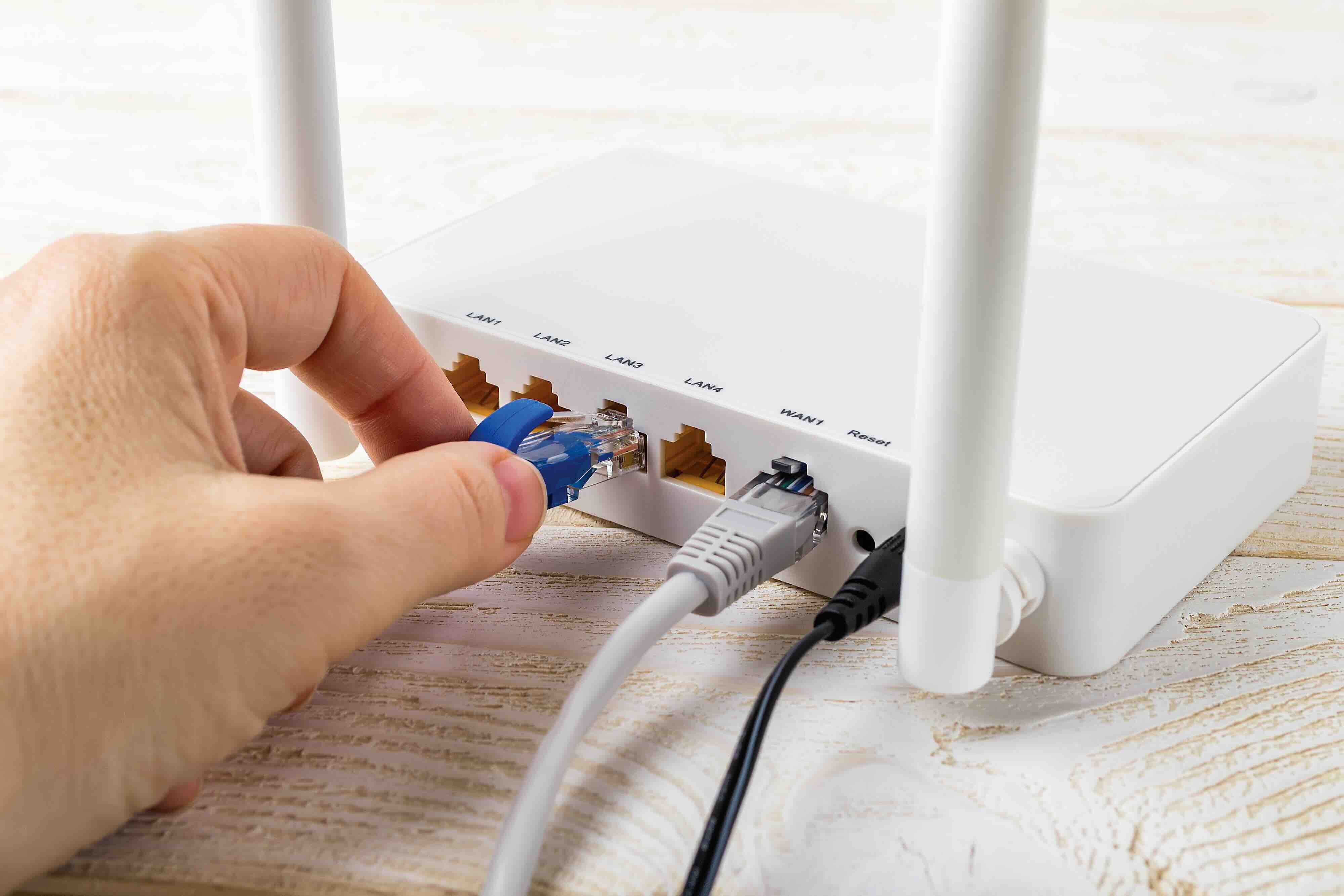
An Ethernet cable has two ends, and each end is fitted with a connector called an RJ45 plug. It is a small, clear plastic connector with eight small gold-plated pins visible at the tip. On the other side, the jack, which is the port on your device or router, has a small plastic tab inside that locks the connector in place once inserted. You will also notice a little release clip on the top of the RJ45 plug. That clip is what you press when you want to remove the cable. It is small, sometimes a little fragile, and worth handling with some care. The cable itself comes in different categories, like Cat5e, Cat6, Cat6A, and Cat8, each supporting different speeds and bandwidths. For most home and office setups, Cat6 is the practical sweet spot, offering solid Gigabit performance without overspending.
How to Plug In an Ethernet Cable, Step by Step
Alright, here is the actual process. It is straightforward, genuinely simple once you know what you are looking at, and should take about thirty seconds once you are positioned correctly.
- Hold the RJ45 connector with the release clip facing down and the gold pins facing up toward you
- Locate the Ethernet port on your device, whether that is a laptop, desktop, gaming console, smart TV, or router
- Line up the connector with the port carefully, making sure the orientation is correct
- Push the connector firmly into the port until you hear or feel a distinct click
- That click means the locking tab has engaged and the cable is secured
- Give the cable a gentle tug to confirm it will not pull out accidentally
- On your device, check for a connection indicator light, which is usually green or amber, near the port itself
That is genuinely it. If you do not hear a click, the cable is not fully seated. Try again with a bit more pressure. If the port light does not illuminate, check whether the other end is connected properly and whether the router or switch is powered on.
Connecting the Other End to Your Router or Switch
The process for the other end is identical. Your router or network switch will have multiple Ethernet ports, sometimes labeled LAN or numbered 1 through 4 or more. Any available port will work for a standard connection. On a router, avoid the WAN or Internet port unless you are connecting a modem directly. For a typical device-to-router connection, just pick any open LAN port, orient the RJ45 plug correctly, and push until it clicks. Check the indicator lights on the router as well. Most routers have small LEDs next to each port that confirm an active link. A steady or blinking light generally means the connection is live and communicating.
Key Advantages of Using a Wired Ethernet Connection
People underestimate wired connections in a wireless-first world, but the advantages are real and measurable. Here is why plugging in actually pays off.
- Significantly lower latency compared to Wi-Fi, which is critical for gaming and real-time communication
- More consistent speeds with fewer drops or interference issues
- Better security since wired connections are harder to intercept than wireless signals
- Higher bandwidth ceilings with newer cable categories like Cat6A and Cat8
- No signal degradation from walls, appliances, or neighboring wireless networks
- Ideal for bandwidth-intensive tasks like 4K streaming, large file transfers, and video conferencing
For IT professionals and home power users alike, these are not small advantages. They are the difference between a setup that just works and one that becomes a source of daily frustration.
Common Drawbacks to Be Aware Of
Ethernet is not without limitations. The most obvious one is mobility. You are tethered to a physical cable, which means your device needs to stay within reach of the port. Cable management can also become a real consideration in larger setups, especially in offices or multi-room home networks. Cable runs need to be planned, potentially routed through walls or along baseboards, which takes time and sometimes professional installation. Older devices may not have Ethernet ports at all, particularly thin laptops and tablets, which would then require a USB-C or USB-A to Ethernet adapter. Beyond that, the cables themselves can be damaged over time if they are pinched, bent sharply, or exposed to environmental stress. Using quality cables from the start helps prevent these issues down the line.
Tips for Getting the Most Out of Your Ethernet Setup
A few practical habits make a real difference in long-term performance and cable health. Always avoid bending Ethernet cables at sharp angles, which can damage the internal wiring even if the outer jacket looks fine. Keep cables away from power lines where possible to reduce electromagnetic interference. Use cable management clips or velcro ties to organize runs cleanly and prevent accidental stress on connectors. If you are running cables across longer distances in a home or office, measure before you buy. A cable that is too short creates tension on the connectors, and one that is excessively long creates clutter and a small amount of signal drag. For patch cable applications close to a desk, something in the one to three foot range is usually ideal. For longer runs, Cat6 supports up to 328 feet at full Gigabit performance.
Troubleshooting When Your Ethernet Connection Does Not Work
It happens occasionally. You plug everything in, nothing lights up, and the connection just does not register. First, check both ends of the cable and make sure they are fully seated. A partially inserted connector is one of the most common issues and easiest to fix. Next, swap the cable if you have a spare to rule out a defective cable. Check that your router or switch is powered on and functioning. On a Windows device, navigate to the Network Settings to confirm the adapter is enabled. On a Mac, check System Preferences under Network. If the adapter shows connected but there is no internet access, the issue may be with the router configuration or the internet service itself rather than the physical cable connection. Restarting the router often resolves this quickly.
Why Monoprice Is the Right Source for Your Ethernet Cables and Networking Gear
When it comes to building out a reliable, high-performance network, the quality of your cables and connectors is not somewhere you want to cut corners on the wrong end. Monoprice has built a well-earned reputation as a trusted source for networking infrastructure, offering Cat5e, Cat6, Cat6A, and beyond at pricing that makes professional-grade performance accessible whether you are outfitting a single home office or a full enterprise floor. For anyone looking to invest in high-performance Ethernet cables and networking solutions that balance quality with real-world value, Monoprice delivers exactly that, consistently. Every cable is built to spec, backed by solid warranties, and designed to perform in the setups that actually matter to you. No inflated markups, no compromises on construction. Just cables that click in properly, hold their connection, and keep your network running the way it should.
Frequently Asked Questions
How do you know if an Ethernet cable is properly plugged in?
You will hear or feel a distinct click when the RJ45 connector locks into the port. Most devices and routers also show an indicator light near the port that confirms an active connection.
Which way does an Ethernet cable plug in?
The release clip on the RJ45 connector should face downward when inserting into a standard horizontal port. The gold pins should be visible on the top side facing you. Align carefully before pushing in.
Why is my Ethernet cable plugged in but not working?
Check that both ends are fully seated and clicked in. Try a different cable to rule out damage. Ensure the router or switch is powered on. On your device, confirm the network adapter is enabled in system settings.
Can you damage an Ethernet port by plugging in incorrectly?
Forcing an improperly oriented connector can bend the pins inside the port. Always align the connector correctly before applying pressure to avoid damaging the jack.
What is the difference between Cat5e, Cat6, and Cat6A?
Cat5e supports speeds up to 1 Gbps at 100 meters. Cat6 supports 1 Gbps at 100 meters and 10 Gbps at shorter runs. Cat6A supports 10 Gbps at the full 100-meter distance with better shielding against interference.
Do all devices have Ethernet ports?
Not all modern devices include a built-in Ethernet port, particularly slim laptops and tablets. In those cases, a USB-C or USB-A to RJ45 adapter allows you to connect a standard Ethernet cable.
Is Ethernet faster than Wi-Fi?
In most real-world conditions, yes. Ethernet provides lower latency, more consistent speeds, and fewer interference issues compared to Wi-Fi, making it the preferred choice for performance-sensitive applications.
How long can an Ethernet cable be before it loses signal quality?
For Cat5e, Cat6, and Cat6A, the maximum recommended run length is 328 feet or 100 meters before signal degradation becomes a concern. For longer distances, network switches or signal repeaters are used.
Can you leave an Ethernet cable plugged in all the time?
Yes, Ethernet cables are designed for continuous use. There is no risk to leaving a cable connected indefinitely, though periodic inspection for physical wear or connector damage is a good maintenance practice.
What happens if you use a lower category cable with a faster router?
The connection will default to the maximum speed supported by the cable, not the router. Using a Cat5e cable on a Gigabit router will still work but may limit throughput compared to a Cat6 or Cat6A cable at the same run length.


