

How to Connect Your PC to TV with HDMI: Easy Setup Guide
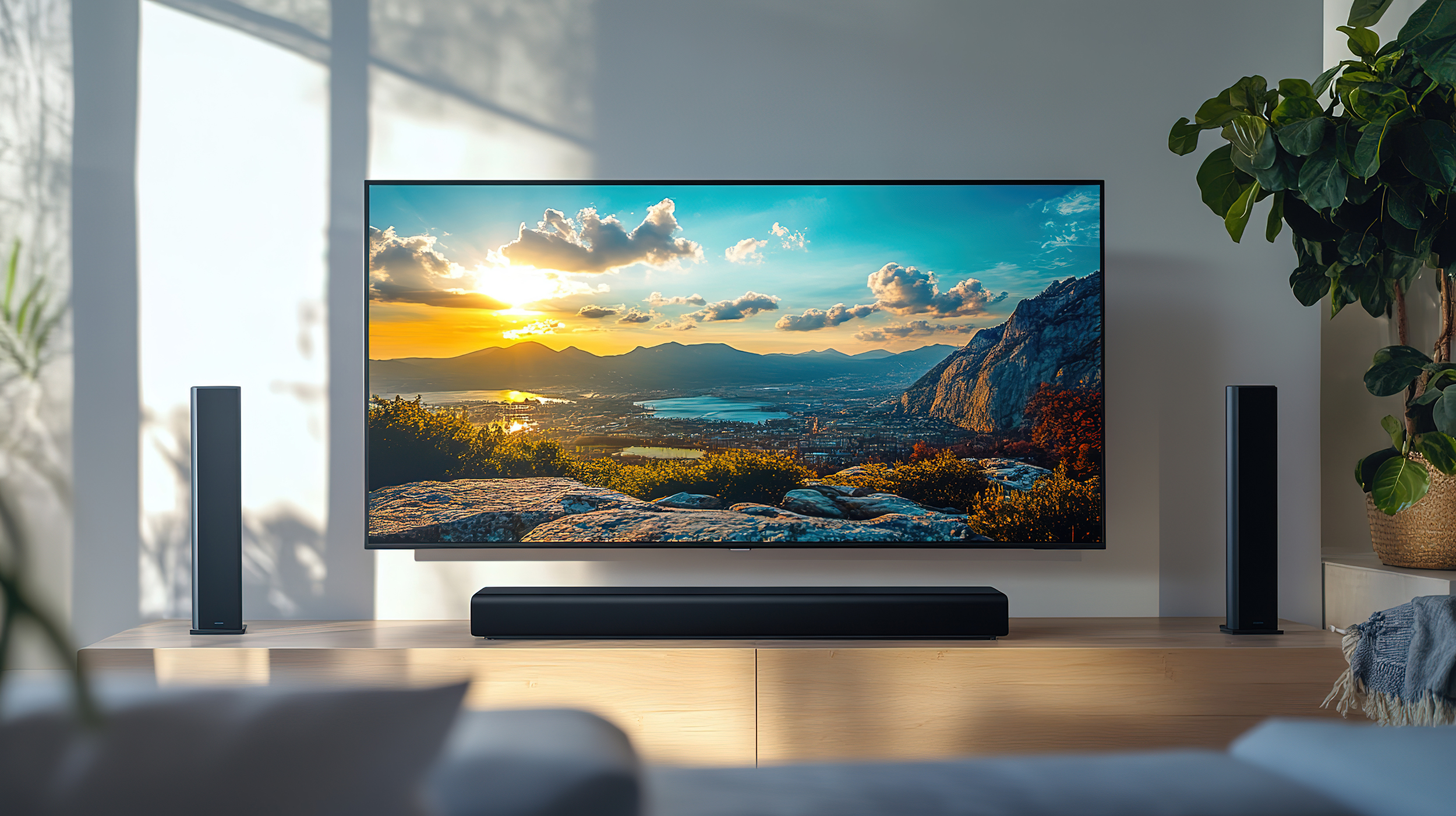
How to Connect Your PC to Your TV Using an HDMI Cable
So you want to get your PC up on the big screen. Maybe it is for a movie night, a presentation, gaming, or just browsing with a little more real estate. Whatever the reason, connecting your computer to your television using an HDMI cable is one of the most straightforward things you can do in the world of home AV setup. No drivers to hunt down, no complicated menus to dig through. Just a cable, two ports, and a few seconds of configuration. This guide walks through everything you need to know, from identifying the right cable to adjusting your display settings once everything is plugged in.
What Is a PC to TV HDMI Cable and Why Does It Matter
HDMI stands for High-Definition Multimedia Interface. It is the industry standard for transmitting both high-definition video and audio through a single cable. When you use a PC to TV HDMI cable, you are sending a combined signal from your computer directly to your television without needing separate audio cables or converters. That matters because it simplifies the setup considerably. The technology supports resolutions ranging from standard 1080p all the way up to 4K and beyond, depending on what your hardware supports. What makes HDMI particularly practical is that it is bidirectional in terms of compatibility. Whether you have a Windows desktop, a gaming laptop, or a Mac with the right adapter, HDMI works as a universal bridge between your computing environment and your display.
What You Need Before You Start
Before running any cable, take a moment to check what you are actually working with. Not every setup is identical, and knowing your equipment saves time. Here is a quick checklist to run through before anything else.
Check your PC for an HDMI output port, which is typically located on the back of a desktop tower or along the side of a laptop Confirm your TV has an available HDMI input port and note which number it is labeled, such as HDMI 1 or HDMI 2 Measure the distance between your PC and your TV to make sure you purchase a cable that is long enough without creating slack all over the floor Determine whether you need a standard HDMI cable or a high-speed HDMI cable if you plan on running 4K content or higher refresh ratesIf your PC does not have a full-size HDMI port but has a DisplayPort, USB-C, or Mini DisplayPort output, you will need an appropriate adapter or a cable with one end configured for that connector type. This is a common situation with newer laptops and is not a problem as long as you plan for it in advance.
Step-by-Step Guide to Connecting Your PC to Your TV via HDMI
The actual connection process is fast. Power both devices on, or keep them on if they are already running. Plug one end of the HDMI cable into the HDMI output port on your PC. Plug the other end into an open HDMI input port on your television. Use your TV remote to switch the input source to the correct HDMI channel. Your TV should detect the signal from your PC almost immediately. If it does not display anything within a few seconds, try pressing the Windows key plus P on a Windows machine to bring up display projection options. From that panel you can choose to duplicate the display, extend it, or show content on the second screen only. On a Mac, go to System Settings, navigate to Displays, and from there you can manage how the TV is being used as an extended or mirrored display. That is really the entire physical process. Where people sometimes get stuck is in the settings after the fact, which is worth addressing separately.
Adjusting Display and Audio Settings After Connection
Once your TV is showing the PC output, you may notice the resolution looks off or the audio is still coming from your computer speakers instead of the television. Both are easy fixes. For resolution, right-click on the desktop on a Windows machine, select Display Settings, and adjust the resolution to match the native resolution of your TV. Most modern TVs are either 1080p or 4K, so select accordingly. For audio, navigate to the Sound settings in your control panel or taskbar and switch the output device to your television, which will appear as an HDMI Audio Device or by your TV's model name. On a Mac, go to System Preferences, click Sound, and under the Output tab select your TV from the list of available devices. Once both are set correctly, your PC is effectively operating through your TV, both visually and aurally.
Key Advantages of Using HDMI to Connect PC to TV
There are a handful of reasons why HDMI consistently remains the go-to choice for this kind of connection. It is not just legacy familiarity. The technology genuinely delivers across several practical categories.
Single cable carries both audio and video, which eliminates clutter and reduces setup complexity Supports high-definition resolutions including 1080p, 4K, and with newer HDMI versions, even 8K Works natively on most modern PCs and televisions without requiring any software installation HDMI cables are widely available, affordable, and backward compatible with older versions of the standard Allows the TV to function as a full PC monitor for gaming, streaming, or productivity useFrom a pure performance standpoint, a quality HDMI cable delivers a clean, uncompressed digital signal. There is no signal degradation the way you might see with older analog connections. What your PC generates is exactly what your TV displays.
Common Drawbacks and Limitations to Know
No solution is perfect, and HDMI connections between a PC and TV come with a few things worth knowing in advance. Cable length is one factor. Standard HDMI cables begin to lose signal integrity beyond fifteen to twenty feet, depending on build quality. If your setup requires a long run, look for cables specifically rated for longer distances or consider a signal booster. Another point is HDMI version compatibility. If your TV supports 4K at 120Hz but your cable is only rated for an older HDMI spec, you will not get the full performance benefit. Always verify that your cable version aligns with the capabilities of both your source device and your display. Lastly, some televisions add input lag processing that can feel slightly sluggish compared to a dedicated PC monitor. If you are gaming competitively, look for a Game Mode setting in your TV's menu to reduce that latency.
Tips for Getting the Best Picture and Sound Quality
A few small adjustments can make a noticeable difference in how the final output actually looks and sounds. First, always set your TV to the correct input mode. Many televisions have a PC or Computer mode in their settings that disables post-processing effects designed for broadcast video. These effects can introduce blur or color shifts that look unnatural when your source is a PC. Second, match the refresh rate in your PC display settings to what your TV supports. Running 60Hz content on a 60Hz panel is cleaner than letting the system default to something mismatched. Third, if your TV supports HDR and your graphics card outputs HDR, enable it on both ends for richer contrast and color depth on supported content. The HDMI cable itself needs to be rated for HDR passthrough to take full advantage of this, which is another reason cable specification matters more than people typically assume.
Choosing the Right HDMI Cable for Your PC to TV Setup
Not all HDMI cables perform the same, and buying based on price alone can leave performance on the table. For basic 1080p use cases, a Standard HDMI cable is completely adequate. For 4K at 60Hz, look for a High Speed HDMI cable. If you are working with 4K at 120Hz, 8K content, or Variable Refresh Rate gaming, Premium High Speed or Ultra High Speed HDMI is the correct category. Cable length, shielding quality, and connector build all contribute to signal reliability, especially over longer runs. It is worth investing in a cable that is rated appropriately for your hardware rather than buying down and wondering later why something is not working as expected.
Why Monoprice Is the Right Choice for Your PC to TV HDMI Cable
When it comes to sourcing the right cable for this kind of setup, Monoprice has built a well-earned reputation for delivering high-performance connectivity solutions without the inflated pricing that comes with brand-name alternatives. Every cable is engineered to spec, tested for signal integrity, and available across the full range of HDMI versions, so whether you need a basic 1080p run or a high-speed 4K HDR connection between your gaming rig and your television, there is a product that fits. Monoprice is a trusted source for anyone who wants professional-grade performance without overpaying, and their catalog covers everything from compact three-foot cables to longer runs with robust shielding. If you are ready to upgrade your home display setup, explore the full selection of high-speed PC to TV HDMI cables for crystal-clear home display connections and find exactly what your configuration requires. The setup is easy. The results are immediate. And the value is genuinely hard to match anywhere else in the market.
Frequently Asked Questions About Connecting a PC to a TV with HDMI
Does connecting a PC to a TV with HDMI require any special software?
No. HDMI is a plug-and-play connection. Your operating system will detect the TV as a second display automatically once the cable is connected. You may need to adjust display and audio settings manually, but no additional software or drivers are required.
Will my TV work as a monitor if I connect it to my PC via HDMI?
Yes. Once connected, your TV functions as a fully usable PC display. You can extend your desktop, mirror your screen, or use the TV as your primary or only monitor depending on your preferences.
Why is there no sound coming from my TV after connecting the HDMI cable?
Your PC may still be routing audio to its internal speakers or another output device. Go to your Sound settings and manually switch the output to your TV, which should appear as an HDMI audio device in the list of available outputs.
What HDMI cable do I need for 4K resolution between my PC and TV?
For 4K at 60Hz, a High Speed HDMI cable is sufficient. For 4K at 120Hz or higher refresh rates, you will need a Premium High Speed or Ultra High Speed HDMI cable that supports the necessary bandwidth.
How long can an HDMI cable be before the signal degrades?
Standard HDMI cables generally perform reliably up to about fifteen to twenty feet. Beyond that, signal integrity can drop. For longer runs, use cables rated for extended distances or add a signal booster to maintain quality.
Can I connect a laptop to a TV using HDMI if the laptop only has a USB-C port?
Yes. You will need a USB-C to HDMI adapter or a USB-C to HDMI cable. Make sure the USB-C port on your laptop supports video output, as not all USB-C ports are configured for DisplayPort or HDMI signal transmission.
Will connecting my PC to a TV via HDMI affect gaming performance?
It can. Many TVs apply image processing that introduces input lag. Most modern TVs include a Game Mode that reduces this lag significantly. Enable Game Mode in your TV settings when using your PC for gaming to improve response times.
Can I use HDMI to connect my PC to an older TV?
If your older TV has an HDMI input port, yes. HDMI is backward compatible, so a newer cable will work with older HDMI-equipped televisions. If the TV does not have HDMI at all, you will need a converter or adapter for a different connection type.
Does HDMI support HDR when connecting a PC to a TV?
Yes, provided your graphics card outputs HDR, your TV supports HDR, and your HDMI cable is rated to carry that signal. You will also need to enable HDR in both your PC display settings and your TV settings for it to take effect.
Is there a difference between the HDMI port on a graphics card and the one on a motherboard?
Yes. The HDMI port on a dedicated graphics card outputs signal from the GPU, which is typically more capable and better suited for gaming or high-resolution content. The motherboard HDMI port uses integrated graphics and may have limitations on resolution, refresh rate, and HDR support.


