

How to Connect Your PC to a TV With HDMI Easily and Fast
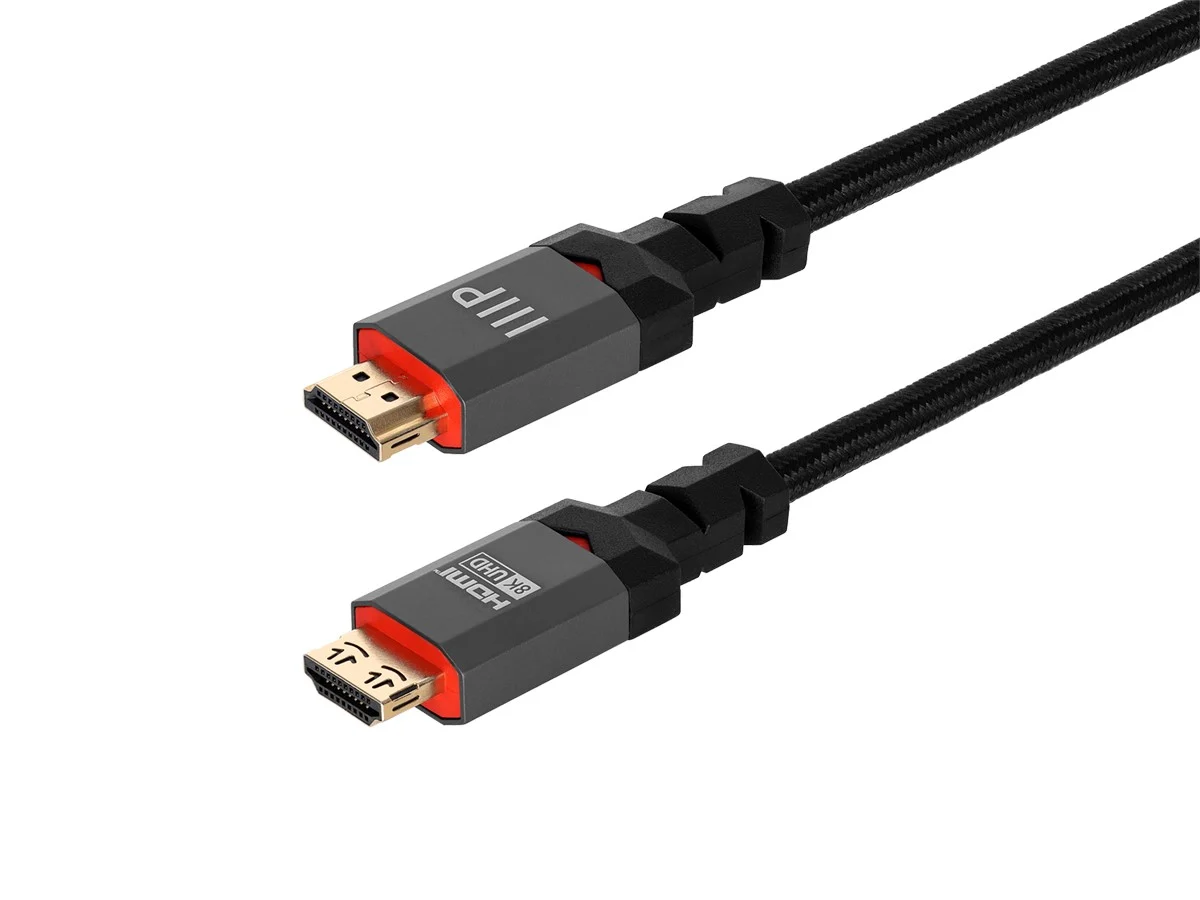
Why Connecting Your PC to a TV With HDMI Still Makes Perfect Sense
There is something satisfying about getting your PC screen up on a larger display without any wireless fuss or app installs. Honestly, HDMI is still one of the most reliable, straightforward ways to do exactly that. Whether you are trying to stream content on a 65-inch panel, give a presentation in the living room, or just want more screen real estate for work -- a single HDMI cable handles the job cleanly and without much thought. The signal is digital, the audio travels with the video, and the whole setup takes maybe five minutes if you know what you are doing. This guide walks through everything you need to know to connect your PC to a TV using HDMI, from checking your ports to dialing in the display settings.
What HDMI Actually Does and Why It Matters
HDMI stands for High-Definition Multimedia Interface. It is a single-cable solution that transmits both high-definition video and multi-channel audio from a source device to a display. For PC-to-TV setups, that means you are sending your full desktop output -- resolution, color depth, refresh rate, and audio -- all through one connection. No separate audio cable, no analog signal degradation, no complicated adapter chains in most cases. Modern HDMI versions like HDMI 2.0 and 2.1 support resolutions up to 4K and even 8K at higher refresh rates, which makes this standard more relevant now than it has ever been. The reliability of a wired connection also cannot be overstated. Wireless screen mirroring still introduces latency and compression artifacts that a direct HDMI connection simply avoids.
Checking Your Ports Before You Do Anything Else
Before grabbing a cable, take a moment to look at both devices. Most modern desktop PCs and laptops have a full-size HDMI port, but some ultrabooks and newer laptops may only offer Mini HDMI or USB-C with DisplayPort Alt Mode. On the TV side, check how many HDMI inputs are available and note which ones are labeled as HDMI 2.0 or 2.1 -- those ports typically support higher bandwidth and better performance. If your PC only has a DisplayPort or USB-C output, you will need an appropriate adapter or cable that bridges the format to HDMI. These adapters work well for most use cases, though for high-refresh or high-resolution output, make sure the adapter is rated for the bandwidth you need. Also confirm whether your GPU or integrated graphics supports HDMI output directly, since some older systems only output video through specific ports.
The Step-by-Step Process to Connect PC to TV With HDMI
The actual connection process is about as simple as it gets once your ports are confirmed. Here is a clean rundown of what to do:
Power down or sleep your TV before connecting if you want to avoid any display flicker during handshake. Plug one end of the HDMI cable into your PC's HDMI output port. Plug the other end into an available HDMI input on your TV. Power on the TV and select the correct HDMI input using the remote. On your PC, right-click the desktop and open Display Settings on Windows or System Preferences then Displays on macOS. Choose whether to duplicate, extend, or use only the TV as your display. Adjust resolution and refresh rate to match what your TV supports natively. Confirm audio is routing through HDMI by checking your sound output settings.
That is genuinely all there is to it in most scenarios. The system recognizes the TV as an external monitor and handles the rest automatically.
Configuring Display Settings for the Best Picture Quality
Getting the connection working and getting it working well are two slightly different things. Once you are connected, open your display settings and verify the resolution matches your TV's native resolution -- typically 1920x1080 for 1080p TVs or 3840x2160 for 4K panels. Setting a resolution lower than native will result in a noticeably softer image. Refresh rate matters too, especially if you plan to use the TV for gaming or video playback. Most TVs support 60Hz over HDMI, and HDMI 2.1 capable setups can push 120Hz at 4K. One thing that often gets overlooked is the TV's picture mode settings. Many TVs apply excessive post-processing by default, which adds input lag and can alter color accuracy. Switching to a Game Mode or PC Mode on the TV itself usually disables that processing and gives you a cleaner, more responsive image.
Getting Audio to Work Correctly Over HDMI
Audio is where some people hit a snag. Windows does not always automatically switch the default audio output to the HDMI device after you connect. To fix this, right-click the speaker icon in the system tray, open Sound Settings, and look for your TV listed as an audio output option -- it usually shows up as the TV's brand name or as a generic HDMI Audio Device. Set it as the default output and audio should immediately route through the TV's speakers. On macOS, go to System Settings then Sound and select the HDMI output device from the output list. If you are using a receiver or soundbar connected to the TV via ARC, audio should pass through automatically once the TV recognizes the PC input, though this depends on your TV's configuration and whether CEC is enabled.
Key Advantages of Using HDMI to Connect PC to TV
There are real, practical reasons this connection method remains popular even as wireless options multiply. A few worth understanding:
No network dependency means the connection works regardless of Wi-Fi quality or router configuration. Zero compression ensures the video and audio signal arrives exactly as the PC outputs it. Low latency makes it viable for gaming and real-time video editing on a large display. Broad compatibility across virtually all modern TVs and PC hardware. Plug-and-play simplicity with no software installation required. Simultaneous audio and video over a single cable keeps cable management clean.
Common Drawbacks and Limitations to Be Aware Of
HDMI is not without its limitations. Cable length is one factor that matters more than people expect. Standard passive HDMI cables begin to experience signal degradation beyond about 25 feet. For longer runs, you will want an active HDMI cable or a signal booster. Another consideration is that you are physically tethered to the TV, which limits mobility. If your laptop is across the room, the cable becomes inconvenient fast. Also, not every HDMI port on a TV is identical -- plugging into an HDMI 1.4 port on a 4K TV will cap your output at lower bandwidth, potentially preventing 4K 60Hz. Always check which port supports which HDMI version. Finally, some older TVs with HDMI inputs may not support PC-level resolutions cleanly, leading to overscan issues where the edges of the desktop get cut off.
Why Monoprice Is the Right Choice for HDMI Cables and Connectivity
When it comes to getting the most out of your PC-to-TV HDMI setup, the cable quality and compatibility of your hardware actually matter quite a bit. Monoprice has built a well-earned reputation for delivering certified, high-performance HDMI cables and connectivity solutions at prices that make sense for both home users and professionals. Whether you need a short 3-foot cable for a clean desk connection or a longer active cable for a conference room or home theater installation, the product lineup covers it thoroughly. Monoprice cables meet HDMI specification standards and are built with quality materials that hold up over time. If you are serious about getting a reliable, crisp, and stable connection between your PC and TV, sourcing your cable from a brand that treats specifications as a baseline rather than a stretch goal is the smarter call. You can explore the full range of HDMI cables, adapters, and display accessories from Monoprice HDMI cables and PC-to-TV connectivity solutions and find exactly what your setup requires without overspending on brand markup.
Frequently Asked Questions About Connecting PC to TV With HDMI
Do I need a special HDMI cable to connect my PC to a 4K TV?
For 4K resolution at 60Hz, you need a Premium High Speed HDMI cable rated for 18Gbps bandwidth. Standard HDMI cables may work for 4K at 30Hz but are not reliable for full 4K 60Hz output.
Why is there no sound coming through my TV after connecting via HDMI?
Your PC may not have automatically switched audio output to the HDMI device. Open your sound settings and manually set the TV or HDMI audio device as the default output.
Can I connect a laptop to a TV with HDMI if the laptop only has USB-C?
Yes. You need a USB-C to HDMI adapter or cable. Make sure the USB-C port on your laptop supports DisplayPort Alt Mode, which is required to output video over USB-C.
What HDMI version do I need for 1080p at 60Hz?
HDMI 1.4 handles 1080p at 60Hz without issue. You only need HDMI 2.0 or higher if you are working with 4K resolution or higher refresh rates.
Why does my TV show a black border or cut off the edges of my desktop?
This is called overscan. Access your TV's picture settings and look for an option labeled Screen Fit, Just Scan, or a similar term to display the full image without cropping.
How long can an HDMI cable be before signal quality degrades?
Passive HDMI cables are generally reliable up to about 25 feet. For longer distances, use an active HDMI cable with a built-in signal booster to maintain quality.
Can I use my TV as a second monitor while still using my PC monitor?
Yes. In your Display Settings, select Extend These Displays to use both your monitor and TV simultaneously as separate display areas.
Does HDMI carry surround sound from a PC to a TV?
HDMI supports multi-channel audio including Dolby Digital and DTS formats. Your PC must be configured to output the correct audio format, and your TV or connected audio device must support it.
Why is my TV displaying the wrong resolution after connecting via HDMI?
Your PC may have defaulted to a lower resolution. Open Display Settings, select the TV display, and manually set the resolution to match the TV's native resolution.
Is it safe to plug and unplug HDMI cables while devices are powered on?
Yes, HDMI is designed to be hot-pluggable. You can connect and disconnect HDMI cables while devices are on without risk of damage to either the cable or the connected equipment.


