

How to Connect Your Laptop to TV with HDMI Easily
Why Connecting Your Laptop to a TV with HDMI Still Makes Sense
There are a lot of wireless options out there now, sure, but honestly -- sometimes you just want something that works. No buffering, no dropped connections, no fiddling with screen mirroring settings that seem to reset every other week. Connecting your laptop to your TV using an HDMI cable is still one of the cleanest, most reliable ways to get your screen content onto a larger display. Whether you are streaming a movie, running a presentation, or gaming from the couch, a direct HDMI connection delivers stable performance without a complicated setup or ongoing costs. This guide walks through everything you need to know about how to connect your laptop to a TV with HDMI -- what it involves, why it works so well, and a few things to watch out for along the way.
What Is HDMI and Why Does It Matter for Laptop-to-TV Connections
HDMI stands for High-Definition Multimedia Interface. It is a standardized audio and video interface that transmits uncompressed digital signals between devices. When you connect your laptop to a TV using an HDMI cable, both the video and audio signals travel through a single cable simultaneously. No separate audio cable needed, no analog conversion, no signal degradation from compression. The result is a clean, high-quality output on your television screen that mirrors or extends what is on your laptop display. Most modern HDTVs and laptops support HDMI in some form, which is a big part of why this connection method remains so broadly useful years into the era of wireless streaming.
What You Need Before You Get Started
Before diving into the actual steps, it helps to take a quick inventory. You do not need much, but getting the right pieces together upfront avoids the frustration of running into a mismatch halfway through. Here is what to have ready:
An HDMI cable with the correct connectors for both devices A laptop with a full-size HDMI port, Mini HDMI port, or USB-C/Thunderbolt port with display output A television with at least one available HDMI input port Optionally, an HDMI adapter if your laptop uses a non-standard port type
One quick thing worth noting -- not all USB-C ports support video output. If your laptop uses USB-C and you plan to use an adapter, check the specs first. Not every port on every machine is wired for display signals, and that is an easy detail to miss.
How to Connect Your Laptop to a TV Using an HDMI Cable Step by Step
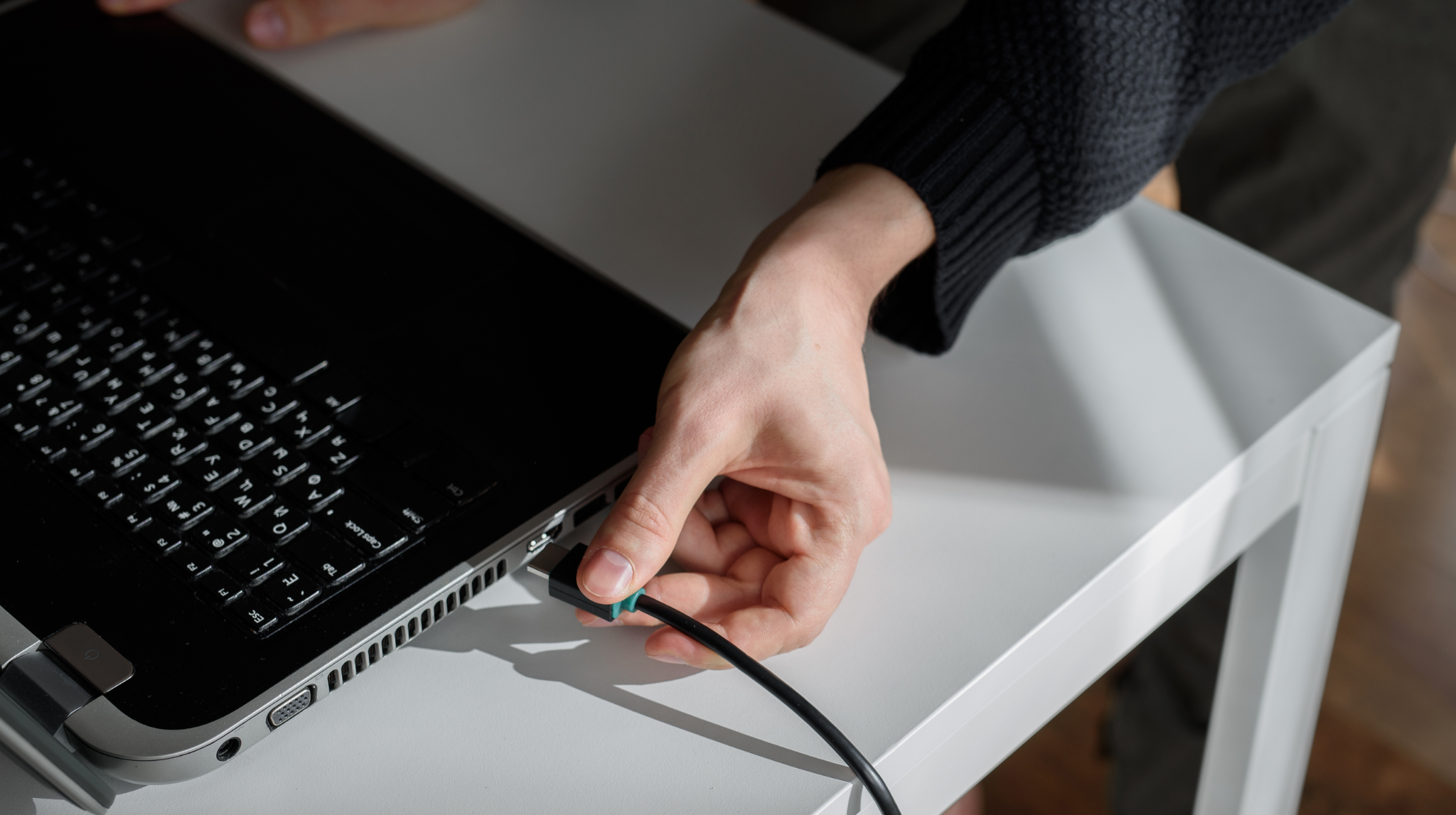
The actual process is straightforward once your equipment is confirmed. Power on both your laptop and television before making any connections if possible, though hot-plugging HDMI is generally safe with modern hardware. Plug one end of the HDMI cable into your laptop's HDMI port or adapter, and the other end into an available HDMI port on your TV. Note which input number you are using on the TV -- most televisions have multiple HDMI ports labeled HDMI 1, HDMI 2, and so on. Use your TV remote to switch the input source to the corresponding HDMI channel. Your laptop screen should appear on the TV within a few seconds. On Windows, you can then press the Windows key plus the letter P to access display settings and choose between duplicate, extend, second screen only, or PC screen only modes. On a Mac, navigate to System Settings, then Displays, to configure your preferred arrangement. That is really the whole process. It does not take long once you have done it once.
Key Advantages of Using an HDMI Cable to Connect Laptop to TV
Wired HDMI connections carry some genuine, practical advantages that wireless alternatives still struggle to fully match. These are the reasons people keep coming back to cable-based setups even as streaming technology improves.
Zero latency or near-zero latency compared to wireless casting solutions Single cable handles both audio and video with no additional hardware Supports high resolutions including 1080p, 4K, and in some cases 8K depending on the cable version Works consistently across different operating systems and TV brands No network dependency -- functions completely independent of your home Wi-Fi
For gaming especially, the latency difference matters. Wireless display solutions often introduce input lag that makes fast-paced gameplay feel sluggish. A direct HDMI cable eliminates that variable entirely.
Common Drawbacks to Be Aware Of
Nothing is perfect and HDMI connections are no exception. The cable itself creates a physical tether between your laptop and the TV, which limits how far you can sit from the display. Standard HDMI cables run reliably up to about 15 to 25 feet, though longer passive cables can experience signal degradation. If your living room setup requires a longer run, you may need an active HDMI cable or a signal booster, which adds a bit of cost. The port on your laptop can also be a weak point over time with heavy daily use. And if your laptop does not have a native HDMI port at all, you will need an adapter, which is an extra item to carry and potentially lose. These are manageable issues for most users, but worth planning around before committing to a permanent desk or entertainment center setup.
Choosing the Right HDMI Cable for Your Laptop and TV
Not all HDMI cables perform equally, and matching the cable to your use case matters more than many people realize. HDMI 1.4 cables support up to 1080p and basic 4K at lower refresh rates, while HDMI 2.0 handles 4K at 60Hz -- which is the sweet spot for most home theater and productivity setups. HDMI 2.1 steps up to 8K and 4K at 120Hz, making it relevant for high-end gaming monitors and next-gen display technology. For most users connecting a laptop to a TV for streaming or presentations, a quality HDMI 2.0 cable is the right call. Build quality matters too -- look for cables with proper shielding, gold-plated connectors, and certification from HDMI licensing authority to avoid compatibility headaches down the line.
Practical Tips for Getting the Best Performance from Your HDMI Connection
A few small habits make a noticeable difference in the overall experience. Always confirm your laptop's display settings are configured for the TV's native resolution -- mismatched resolution settings are a frequent cause of blurry or oversized output. If audio is not routing through the TV automatically, check your sound output settings and manually select the HDMI device. On Windows this is done through the Sound control panel; on Mac through the Sound preferences. Avoid bending or tightly coiling HDMI cables during storage -- the internal conductors are more delicate than the outer jacket suggests. And if you are running the cable across a room, route it along baseboards rather than across foot traffic areas to reduce wear on the connectors over time.
HDMI vs. Wireless Display Options -- Which Should You Use
Wireless casting tools like Chromecast, Miracast, and Apple AirPlay have improved significantly, and for casual viewing they work well. But they introduce variables -- network congestion, codec compression, latency -- that a wired HDMI connection simply does not have. For professional presentations, the reliability of HDMI is hard to argue against. For competitive gaming, the latency performance of a wired connection is measurably better. For daily productivity use where you are extending your laptop display to a larger screen, HDMI delivers a stable, consistent experience that does not depend on your router behaving well. Wireless display tech is a convenience, but HDMI is a foundation. Both have their place, and knowing which to reach for in a given situation is the practical advantage.
Why Monoprice Is the Right Source for Your HDMI Cable Needs
When it comes to getting a reliable, high-performance HDMI connection between your laptop and TV, the cable itself is not an afterthought -- it is the entire link. Monoprice has built a reputation over years of delivering certified, high-quality cables at prices that make sense for both individual consumers and professional integrators. Every cable in the Monoprice lineup is built to spec, tested for performance, and backed by the kind of warranty support that signals real confidence in the product. For anyone looking to invest in high-quality HDMI cables for laptop to TV connections, Monoprice offers a range of options covering HDMI 1.4 through HDMI 2.1, in various lengths and connector configurations -- so whether you need a compact 3-foot cable for a desk setup or a longer run for a living room install, there is a solution ready without overpaying for brand name markup. The value is real, the performance is consistent, and the catalog depth means you are unlikely to walk away without finding exactly what your setup requires.
Frequently Asked Questions About Connecting a Laptop to a TV with HDMI
Do I need a special HDMI cable to connect my laptop to a TV?
Not necessarily special, but you do need the right version for your resolution and refresh rate goals. For 1080p and standard 4K streaming, a certified HDMI 2.0 cable is sufficient for most laptop-to-TV setups.
Why is there no picture when I connect my laptop to my TV with HDMI?
The most common cause is the TV being set to the wrong input source. Use your remote to manually switch to the HDMI port you plugged into. If that does not resolve it, check your laptop display settings to confirm it is outputting to an external display.
Why is there no sound coming from my TV after connecting my laptop via HDMI?
Your laptop may still be routing audio to its internal speakers or headphone jack. Go into your operating system sound settings and manually set the HDMI output as the default playback device.
Can I connect my laptop to a TV with HDMI if my laptop only has USB-C ports?
Yes, but you will need a USB-C to HDMI adapter or cable. Confirm that the specific USB-C port on your laptop supports DisplayPort Alt Mode or Thunderbolt output, as not all USB-C ports carry video signals.
What is the maximum cable length for an HDMI connection between a laptop and TV?
Passive HDMI cables reliably transmit signal up to around 15 to 25 feet. Beyond that, signal degradation can occur. For longer runs, use an active HDMI cable or an HDMI signal booster to maintain quality.
Does connecting a laptop to a TV via HDMI affect laptop performance?
Running an external display increases the load on your laptop's graphics processor, which can impact battery life and in some cases, system performance on lower-powered machines. Plugging in the power adapter when using a TV as an extended display is generally recommended.
Can I use my TV as a second monitor for my laptop using HDMI?
Yes. After connecting the HDMI cable, access your display settings and select the Extend option. This allows you to use the TV as a separate workspace rather than simply mirroring your laptop screen.
Will HDMI carry 4K resolution from my laptop to my TV?
It depends on both the HDMI version supported by your laptop and cable. HDMI 2.0 supports 4K at 60Hz, which covers most current 4K TVs. HDMI 1.4 supports 4K only at 30Hz, which can appear less smooth for video playback.
Is HDMI better than wireless display options for gaming from a laptop?
For gaming, HDMI is generally the better choice because it eliminates the input lag introduced by wireless display protocols. A wired HDMI connection provides a more responsive, consistent experience for fast-paced or competitive gameplay.
Do I need to install any drivers or software to connect my laptop to a TV with HDMI?
No special software is required. HDMI is a plug-and-play interface on virtually all modern operating systems. Windows and macOS will automatically detect the connected display and allow you to configure it through the built-in display settings menu.


