How to Connect an HDMI Cable to Your TV the Right Way
What Is an HDMI Cable and Why Does It Matter for Your TV Setup
If you have ever stared at the back of a new television wondering which port does what, you are not alone. HDMI -- High-Definition Multimedia Interface -- is the standard connection used to transmit both high-definition video and audio through a single cable. It replaced older analog connections like composite and component cables, and today it is essentially the universal language that televisions, game consoles, streaming devices, Blu-ray players, and computers speak. Getting this connection right matters more than people realize. A poorly seated cable, the wrong cable version, or plugging into the wrong port can mean degraded picture quality, audio dropouts, or no signal at all. Understanding the basics before you start pulling cables out of boxes saves real time and frustration.
Understanding HDMI Versions and Why the Right Cable Version Matters
Not all HDMI cables are the same, and this is where a lot of people get tripped up. There are several HDMI versions in circulation -- 1.4, 2.0, and 2.1 being the most common today. HDMI 1.4 supports 1080p and basic 4K at limited frame rates. HDMI 2.0 handles 4K at 60Hz and supports HDR, which is what most modern televisions need for a solid viewing experience. HDMI 2.1 is the current high-performance standard, supporting 8K at 60Hz, 4K at 120Hz, and features like Variable Refresh Rate and enhanced Audio Return Channel. If you bought a newer 4K or 8K television in the last couple of years, you likely need at least an HDMI 2.0 cable -- and for gaming or advanced home theater setups, HDMI 2.1 is the smarter investment. Matching the cable version to your television and source device is step one before anything is plugged in.
Identifying the HDMI Ports on Your TV
Before connecting anything, take a moment to locate and identify the HDMI ports on your television. Most modern televisions have between two and four HDMI ports, typically found along the back panel or the side edge. Here is something worth knowing -- not all ports on the same television are equal. Some televisions label specific ports as HDMI 2.1 while others on the same set may only support HDMI 2.0 speeds. Look for port labels printed near each input. A port marked ARC or eARC -- which stands for Audio Return Channel and Enhanced Audio Return Channel -- is specifically designed for connecting a soundbar or AV receiver and sending audio both directions over a single cable. For gaming consoles or streaming devices requiring the highest performance, use a port explicitly labeled as 2.1 if available. Your television's manual or manufacturer website will confirm which ports carry which specifications.
How to Connect an HDMI Cable to Your TV Step by Step
The physical connection process is straightforward, but doing it correctly the first time prevents signal problems and avoids unnecessary wear on the ports. Here is how to approach it cleanly and confidently.
- Power off your television and the device you are connecting before plugging in any cables
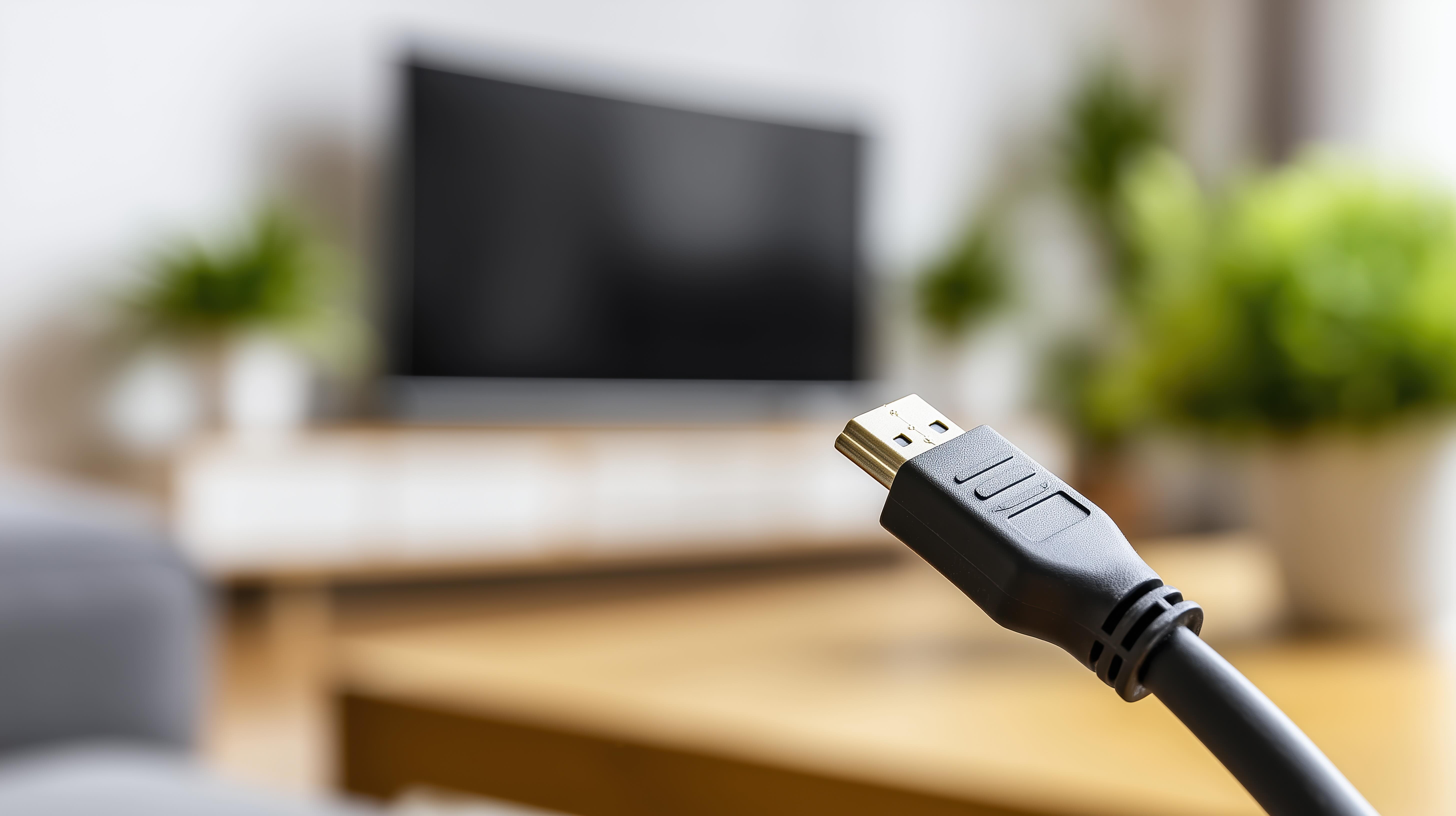
- Hold the HDMI connector with the wider side of the trapezoidal shape facing up to orient it correctly
- Insert the connector firmly but gently into the HDMI port -- it should slide in with light, even pressure and click or seat flush
- Avoid forcing the connection at any angle, as HDMI ports can be damaged by lateral stress
- Once connected, power on the television first, then the source device
- Use your television's input or source button on the remote to select the correct HDMI input number
- Wait a few seconds for the signal handshake to complete before assuming there is a problem
That last step catches a lot of people off guard. The HDCP handshake -- content protection negotiation between devices -- takes a moment, and switching inputs too quickly before it completes can make it look like nothing is working when the cable is actually fine.
Common HDMI Connection Problems and How to Fix Them
Even when everything looks right, issues happen. A blank screen after connection is one of the most reported problems, and the cause is usually simpler than people expect. Loose connections are the first thing to check -- press both ends of the cable firmly into their respective ports. If the picture appears but looks washed out or incorrect, the cable may not support the color depth or HDR format being sent. Switching to a higher-rated cable typically resolves this immediately. Intermittent signal loss often points to a damaged cable -- HDMI cables can fail internally without showing visible exterior damage, especially if they have been bent sharply or pinched. No audio alongside a working picture usually means the audio output settings on the source device need to be adjusted, or the ARC function on the television needs to be enabled in the settings menu. Running through these checks systematically eliminates the guesswork quickly.
Key Advantages of Using HDMI for Your Home Theater
HDMI has become the default standard for very practical reasons. The advantages over older connections are significant and worth understanding as you build or upgrade a home entertainment system.
- Single cable carries both audio and video, reducing clutter and simplifying setup
- Supports uncompressed digital audio formats including Dolby Atmos and DTS:X
- Delivers lossless video quality with no signal degradation over the cable
- Supports HDCP copy protection required by streaming services for 4K content
- eARC-enabled connections allow full-resolution audio passthrough to soundbars
- HDMI 2.1 supports Variable Refresh Rate for smoother gaming visuals
- Widely compatible across virtually all modern consumer electronics
Limitations and Drawbacks to Be Aware Of
HDMI is excellent but not without its limitations. Cable length is one of the more practical constraints -- passive HDMI cables reliably transmit signal up to about 25 feet, and beyond that, signal quality can degrade without active signal boosting or fiber HDMI cables. HDMI cables are also directional in some configurations, particularly with active cables, meaning plugging them in backwards will produce no signal. Version confusion is a real issue in the market -- cables are sometimes sold without clear version labeling, making it difficult to know what you are actually buying. Compatibility between older source devices and newer televisions can also create handshake errors or resolution mismatches, requiring settings adjustments on one or both devices. Being aware of these limitations upfront helps set accurate expectations and avoid unnecessary troubleshooting later.
Tips for Managing HDMI Cables in a Clean and Reliable Setup
A well-connected entertainment system is not just about picture quality -- cable management directly affects long-term reliability and reduces the chance of accidental disconnection. Keep cables routed away from high-traffic areas where they could be pulled or stepped on. Use Velcro ties or cable clips rather than zip ties, which can crimp cables and create internal damage over time. If you need to run an HDMI cable behind a wall or across a longer distance, invest in a rated in-wall HDMI cable or an active optical HDMI cable designed for extended runs. Label each cable at both ends with the device name -- this makes reconfiguring or troubleshooting significantly faster when dealing with multiple connected devices. Small habits like these extend the life of both cables and ports and keep your setup looking intentional rather than chaotic.
Why Monoprice Is the Smarter Choice for HDMI Cables and Home Theater Connectivity
When it comes to sourcing reliable HDMI cables that actually perform to spec, Monoprice has built a reputation that the industry consistently recognizes. The product line spans everything from standard 4K HDMI 2.0 cables to certified ultra-high-speed HDMI 2.1 cables tested and certified by HDMI.org -- so what is on the label is what is actually in the cable. For consumers who want verified performance without the inflated retail markup, that certification matters enormously. Monoprice cables are engineered with quality materials, precision shielding, and reliable connectors that hold up over time, whether the application is a living room television, a gaming setup, or a professional AV installation. If you are ready to build or upgrade your home theater with cables you can trust at a price that makes sense, exploring the full range of high-performance HDMI cables and home theater connectivity solutions at Monoprice is the logical next step. The combination of value, performance, and verified certification is exactly what informed buyers should be looking for -- and Monoprice delivers that consistently across the entire lineup.
Frequently Asked Questions About Connecting HDMI Cables to a TV
Does it matter which HDMI port I plug my device into on my TV?
Yes, it can matter significantly. Some HDMI ports on a television support higher specifications than others. Ports labeled HDMI 2.1 provide greater bandwidth for 4K at 120Hz or 8K content. Ports labeled ARC or eARC are designed specifically for audio return to a soundbar or receiver. Always check your television's manual to identify which port supports which features before connecting devices.
Why is my TV showing no signal after I connected an HDMI cable?
The most common causes are an incorrect input selection on the television, a loose cable connection, or an HDCP handshake delay. Check that the television is set to the correct HDMI input number, firmly reseat both ends of the cable, and wait several seconds after powering on devices before assuming there is a signal issue.
Can I use any HDMI cable with a 4K TV?
Not reliably. For 4K content at standard frame rates, an HDMI 2.0 cable is the minimum requirement. For 4K at 120Hz or 8K content, you need a certified Ultra High Speed HDMI 2.1 cable. Using an older HDMI 1.4 cable with a 4K television may result in limited resolution output or HDR not functioning correctly.
How long can an HDMI cable run before signal quality degrades?
Passive HDMI cables typically maintain reliable signal quality up to approximately 25 feet. For longer runs, active HDMI cables or fiber optic HDMI cables are recommended. These options boost or convert the signal to maintain quality over extended distances without loss.
What does the ARC or eARC label on an HDMI port mean?
ARC stands for Audio Return Channel, and eARC stands for Enhanced Audio Return Channel. These ports allow audio to travel from the television back to a connected soundbar or AV receiver over the same HDMI cable, eliminating the need for a separate optical audio cable. eARC supports higher-quality audio formats including Dolby Atmos with full lossless quality.
Is there a difference between HDMI 2.0 and HDMI 2.1 cables?
Yes, there is a meaningful difference. HDMI 2.0 supports 4K at 60Hz and HDR. HDMI 2.1 increases bandwidth significantly and supports 4K at 120Hz, 8K at 60Hz, Variable Refresh Rate, and Enhanced Audio Return Channel. For current-generation gaming consoles and future-ready home theater setups, HDMI 2.1 is the recommended standard.
Can a bad HDMI cable cause audio problems without affecting video?
Yes. HDMI carries audio and video together, but audio transmission can be disrupted independently. A partially failing cable, incorrect audio output settings on a source device, or ARC not being enabled in the television settings can all result in missing audio while video continues to display normally.
Is it safe to connect or disconnect HDMI cables while devices are powered on?
HDMI is designed to be hot-pluggable, meaning devices can technically be connected and disconnected while powered on. However, powering down devices before connecting or swapping cables is a safer practice that reduces the risk of signal errors, port stress, or temporary software glitches during the handshake process.
Why does my HDMI cable work for regular content but not 4K HDR content?
This typically indicates the cable does not have sufficient bandwidth for the 4K HDR signal being transmitted. HDMI 1.4 cables cannot reliably handle 4K HDR. Replacing the cable with a certified HDMI 2.0 or HDMI 2.1 cable that matches the output requirements of your source device and television will resolve this issue.
Do HDMI cables wear out over time?
Yes, HDMI cables can degrade over time particularly if they are frequently bent, pinched, or subjected to tension at the connector points. Signs of a failing cable include intermittent signal loss, sparkling or flickering in the image, and color errors. Replacing a damaged cable is straightforward and far less costly than diagnosing it as a device problem.