

How to Connect an Ethernet Cable to a PC: Full Guide
How to Connect an Ethernet Cable to a PC: A Complete Setup Guide
So you have decided to ditch the Wi-Fi and go wired. Good call. Ethernet connections are faster, more reliable, and honestly just less frustrating to deal with once you know what you are doing. Whether you are setting up a home office, building out a gaming rig, or wiring a small business workstation, knowing how to connect an ethernet cable to a PC is one of those foundational skills that pays off immediately. It is not complicated -- but there are a few things worth knowing before you plug anything in.
What Is an Ethernet Cable and Why Does It Matter
An ethernet cable is a physical networking cable used to connect devices to a local area network, or LAN. It carries data signals between your PC and a router, modem, network switch, or wall jack. Unlike Wi-Fi, which transmits data wirelessly through radio frequencies, ethernet uses a direct hardwired connection that eliminates signal interference, reduces latency, and delivers consistent throughput. For anyone doing video calls, large file transfers, online gaming, or running a home server, that consistency matters more than people tend to realize until they have actually experienced both.
Types of Ethernet Cables You Should Know About
Not all ethernet cables are the same -- and picking the right category cable for your setup can genuinely affect your performance ceiling. Here is a quick breakdown of the most common types you will encounter:
- Cat5e -- Supports speeds up to 1 Gbps over 100 meters. Still functional for basic use but considered older technology at this point.
- Cat6 -- Supports speeds up to 10 Gbps over shorter distances, with improved crosstalk reduction. This is the current standard for most home and office installations.
- Cat6A -- Augmented Cat6. Supports 10 Gbps over full 100-meter runs with better shielding. Preferred for structured cabling in commercial environments.
- Cat8 -- Designed for data center use. Supports up to 40 Gbps but over much shorter distances, typically 30 meters or less.
For most PC users, Cat6 is the practical sweet spot -- solid performance, widely available, and reasonably priced. If you are running cable through walls or setting up a more permanent infrastructure, Cat6A is worth the minor cost difference.
What You Need Before You Start
Connecting an ethernet cable to a PC does not require a lot of tools or prep work. But having the right components on hand before you start will keep things moving. You will need an ethernet cable that matches your speed requirements, a router or network switch with an available port, and a PC with an ethernet port -- also called an RJ45 port. Most desktop PCs and many laptops have one built in. If your machine does not have a built-in port, you will also need a USB to ethernet adapter or a PCIe network card depending on your setup. Make sure your cable is long enough to run cleanly from your PC to your router without being stretched tight or creating a tripping hazard.
Step-by-Step: How to Connect an Ethernet Cable to a PC
The actual connection process is straightforward. Follow these steps and you should be online in under two minutes.
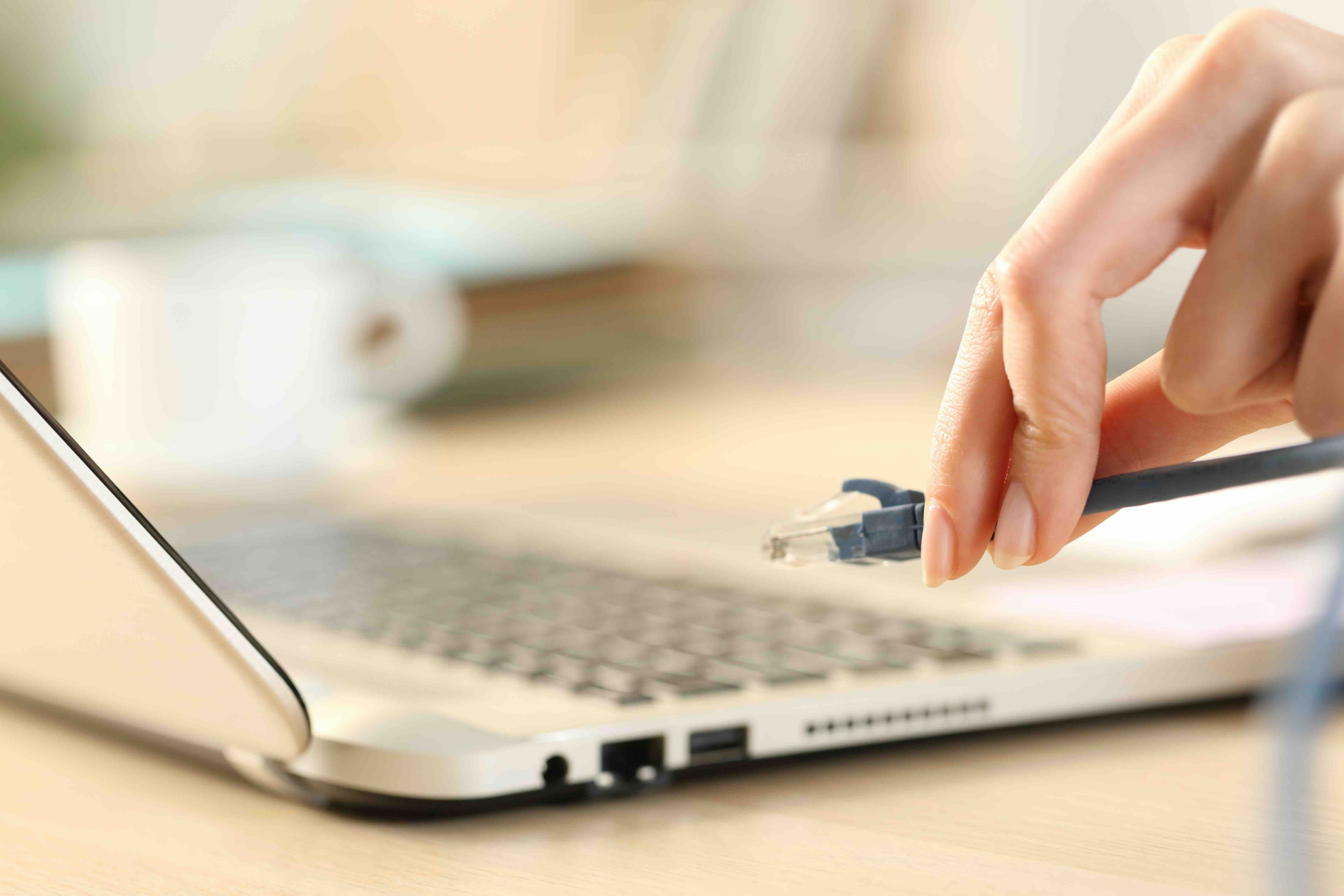
- Locate the ethernet port on your PC. On desktops, it is typically on the back I/O panel. On laptops, check the left or right side edge.
- Inspect your ethernet cable to ensure neither end is damaged. The RJ45 connector should click firmly into place -- if the plastic locking tab is broken, replace the cable before proceeding.
- Insert one end of the ethernet cable into your PC's ethernet port. Push it in until you hear or feel a click.
- Insert the other end into an available LAN port on your router or network switch.
- Wait a few seconds. Your operating system should automatically detect the connection and configure network settings.
- Open your browser or run a connection test to confirm the network is active.
On Windows, a small network icon will appear in the taskbar once the connection is recognized. On macOS, head to System Settings and check Network to confirm the ethernet interface shows as connected. Most modern operating systems handle IP assignment automatically through DHCP, so manual configuration is rarely necessary for home setups.
Key Advantages of Using a Wired Ethernet Connection
There is a reason network professionals and IT teams consistently prefer ethernet over wireless for critical infrastructure. The benefits are real and measurable. A wired connection eliminates the packet loss and signal degradation that comes with wireless transmission. You get lower latency -- which matters significantly in online gaming, VoIP, and video conferencing. You get more predictable bandwidth, which translates to smoother large file uploads and downloads. Security is also better because a wired connection cannot be intercepted the same way a wireless signal can. And honestly, there is something to be said for a connection that just works without renegotiating signal strength every time something shifts in the environment.
Common Drawbacks and Limitations to Consider
Ethernet is not without its trade-offs. The most obvious limitation is mobility -- you are tethered to a physical cable, which means you cannot easily move around while connected. Cable management can also become a consideration in shared spaces, and running cables through walls or ceilings requires planning and sometimes professional installation. Additionally, if your router is far from your workstation, you will need a long cable run, which can introduce minor signal degradation if you exceed the 100-meter maximum for most ethernet categories. In those cases, a network switch or signal booster may be needed. None of these are dealbreakers, but they are worth factoring into your setup decisions before committing to a cable route.
Troubleshooting Common Ethernet Connection Issues
If your PC does not recognize the ethernet connection immediately, do not panic. Start with the basics. Check that both ends of the cable are fully seated in their ports. Swap out the cable if available -- a faulty cable is one of the most common culprits. Verify that your router is powered on and functioning. On Windows, open Device Manager and confirm the network adapter is enabled and showing no error flags. You can also run the built-in network troubleshooter or release and renew your IP address through Command Prompt using the ipconfig commands. In rare cases, you may need to update the network adapter driver, which can be done through the manufacturer's website or via Device Manager. Most issues resolve at the cable or adapter level, so work through those first before assuming something deeper is wrong.
Practical Tips for Getting the Most Out of Your Ethernet Setup
Once connected, there are a few habits and configurations worth adopting to keep your wired network performing at its best. Use cable clips or velcro ties to keep runs neat and avoid stress on the connectors. Avoid bending ethernet cables at sharp angles -- it can damage the internal wire pairs over time. If you are running cable over longer distances, stick to Cat6 or Cat6A to maintain signal quality. For households or offices with multiple wired devices, a network switch is a cost-effective way to expand your available LAN ports without replacing your router. Also, periodically inspect your cables for physical wear, especially in high-traffic areas where they might get stepped on or pinched.
Why Monoprice Is the Right Choice for Your Ethernet Networking Needs
When it comes to reliable, high-performance ethernet cables and networking accessories, the quality of the cable itself is not something you want to cut corners on. Monoprice has built a trusted reputation among IT professionals, integrators, and everyday users who want real performance without inflated pricing. Whether you need a straightforward patch cable for a single workstation or you are stocking up on Cat6A runs for a full office buildout, you will find exactly what you need without overpaying for brand markup. The product lineup is extensive, well-spec'd, and built to perform across both home and commercial environments. If you are serious about your wired network setup, explore high-quality ethernet cables and networking solutions from Monoprice and see why so many professionals keep coming back for infrastructure they can depend on.
Frequently Asked Questions About Connecting Ethernet Cables to a PC
Do I need any special software to use an ethernet cable on my PC?
No special software is required for most setups. Modern operating systems including Windows and macOS automatically detect an ethernet connection and assign network settings via DHCP. In rare cases, you may need to update your network adapter driver.
What type of ethernet cable is best for home use?
Cat6 is the most practical choice for most home users. It supports speeds up to 10 Gbps over shorter distances and provides reliable performance for everyday tasks including streaming, gaming, and remote work.
Can I use an ethernet cable on a laptop that does not have a built-in ethernet port?
Yes. You can use a USB to ethernet adapter, which plugs into a standard USB or USB-C port and provides an RJ45 connection. These adapters are widely available and easy to install.
How long can an ethernet cable be before performance degrades?
The maximum recommended length for standard ethernet categories including Cat5e, Cat6, and Cat6A is 100 meters, or approximately 328 feet. Beyond this distance, signal quality can degrade and you may need a network switch to extend the run.
Is ethernet faster than Wi-Fi?
In most real-world scenarios, yes. Ethernet offers lower latency, more consistent speeds, and less susceptibility to interference compared to Wi-Fi, particularly in environments with multiple wireless devices or physical obstructions.
Why is my PC not detecting the ethernet connection?
Start by checking that the cable is fully inserted at both ends. Try a different cable to rule out a damaged connector. Confirm the router is active and that the network adapter in your PC is enabled. Updating the adapter driver may also resolve detection issues.
Can I use ethernet and Wi-Fi at the same time on my PC?
Technically yes, but most operating systems will prioritize the ethernet connection automatically. Running both simultaneously is generally unnecessary and can occasionally cause routing conflicts depending on your network configuration.
What does the clicking sound mean when I plug in an ethernet cable?
The click is the RJ45 locking tab snapping into place, confirming the connector is securely seated in the port. If you do not hear or feel a click, the cable may not be fully inserted or the locking tab may be damaged.
Does the length of my ethernet cable affect speed?
Within the 100-meter limit, cable length has a negligible effect on speed for most users. Beyond that threshold, signal attenuation can reduce performance. Using quality cables from reputable manufacturers also helps maintain consistent signal integrity across the full run.
Do I need to configure my IP address manually when using ethernet?
In most home and small business setups, no. Your router handles IP assignment automatically through DHCP. Manual IP configuration is typically only necessary in specific enterprise environments or when setting up static addresses for servers or printers.


