

How to Connect a Computer to a TV with a VGA Cable Safely
What Is a VGA Cable and Why Does It Still Matter?
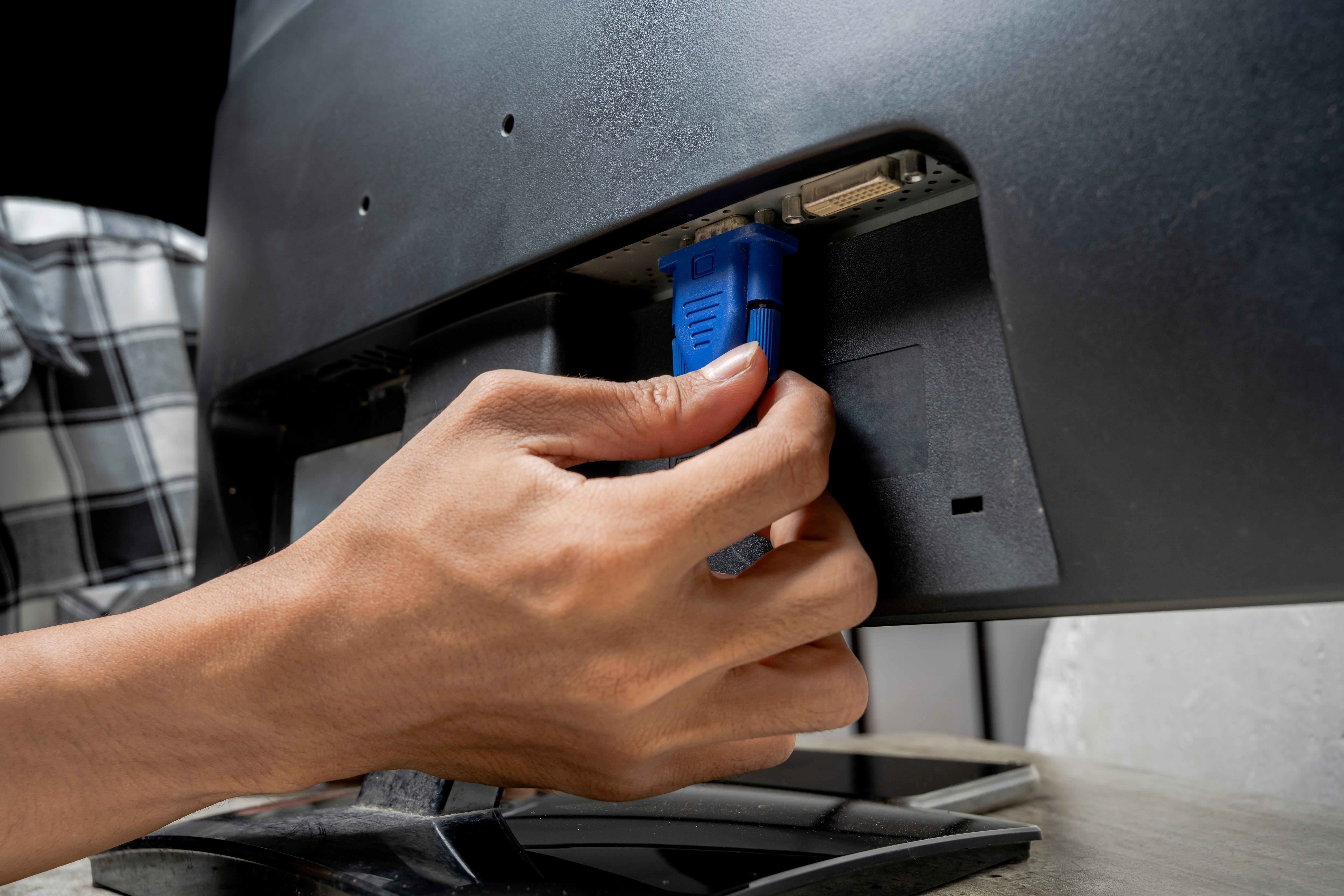
VGA -- Video Graphics Array -- has been around since the late 1980s, and honestly, it is kind of impressive how long it has stuck around. A lot of people assume it is obsolete, but walk into any office building, school, or home with an older setup and you will likely find at least one VGA port still in active use. The connector is that blue, trapezoid-shaped plug with 15 pins arranged in three rows. It carries an analog video signal from your computer to a display, and for decades, that was exactly what people needed. It does not carry audio -- that is worth knowing upfront -- but for basic video output from a laptop or desktop to a television, it absolutely still gets the job done. Budget-conscious users, in particular, find VGA setups appealing because the cables and adapters are inexpensive, widely available, and simple to use. No drivers, no software handshakes, no pairing process. Just plug it in and go.
What You Need Before Getting Started
Before you do anything, take a minute to check both devices. Look at the back or sides of your computer for a VGA port -- again, blue, trapezoidal, 15-pin. Then check your television. Most modern TVs no longer include a native VGA input, but many TVs from the 2000s and early 2010s do. If your TV lacks a VGA port, you will need a VGA-to-HDMI adapter, which is a small converter that bridges the analog signal from your computer to the digital HDMI input on your TV. Pick up a quality adapter -- this is not the place to cut corners since a poorly shielded adapter can introduce signal noise or drop the picture entirely. You will also want to grab a 3.5mm audio cable or a separate audio solution, since VGA handles video only. Having all of this sorted before you sit down to connect things saves a lot of frustration later.
How to Connect a Computer to a TV with a VGA Cable Step by Step
The actual connection process is straightforward, but doing it in the right order matters for safety and signal quality. Here is the sequence to follow:
Power down both your computer and your TV before making any connections Locate the VGA port on your computer and the VGA or adapter input on your TV Insert the VGA cable firmly into the computer's VGA port and hand-tighten the screws on the connector Connect the other end of the cable to the TV's VGA port or to your VGA-to-HDMI adapter If using an adapter, plug the HDMI end into an available HDMI port on your TV Connect a 3.5mm audio cable from your computer's headphone jack to the TV's audio input or use external speakers Power on the TV first, then your computer Use the TV remote to select the correct input source -- VGA or HDMI depending on your setup On your computer, access display settings and set the TV as a secondary or mirrored display
That is really it. The tightening step on those small screws often gets skipped, but do not skip it -- a loose VGA connection leads to flickering or a dropped signal, and diagnosing that takes time you do not need to spend.
Setting the Right Resolution for a Clear Picture
VGA is an analog signal, and the image quality is directly tied to the resolution and refresh rate you push through it. Most TVs that accept VGA input are comfortable with 1920x1080 at 60Hz, but some older panels max out at 1360x768 or 1280x720. Head into your computer's display settings -- on Windows, right-click the desktop and select Display Settings; on Mac, go to System Preferences and then Displays -- and look at what resolutions are available for the connected display. Set it to match or closely match your TV's native resolution. Mismatched resolutions lead to a soft, blurry image or overscan, where the edges of your screen get cut off. If overscan is happening, check your TV's picture settings for an option labeled Screen Fit, Just Scan, or something similar, and enable it. That should snap the image into proper alignment.
Handling Audio When Using VGA
This catches people off guard more than almost anything else about VGA setups. You plug everything in, the picture shows up on the TV, and then there is no sound. That is because VGA does not carry audio -- it never has. The fix is simple, though. Run a 3.5mm stereo audio cable from the headphone or audio output jack on your computer to the audio input on your TV, if one is available next to the VGA port. If your TV has no dedicated audio input for VGA, a small set of powered desktop speakers plugged into the computer's headphone jack works just as well. If you went the VGA-to-HDMI adapter route, some of those adapters include an audio input that combines video and audio into one HDMI signal -- read the product specs carefully to see if yours supports this. Either way, audio is a solvable problem, just not one VGA solves on its own.
Common Issues and How to Troubleshoot Them
Even with everything connected correctly, you might hit a snag or two. A few of the most frequent problems and quick fixes worth knowing:
No signal on the TV: Confirm the correct input source is selected on the TV and that the VGA cable screws are tightened Blurry or fuzzy image: Check that the resolution in display settings matches the TV's native resolution Flickering screen: The cable may be loose or the cable quality is poor -- try reseating the connection or swapping the cable Overscan cutting off screen edges: Enable Just Scan or Screen Fit in the TV's picture settings No audio: Connect a separate 3.5mm audio cable from computer to TV or use external speakers Adapter not working: Confirm the adapter is powered if required and supports your resolution
Most of these fix quickly once you know what to look for. A cheap cable with poor shielding is often the silent culprit behind persistent signal problems, so quality of the cable itself is worth paying attention to.
Key Advantages of Using a VGA Connection
There are real, practical reasons to reach for a VGA cable rather than chasing a more complex solution. The cost is one of the most obvious ones -- VGA cables are some of the most affordable video cables on the market, and adapters to bridge VGA to HDMI remain inexpensive. Compatibility with older hardware is another major plus. If you are working with a desktop or laptop that simply does not have HDMI, DisplayPort, or USB-C outputs, VGA may be your only native video output option. The setup process requires no software, no configuration menus beyond display settings, and no pairing steps. It is also a fully passive connection for pure VGA-to-VGA setups, meaning no external power is needed. For presentations, digital signage on older displays, or connecting a secondary monitor in a workspace, VGA is still a reliable, low-maintenance choice.
Limitations to Be Aware of Before Committing to VGA
VGA is analog, and that comes with real constraints worth understanding before you commit to the setup. Image sharpness at larger screen sizes can fall noticeably short of what HDMI or DisplayPort delivers. At 1080p it holds up reasonably well, but push it to a 4K screen and you will not be getting 4K output -- VGA simply cannot carry that signal. Cable length is another factor. VGA signal quality degrades over longer runs, typically beyond 15 to 20 feet, and you may see ghosting or soft edges. And of course, no audio means an additional cable or device is always part of the equation. For streaming video or gaming where picture quality and input latency matter, VGA is not the ideal choice. But for static productivity use, web browsing, presentations, or general desktop extension, it performs exactly as needed.
Why Monoprice Is the Right Choice for Your VGA Setup
When you are putting together a VGA connection between a computer and a TV, the quality of the cable and adapter you choose shapes the entire experience. A poorly made cable introduces signal noise, drops resolution stability, and turns a simple setup into an ongoing troubleshooting project. Monoprice has spent years building a reputation as the practical choice for home users, IT professionals, and AV integrators who want reliable performance without overpaying. The cables are built with proper shielding, precise connector tolerances, and materials that hold up over time. Whether you need a straightforward VGA cable, a VGA-to-HDMI adapter with audio support, or any other connectivity solution for your workspace or home theater, you will find it at a fair price with the quality to back it up. If you are ready to get your setup right the first time, explore your options through Monoprice VGA cables and display connectivity solutions and see how much further a smart, value-driven purchase actually takes you.
Frequently Asked Questions
Can I connect my laptop to a TV using a VGA cable?
Yes, if your laptop has a VGA port, you can connect it directly to a TV with a VGA input using a VGA cable. If your TV does not have a VGA port, you will need a VGA-to-HDMI adapter to bridge the connection.
Does VGA carry audio to the TV?
No, VGA carries video only. You will need to run a separate 3.5mm audio cable from your computer to the TV or use external speakers connected to your computer's audio output.
What resolution does VGA support when connecting to a TV?
VGA can support resolutions up to 1920x1080 at 60Hz in most setups. The actual output depends on both the TV's VGA input capabilities and your computer's graphics output settings.
Why is my TV showing no signal after connecting via VGA?
Check that your TV is set to the correct input source. Also verify that the VGA cable is fully seated and the connector screws are tightened. A loose connection is one of the most common causes of a missing signal.
Do I need to power off my devices before connecting a VGA cable?
Yes, it is recommended to power off both your computer and TV before connecting or disconnecting VGA cables. This prevents potential signal errors and protects the ports from stress during connection.
Why is the image blurry or soft when using VGA on my TV?
A blurry image usually indicates a resolution mismatch. Go into your computer's display settings and set the resolution to match the TV's native resolution. Also check for overscan settings on your TV and enable a mode like Just Scan or Screen Fit.
Can I use VGA with a 4K television?
You can physically connect via VGA to a 4K TV if the TV has a VGA input, but the output will not be 4K. VGA is an analog signal and does not support 4K resolution. The image will display at a lower resolution.
How long can a VGA cable be before signal quality drops?
VGA signal quality typically holds well up to about 15 feet. Beyond 20 feet, you may experience ghosting, softness, or signal degradation. For longer runs, use a high-quality shielded cable to reduce interference.
What is the difference between VGA and HDMI for connecting a computer to a TV?
HDMI carries both digital video and audio in a single cable and supports higher resolutions including 4K. VGA carries only analog video and requires a separate audio cable. HDMI generally provides a sharper, cleaner image, especially on larger screens.
Do VGA-to-HDMI adapters support audio output?
Some VGA-to-HDMI adapters do include an audio input that combines the computer's audio with the video signal into a single HDMI output. Not all adapters support this feature, so check the product specifications before purchasing.


