

HDMI TV to PC Cable for High-Performance Screen Sharing
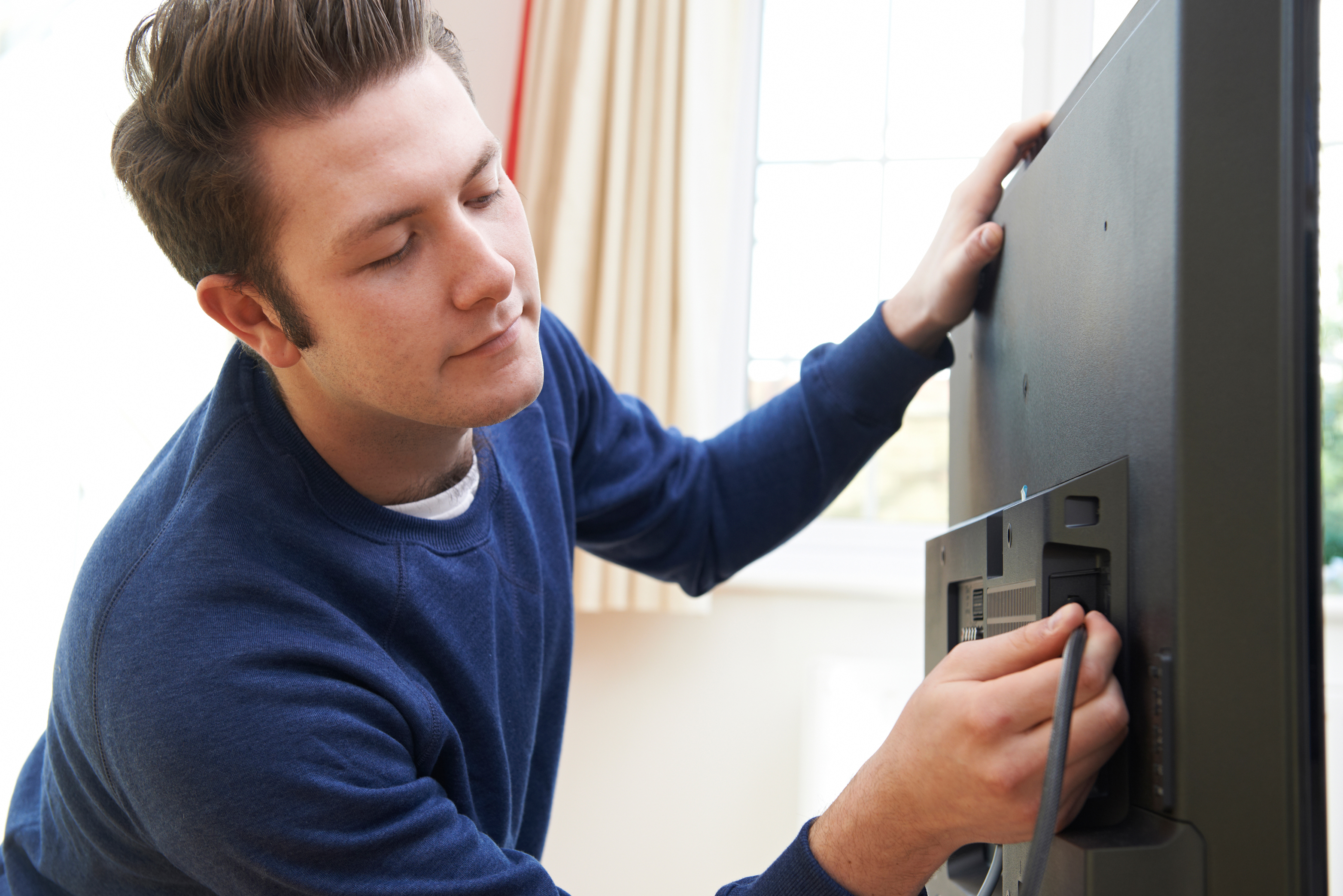
What Is an HDMI TV to PC Cable and Why Does It Matter?
If you have ever wanted to push your laptop or desktop display onto a larger screen, an HDMI TV to PC cable is the most direct solution available. It is a single cable that bridges two devices using one of the most universally adopted display standards in consumer and professional electronics. No complicated software, no wireless latency spikes, no proprietary adapters. Just a clean, physical connection that moves high-definition video and audio from your computer to your television in a way that is both immediate and reliable. For anyone working from home, streaming content, or gaming casually on a couch, this is the kind of setup that genuinely changes how you interact with your screen.
How an HDMI TV to PC Cable Actually Works
HDMI stands for High-Definition Multimedia Interface. It is a single-cable solution designed to carry both high-resolution digital video and multi-channel audio simultaneously. When you plug one end into your PC's HDMI output port and the other into your television's HDMI input, the cable transmits an encoded digital signal across its internal conductors. Your TV then decodes that signal and renders the image on screen. Modern HDMI cables support resolutions ranging from standard 1080p all the way up to 4K and beyond, depending on the cable version and the capabilities of the connected hardware. The handshake between devices is handled through a protocol called HDCP, which manages content protection and signal negotiation automatically. It happens in seconds, and most of the time you will never need to think about it.
Key Benefits of Using an HDMI Cable for Screen Sharing
There are several reasons why a wired HDMI connection consistently outperforms wireless screen sharing alternatives for everyday use. The first is latency. A physical cable delivers virtually zero signal delay, which matters whether you are reviewing a document or reacting in a game. The second is image quality. Wireless screen sharing technologies often introduce compression artifacts, especially at higher resolutions. With a good HDMI cable, what you see on your TV is a direct representation of what your GPU is outputting, no compression, no degradation. The third benefit is simplicity. You plug it in, your TV recognizes the input, and you are done. There is no app to install, no network configuration, and no pairing process. Fourth is reliability. Wired connections do not drop or buffer based on network congestion. The signal is stable as long as the cable is connected and in good condition.
Common Use Cases for HDMI TV to PC Screen Sharing
The applications here are broader than most people initially expect. Remote and hybrid workers use HDMI PC to TV connections to turn a large flat-screen into an extended or mirrored display, reducing eye strain and creating a more natural working environment. Streamers and media enthusiasts use it to play back high-bitrate content from a PC directly on a 4K television, avoiding the limitations of built-in smart TV apps. Casual gamers use it to experience PC titles on a bigger screen without investing in a dedicated gaming monitor. Presenters and educators use it to display slides, demos, or content during in-person meetings or informal sessions. Even creative professionals use this setup to review video edits or photo work on a calibrated large-format screen. The cable enables all of these scenarios with zero configuration overhead.
Understanding HDMI Cable Versions and What They Support
Not every HDMI cable performs identically, and version differences are worth knowing before you buy. HDMI 1.4 supports up to 4K at 30Hz and is suitable for most general screen sharing and standard streaming tasks. HDMI 2.0 raises the ceiling to 4K at 60Hz with HDR support, which is the practical minimum for high-quality modern use. HDMI 2.1 pushes further still, supporting 4K at 120Hz and 8K at 60Hz, making it relevant for high-refresh gaming and future-proofed setups. The version you need depends on your display, your GPU, and how you intend to use the connection. For most work-from-home and casual streaming scenarios, HDMI 2.0 is more than sufficient. For gaming or premium media workflows, HDMI 2.1 is the smarter long-term choice.
Potential Drawbacks to Consider
HDMI cables are not without limitations. Cable length is one practical constraint. Standard passive HDMI cables perform reliably up to about 15 feet. Beyond that, signal degradation can become a factor, and longer runs may require active cables or signal boosters. Physical placement matters too. If your PC and TV are on opposite sides of a room, cable management becomes a real consideration. HDMI is also a one-direction signal path, meaning it carries display output from PC to TV but does not return audio from the TV to the PC by default, though ARC-enabled setups can address this in specific configurations. Finally, a cable connection means some loss of flexibility compared to wireless setups, particularly in living room environments where wire routing is inconvenient. These are real tradeoffs, and the right setup depends on your specific room layout and workflow.
Practical Tips for Getting the Best Performance
A few simple steps can make a meaningful difference in the quality of your HDMI PC to TV experience. First, always match your cable version to the output capabilities of your graphics card and the input capabilities of your TV. Running an HDMI 1.4 cable between a 4K GPU and a 4K TV will bottleneck your resolution at 30Hz. Second, check your PC display settings after connecting. Windows and macOS sometimes default to lower resolutions or refresh rates on newly detected displays. Setting these manually in your display preferences ensures you are getting the full output your hardware supports. Third, use a cable with a quality build. Cables with solid shielding reduce interference in environments with multiple electronics running simultaneously. Fourth, keep cable bends gentle and avoid sharp angles near connectors, as physical stress at the termination point is a common failure cause over time.
Who Should Invest in a Quality HDMI TV to PC Cable
Honestly, the answer is almost anyone with both a PC and a television. The cost of a reliable HDMI cable is minimal relative to the immediate upgrade it delivers to your display setup. That said, the use case fits particularly well for a few groups. Remote workers who want a larger monitor without buying a dedicated display will see immediate productivity gains. Streamers who want to access PC-based media libraries on their television screen without relying on a smart TV platform will appreciate the direct, uncompressed output. Gamers playing on mid-range systems who want a bigger visual field without the premium cost of a large gaming monitor will find this approach very practical. And really, anyone who has ever squinted at a 15-inch laptop screen during a long work session will understand the appeal.
Why Monoprice Delivers the HDMI Cable Performance You Need
When it comes to reliable, high-performance connectivity without the inflated price tag, Monoprice has consistently delivered where other brands fall short. Their HDMI cables are built to support real-world use, whether that means extended screen sharing sessions, 4K streaming, or hours of PC gaming on a large-format display. The materials, shielding, and connector quality reflect genuine engineering attention, not just spec sheet marketing. For buyers who are tired of paying premium retail prices for cables that should simply work, Monoprice offers a smarter path. If you are ready to upgrade your home office, entertainment setup, or gaming station with a dependable wired display solution, exploring the full range at Monoprice HDMI TV to PC cables for high-performance screen sharing is the logical next step. The performance speaks for itself, and the price makes it an easy decision.
Frequently Asked Questions About HDMI TV to PC Cables
Can I connect my PC to any HDMI TV using a standard HDMI cable?
Yes, as long as both your PC and your TV have HDMI ports, a standard HDMI cable will establish a connection. You may need to check that the cable version is compatible with the resolution and refresh rate you want to use.
What resolution can I get when connecting a PC to a TV with HDMI?
This depends on the HDMI version of your cable and the hardware capabilities of both devices. HDMI 2.0 supports up to 4K at 60Hz, while HDMI 2.1 supports 4K at 120Hz and 8K at 60Hz.
Does an HDMI cable carry audio from PC to TV?
Yes, HDMI cables transmit both video and audio simultaneously. Once connected, your PC will typically detect the TV as an audio output device, which you can select through your system sound settings.
How long can an HDMI cable be before signal quality degrades?
Passive HDMI cables generally maintain reliable performance up to around 15 feet. For longer cable runs, active HDMI cables or signal repeaters are recommended to maintain signal integrity.
Do I need a special HDMI cable for 4K content?
Yes, for 4K at 60Hz you need at minimum an HDMI 2.0 cable. For 4K at 120Hz or 8K content, an HDMI 2.1 cable is required. Standard HDMI 1.4 cables cap out at 4K at 30Hz.
Will connecting a PC to a TV via HDMI affect gaming performance?
The cable itself does not affect GPU performance. However, the resolution and refresh rate of the TV will influence how demanding the rendering workload is. A 4K 60Hz TV will require more GPU resources than a 1080p display.
Can I use my TV as a second monitor with an HDMI cable?
Yes. Once connected, your PC's display settings will allow you to configure the TV as either an extended display or a mirrored display, giving you flexibility in how you use the screen.
Is wireless screen sharing better than using an HDMI cable?
Wireless screen sharing offers more placement flexibility, but wired HDMI connections provide lower latency, higher image quality without compression, and a more stable signal. For performance-focused tasks, HDMI cable connections are generally the better choice.
What should I look for when buying an HDMI TV to PC cable?
Prioritize cable version compatibility with your hardware, shielding quality for interference resistance, connector build quality, and appropriate cable length for your setup. Avoid excessively cheap cables that sacrifice shielding or conductor quality.
Does HDMI version matter if I am only using it for basic office work?
For standard 1080p or 1440p office use, HDMI 1.4 or 2.0 is more than adequate. If you are working with a 4K display or plan to use the same cable for media or gaming in the future, HDMI 2.0 is a smarter baseline investment.


