

HDMI to DVI Explained: Connections That Still Deliver
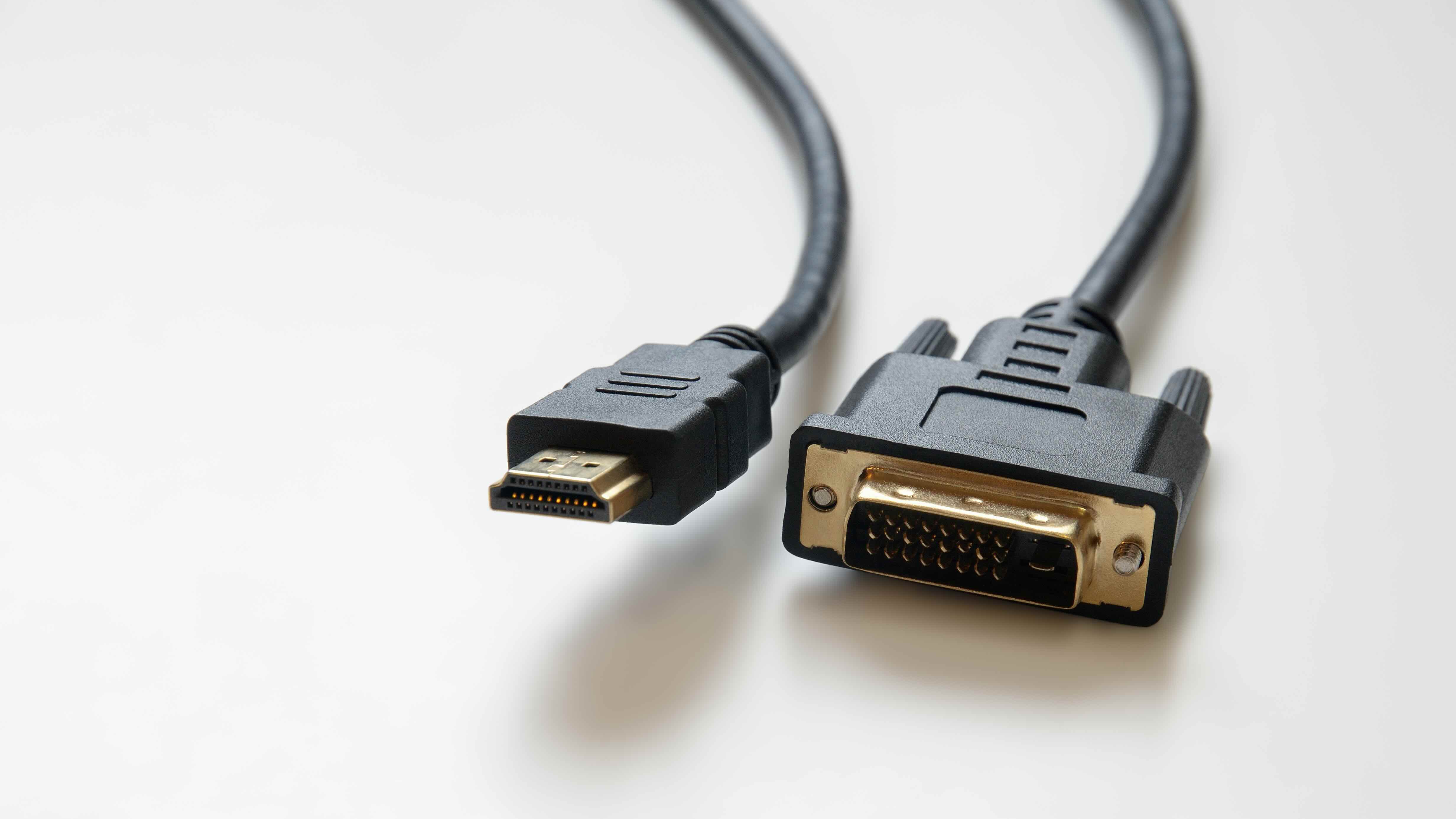
What Is HDMI to DVI and Why Does It Still Matter Today
If you have ever stared at the back of a monitor or graphics card and wondered whether those two ports can actually talk to each other, you are not alone. HDMI to DVI is one of those technology topics that sounds more complicated than it actually is. At its core, it is about connecting two different video interfaces that share a common digital video standard, which makes them more compatible than most people expect. Whether you are setting up a home office, a gaming rig, or a commercial display environment, understanding what HDMI to DVI means can save you time, money, and a fair amount of frustration. So let us get into it.
Understanding HDMI and DVI as Separate Standards
HDMI, which stands for High-Definition Multimedia Interface, was introduced in 2002 and quickly became the dominant standard for transmitting high-definition audio and video over a single cable. It was designed for consumer electronics and supports video resolutions up to 4K and beyond, along with multichannel audio, Ethernet data, and CEC control signals. DVI, or Digital Visual Interface, arrived a few years earlier in 1999 and was built primarily for the computer monitor market. It carries digital video signals in a format that is, in many ways, electrically identical to the video portion of HDMI. That last part is the key to everything. Because both standards use the same underlying digital video signal structure known as TMDS, or Transition Minimized Differential Signaling, they are inherently compatible on the video side without any signal conversion required.
How Does an HDMI to DVI Connection Actually Work
An HDMI to DVI adapter or cable works by physically remapping the pin connections between the two connector types. Since both carry the same TMDS digital video signal, no active conversion chip or power source is needed. A passive adapter or cable handles the job. When you plug an HDMI source, such as a laptop, Blu-ray player, or streaming device, into a DVI monitor, the display receives the digital video data just fine. The same works in reverse. A DVI output from a desktop graphics card can feed into an HDMI-equipped monitor without any loss in image quality, provided the resolution is within the supported range of both devices. It is a clean, direct handshake between two systems built on compatible technology.
Key Advantages of Using HDMI to DVI Adapters and Cables
There are several reasons why this type of connection remains genuinely useful, even now that HDMI and DisplayPort have largely taken over the market. Here are the main benefits worth knowing about:
- Cost-effectiveness -- passive adapters and cables are inexpensive and widely available without sacrificing image quality
- No signal conversion required -- the digital video signal passes through without processing, meaning no added latency or degradation
- Compatibility with legacy hardware -- older monitors, projectors, and graphics cards with DVI ports can still deliver sharp, high-definition images when connected to modern HDMI sources
- Easy plug-and-play setup -- no drivers, no configuration, no active hardware needed in most cases
- High-resolution support -- DVI-D Dual Link supports resolutions up to 2560x1600, which covers most standard and wide-format displays used in professional environments
Common Drawbacks You Should Know Before You Buy
No technology solution is without its trade-offs, and HDMI to DVI is no different. The biggest limitation is audio. DVI does not carry audio signals at all. If your display has built-in speakers and you are connecting via DVI, you will get video but no sound. You will need a separate audio cable or output solution to handle that. Beyond audio, DVI does not support HDCP 2.2, which is the content protection standard required for 4K streaming from platforms like Netflix or Amazon Prime Video. You may encounter compatibility issues when trying to play protected 4K content through a DVI display. Additionally, DVI-A and DVI-I connectors include analog pins that are not compatible with HDMI, so it is important to use a DVI-D connector for a clean digital connection. These limitations are real but manageable once you know what to expect.
HDMI to DVI vs Other Video Adapter Options
It helps to understand where HDMI to DVI fits relative to other common adapter types. DisplayPort to HDMI and DisplayPort to DVI adapters serve similar bridging functions, though DisplayPort sources often require active adapters when connecting to certain DVI configurations, which adds cost. VGA is an analog standard and connecting HDMI or DVI to VGA requires an active converter with signal processing, which is a completely different situation from the passive HDMI to DVI connection. USB-C to HDMI adapters have grown popular as laptops have eliminated traditional video ports, but again those often involve active circuitry. The simplicity and low cost of a passive HDMI to DVI solution is one of its strongest selling points compared to many of these alternatives.
Practical Use Cases for HDMI to DVI Connections
There are real, everyday scenarios where an HDMI to DVI adapter or cable makes clear practical sense. Home and office users upgrading to a newer laptop or desktop may find their existing DVI monitor still delivers excellent image quality and has years of usable life left. Using an HDMI to DVI cable is far more economical than replacing the entire display. In multi-monitor setups, it is common for a graphics card with multiple output types to include both HDMI and DVI ports, making this a natural connection option. In commercial or educational environments, older projectors with DVI inputs can still receive HDMI source signals for presentations and digital signage. IT professionals managing hardware refreshes regularly use HDMI to DVI solutions to extend the life of existing infrastructure without budget overruns.
Tips for Getting the Best Performance from HDMI to DVI
Getting clean, reliable results from an HDMI to DVI setup comes down to a few straightforward practices. First, always use a DVI-D cable or adapter rather than DVI-A or DVI-I when connecting to an HDMI source. DVI-D is the all-digital variant and is the only one compatible with HDMI signals. Second, keep cable lengths reasonable. While DVI can theoretically run longer distances, signal integrity can degrade beyond about 15 feet without an active booster, so shorter runs are always preferable. Third, verify the maximum resolution your DVI monitor supports before assuming 1080p or higher will work correctly. Single Link DVI tops out at 1920x1200 while Dual Link DVI supports higher resolutions. And finally, if audio is a requirement, plan for a separate audio path from the beginning rather than trying to solve it after the fact.
Is HDMI to DVI Still Worth Using in Modern Setups
Honestly, yes. The technology industry moves fast, and it is tempting to dismiss anything that predates the current generation of standards. But DVI-equipped hardware is still very much in active use across homes, offices, schools, and enterprises. As long as that hardware is performing well and meeting resolution requirements, there is no reason to replace it just because HDMI has become the default. An HDMI to DVI cable or adapter bridges the gap cleanly, efficiently, and inexpensively. For video-only connections at 1080p or 1440p, the image quality is identical to what you would get from a native HDMI connection. That is a practical, value-conscious approach to technology management that more people should adopt before defaulting to unnecessary upgrades.
Why Monoprice Is the Right Source for HDMI to DVI Cables and Adapters
When it comes to sourcing reliable HDMI to DVI cables and adapters, the brand behind the product matters more than most people realize. Cheap, poorly constructed cables can cause intermittent signal issues, loose connections, or outright display failures, none of which are acceptable in any environment. Monoprice has built a well-earned reputation as a trusted supplier of high-performance connectivity solutions at prices that make sense for both individual users and enterprise procurement teams. If you are looking for dependable HDMI to DVI cables and adapters that perform consistently and are built to last, Monoprice HDMI to DVI cables and display connectivity solutions deliver the quality and value that savvy buyers have come to expect. Every product is engineered to meet real-world performance standards, backed by responsive customer support, and priced to reflect genuine value rather than inflated brand premiums. Whether you are outfitting a single workstation or sourcing cables for a full facility, Monoprice has the depth of product selection and the technical credibility to get it right the first time.
Frequently Asked Questions About HDMI to DVI
Does HDMI to DVI carry audio?
No. DVI does not support audio signals of any kind. When using an HDMI to DVI connection, you will need a separate audio cable or output, such as a 3.5mm audio jack or optical audio connection, to carry sound to your speakers or monitor.
Is HDMI to DVI a passive or active connection?
In most cases it is passive. Because HDMI and DVI share the same TMDS digital video signal, a simple cable or adapter with remapped pins handles the connection without any active conversion circuitry or external power.
What resolution does HDMI to DVI support?
Single Link DVI supports up to 1920x1200 at 60Hz. Dual Link DVI supports up to 2560x1600 at 60Hz. HDMI sources sending signals within those resolution ranges will work correctly with compatible DVI displays.
Can I use HDMI to DVI for 4K content?
Standard DVI does not support 4K resolution and also lacks HDCP 2.2, which is required for streaming 4K protected content. For 4K applications, HDMI to HDMI or DisplayPort connections are more appropriate choices.
What type of DVI connector do I need for an HDMI connection?
You need a DVI-D connector, which is the all-digital version. DVI-A carries only analog signals and is not compatible with HDMI. DVI-I includes both analog and digital pins but the digital portion is what handles the HDMI signal.
Will HDMI to DVI work for gaming?
Yes, for gaming at 1080p or 1440p on a DVI monitor it works well. However, DVI does not support variable refresh rate technologies like HDMI 2.1 VRR or AMD FreeSync over HDMI, so competitive gamers looking for those features should use a native HDMI or DisplayPort connection instead.
Do I need special software or drivers for HDMI to DVI?
No. An HDMI to DVI passive cable or adapter is plug-and-play. Your operating system and display will negotiate the connection automatically without any driver installation or configuration required.
Can I connect a DVI output to an HDMI monitor using the same adapter?
Yes. The connection works bidirectionally for video. A DVI output from a graphics card can connect to an HDMI-equipped monitor using an HDMI to DVI adapter or cable, and the monitor will receive the digital video signal correctly.
How long can an HDMI to DVI cable be before signal quality degrades?
For reliable signal quality, keeping the cable under 15 feet is a practical guideline. Longer runs can experience signal degradation, and for distances beyond that an active signal booster or extender is recommended to maintain display performance.
Is there any image quality difference between HDMI and DVI for the same resolution?
No. For the same resolution and refresh rate, the digital video signal transmitted over HDMI and DVI is identical. There is no visual quality loss when using a proper HDMI to DVI passive connection at supported resolutions.


