

HDMI Cable for PC: Versions, Uses, and What to Know
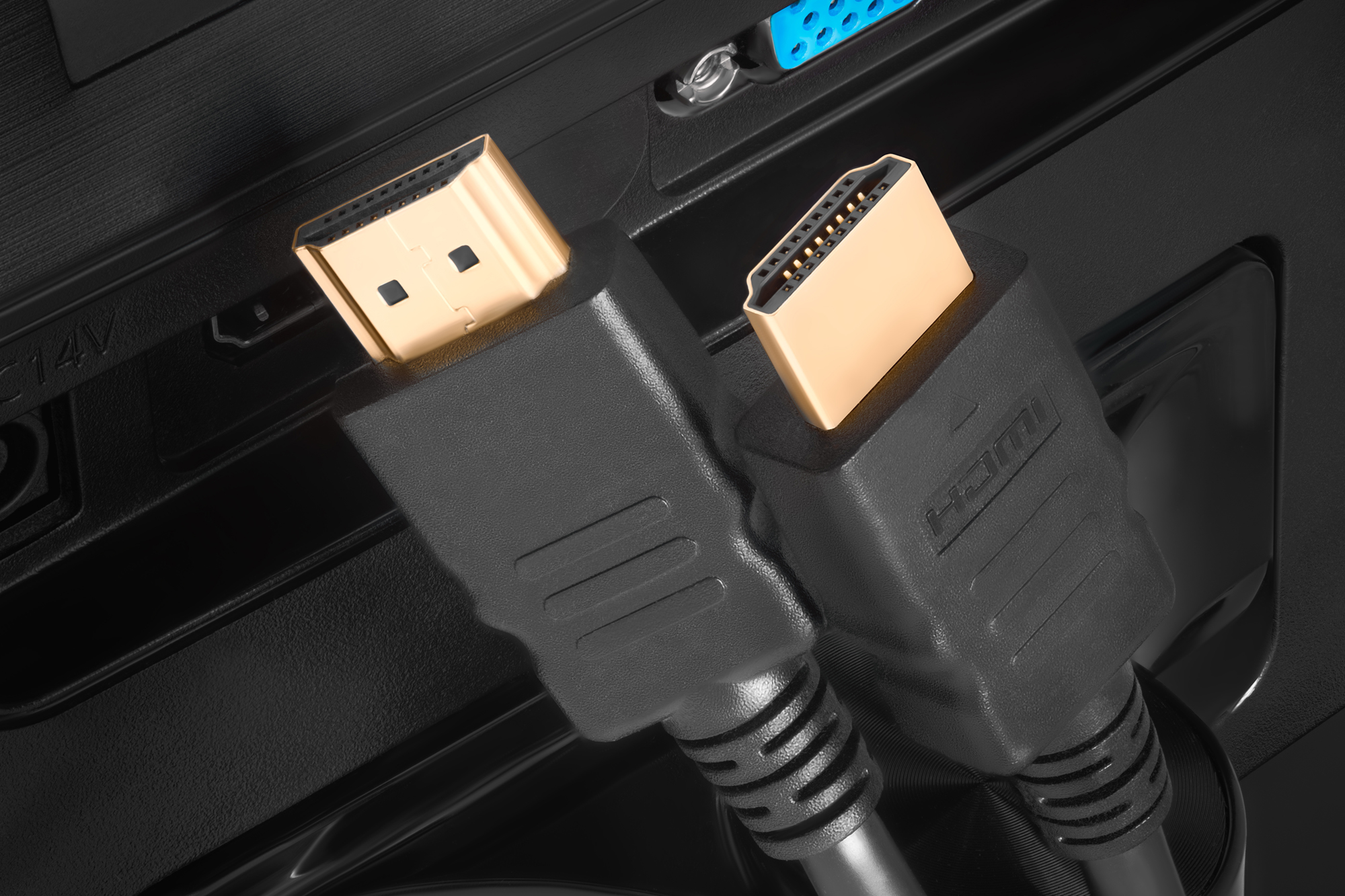
What Is an HDMI Cable on a PC and Why Does It Matter?
If you have ever plugged a monitor into the back of your desktop or connected your laptop to a TV, there is a good chance you used an HDMI cable to do it. HDMI, which stands for High-Definition Multimedia Interface, is one of the most widely used connection standards in consumer and professional technology. On a PC specifically, HDMI serves as a single-cable solution for transmitting both high-definition video and digital audio simultaneously. That matters more than people realize, because it simplifies setup, reduces cable clutter, and delivers a clean signal path between your computer and whatever display you are using. Whether you are gaming, editing video, running a dual-monitor workstation, or mirroring your screen in a conference room, HDMI is usually right there at the center of it.
How HDMI Works on a PC: The Basic Mechanics
HDMI transmits uncompressed digital video and audio over a single cable using a standardized connector. On a PC, the signal originates from the graphics card or integrated graphics chipset built into the motherboard. From there, it travels through the HDMI cable and into the receiving device, typically a monitor, television, or projector. The cable contains 19 pins inside that connector, each carrying a specific signal type, including video data channels, a clock signal for synchronization, audio return channel data, and the Consumer Electronics Control line that allows devices to communicate with each other. The whole thing happens almost instantly, and to the end user it just looks like the screen turns on. That simplicity is by design, and it is one of the reasons HDMI became the dominant interface standard for display connections across virtually every device category.
HDMI Versions Explained: Which One Does Your PC Use?
Not all HDMI cables or ports are created equal, and the version of HDMI your PC supports will directly determine what it can and cannot do. This is where a lot of people get confused, and honestly it is worth spending a minute on.
- HDMI 1.4 supports up to 4K resolution at 30Hz and includes audio return channel support
- HDMI 2.0 supports 4K at 60Hz, HDR, and expanded color depth, making it the standard for most modern gaming and multimedia use
- HDMI 2.1 is the current high-water mark, supporting 8K at 60Hz, 4K at 120Hz, variable refresh rate, and enhanced audio return channel
The version your PC supports depends entirely on the GPU or integrated graphics inside it. A cable rated for HDMI 2.1 will not magically give you 4K at 120Hz if your graphics card only outputs HDMI 2.0. The hardware drives the capability, and the cable just needs to be certified to handle it. Checking your GPU specifications before buying a cable saves a lot of frustration.
Key Advantages of Using HDMI on a PC
There are several reasons HDMI remains a go-to connection type for PC users across both consumer and professional environments.
- Single cable carries both video and audio, eliminating the need for a separate audio output connection
- Universal compatibility with monitors, TVs, projectors, and AV receivers
- Plug-and-play operation with no driver installation or complex configuration required
- Wide availability across virtually all modern graphics cards and integrated graphics platforms
- Hot-plug capability, meaning you can connect and disconnect without powering down the system
- Support for HDCP content protection, which is necessary for streaming protected content in high definition
For everyday users, that combination of simplicity and broad compatibility is genuinely hard to beat. It just works, and that has real value whether you are setting up a home office or deploying displays across a corporate environment.
Common Drawbacks and Limitations to Be Aware Of
HDMI is not without its limitations, and being realistic about those helps you make smarter decisions. First, most graphics cards include only one or two HDMI ports, which can be a constraint if you are building a multi-monitor setup. In those cases, DisplayPort is often the better choice for the secondary or tertiary display. Second, HDMI cables have a practical distance limitation. Standard passive cables perform reliably up to about 25 feet. Beyond that, signal degradation becomes a real concern, and you would need an active HDMI cable or a signal booster to maintain quality. Third, older HDMI 1.4 ports found on legacy hardware simply cannot support the refresh rates and resolutions that modern displays demand. If your PC is a few years old and you are trying to drive a high-refresh-rate 4K monitor, HDMI may be the bottleneck in that chain.
HDMI vs. DisplayPort: Which Should You Use on Your PC?
This comparison comes up constantly and for good reason. Both are digital interfaces that carry video and audio, but they were developed for slightly different use cases. DisplayPort was designed primarily for computer monitors and supports higher refresh rates and multi-stream transport, which lets you daisy-chain multiple monitors from a single port. HDMI was designed with consumer electronics in mind, which is why it is on televisions, AV receivers, and projectors. For gaming at 4K and 120Hz or higher, DisplayPort 1.4 or 2.0 often offers more headroom than HDMI 2.0, though HDMI 2.1 closes that gap considerably. For connecting a PC to a television or home theater system, HDMI is almost always the cleaner and more compatible solution. In a workstation environment with professional monitors, DisplayPort tends to be preferred. The honest answer is that it depends on what you are connecting to, and having a cable that matches your specific display output is the only thing that actually matters.
Choosing the Right HDMI Cable for Your PC Setup
Cable selection does not need to be complicated, but there are a few things worth keeping in mind. First, match the cable to your resolution and refresh rate requirements. For 4K at 60Hz, a certified Premium High Speed HDMI cable is appropriate. For 4K at 120Hz or 8K, you need an Ultra High Speed HDMI cable certified to the HDMI 2.1 specification. Second, consider cable length relative to your setup. Shorter cables generally perform better and are less prone to signal issues. Third, look for cables that carry certification from HDMI Licensing Administrator, the organization that governs the standard. Counterfeit and uncertified cables are common in the market, and they can cause intermittent signal loss, color artifacts, and handshake failures that are difficult to diagnose. Buying from a reputable source with verifiable certification is a straightforward way to avoid those problems.
Practical Tips for Getting the Most Out of Your HDMI Connection
A few small habits go a long way when it comes to HDMI performance on a PC. Make sure you are plugging into the HDMI port on your graphics card and not the one on your motherboard if your system has a discrete GPU. The motherboard port is connected to integrated graphics and may limit resolution or refresh rate options. After connecting, confirm in your operating system display settings that the correct resolution and refresh rate are selected, because the default is not always optimal. If you are using an AV receiver between your PC and a television, verify that the receiver supports the HDMI version you need, because older receivers can become a bottleneck in the signal chain. And if you experience flickering or no signal, try a different HDMI port on the TV or monitor before assuming the cable or card is faulty. A loose or dirty port is surprisingly common and easy to overlook.
Why Monoprice Is the Smart Choice for HDMI Cables for Your PC
When it comes to sourcing HDMI cables for a PC setup, the quality of the cable matters far more than most people give it credit for, and so does the cost. Monoprice has spent years building a reputation as a trusted source for certified, high-performance cables at prices that do not punish you for needing more than one. Whether you are outfitting a single workstation or sourcing cables for an entire office deployment, the value proposition is consistently strong. Certified Ultra High Speed and Premium High Speed options are available across multiple lengths, giving you exactly what your setup requires without paying for features you do not need. For anyone who wants to connect with confidence and shop from a brand that understands both the technology and the real-world demands of integrators and everyday users alike, finding high-performance HDMI cables for PC and monitor setups through Monoprice is a decision that holds up under scrutiny. Certified products, competitive pricing, and a company that backs what it sells. That combination is genuinely difficult to find elsewhere at this level of value.
Frequently Asked Questions About HDMI Cables on a PC
What does an HDMI cable do on a PC?
An HDMI cable on a PC transmits both digital video and audio signals from the computer to a connected display, such as a monitor, television, or projector, over a single cable.
Does it matter which HDMI port I use on my PC?
Yes. If your PC has a dedicated graphics card, use the HDMI port on the GPU rather than the one on the motherboard. The motherboard port connects to integrated graphics and may not support the same resolutions or refresh rates.
Can I use any HDMI cable with my PC?
Technically yes, but performance depends on the cable's certification tier. For 4K at 60Hz, use a Premium High Speed cable. For 4K at 120Hz or 8K, use a certified Ultra High Speed HDMI cable rated for HDMI 2.1.
Why is my PC not detecting my monitor through HDMI?
Common causes include a loose connection, an incompatible HDMI version between the cable and port, a faulty cable, or incorrect display settings in the operating system. Try reseating the cable and checking your display settings as a first step.
What is the maximum resolution supported by HDMI on a PC?
With HDMI 2.1, the maximum supported resolution is 10K, with practical use cases up to 8K at 60Hz or 4K at 120Hz. Earlier versions like HDMI 2.0 top out at 4K at 60Hz, and HDMI 1.4 supports 4K only at 30Hz.
Is HDMI or DisplayPort better for PC gaming?
Both are capable for gaming. DisplayPort 1.4 and 2.0 are often preferred for high-refresh-rate PC monitors, while HDMI 2.1 is the better choice for connecting a PC to a gaming television. The best option depends on your display's available inputs.
How long can an HDMI cable be before signal quality drops?
Passive HDMI cables reliably maintain signal quality up to approximately 25 feet. Beyond that length, signal degradation can occur, and an active HDMI cable or signal booster is recommended.
Can HDMI carry audio from a PC to a TV or receiver?
Yes. HDMI transmits multichannel digital audio alongside the video signal, eliminating the need for a separate audio cable. It also supports Audio Return Channel, which allows audio to flow back from the display to a receiver.
Does the HDMI cable version need to match the port version on my PC?
The cable should be rated to handle the bandwidth your GPU outputs. A lower-rated cable can limit performance. Using a cable certified at or above your GPU's HDMI version ensures you get the full capability your hardware supports.
Why does my screen flicker when using HDMI on my PC?
Flickering over HDMI is commonly caused by a damaged or low-quality cable, a loose connection, an incompatible cable rating for the resolution being used, or a failing HDMI port. Swapping to a certified replacement cable is the fastest way to isolate the issue.


