

HDMI Cable for Computer: Connect Any Display With Ease
What Is an HDMI Cable for a Computer and Why Does It Matter?
So you have a computer and a monitor, or maybe a TV you want to use as a display, and someone told you that you need an HDMI cable. That checks out. HDMI, which stands for High-Definition Multimedia Interface, is the standard connection format used to transmit both high-definition video and audio over a single cable. For computer users specifically, it is one of the most practical and commonly used output options available today. Whether you are building a home office setup, connecting to a projector, or extending your desktop to a second screen, understanding what an HDMI cable does and how to choose the right one can save you a lot of frustration and money.
How HDMI Cables Work on a Computer
At a fundamental level, an HDMI cable carries digital signals, not analog. That matters because digital transmission means the signal stays clean and consistent from source to display without the kind of quality degradation you might see with older connection types like VGA. Your computer's graphics card or integrated graphics chip converts the rendered image and audio output into an HDMI-compatible digital signal. That signal travels through the cable to your monitor, TV, or projector, which then decodes and displays it. The whole process happens in milliseconds. The cable itself is not doing any processing, it is just the pathway. Which is actually why cable quality and specification matter more than people initially expect, because if the pathway cannot handle the bandwidth required by your signal, you will see degraded image quality, flickering, or no signal at all.
HDMI Versions Explained for Computer Users
This is where it gets a little technical, but stick with it. Not all HDMI cables are built the same, and the version of HDMI your computer and display support will determine the resolution and refresh rate you can achieve. Here is a quick breakdown of what the major versions offer:
- HDMI 1.4 -- Supports up to 4K at 30Hz, good for general use and older systems
- HDMI 2.0 -- Supports up to 4K at 60Hz with HDR, a significant improvement for content and gaming
- HDMI 2.0a and 2.0b -- Add static and dynamic HDR support respectively
- HDMI 2.1 -- Supports up to 10K resolution, 4K at 120Hz, 8K at 60Hz, and Variable Refresh Rate (VRR)
For most everyday computer users, HDMI 2.0 is the practical sweet spot. If you are running a high-refresh-rate gaming monitor or a newer 4K display and want the full experience, HDMI 2.1 is the direction to go. The key is matching the cable spec to what both your GPU and your display actually support.
Types of HDMI Connectors Found on Computers
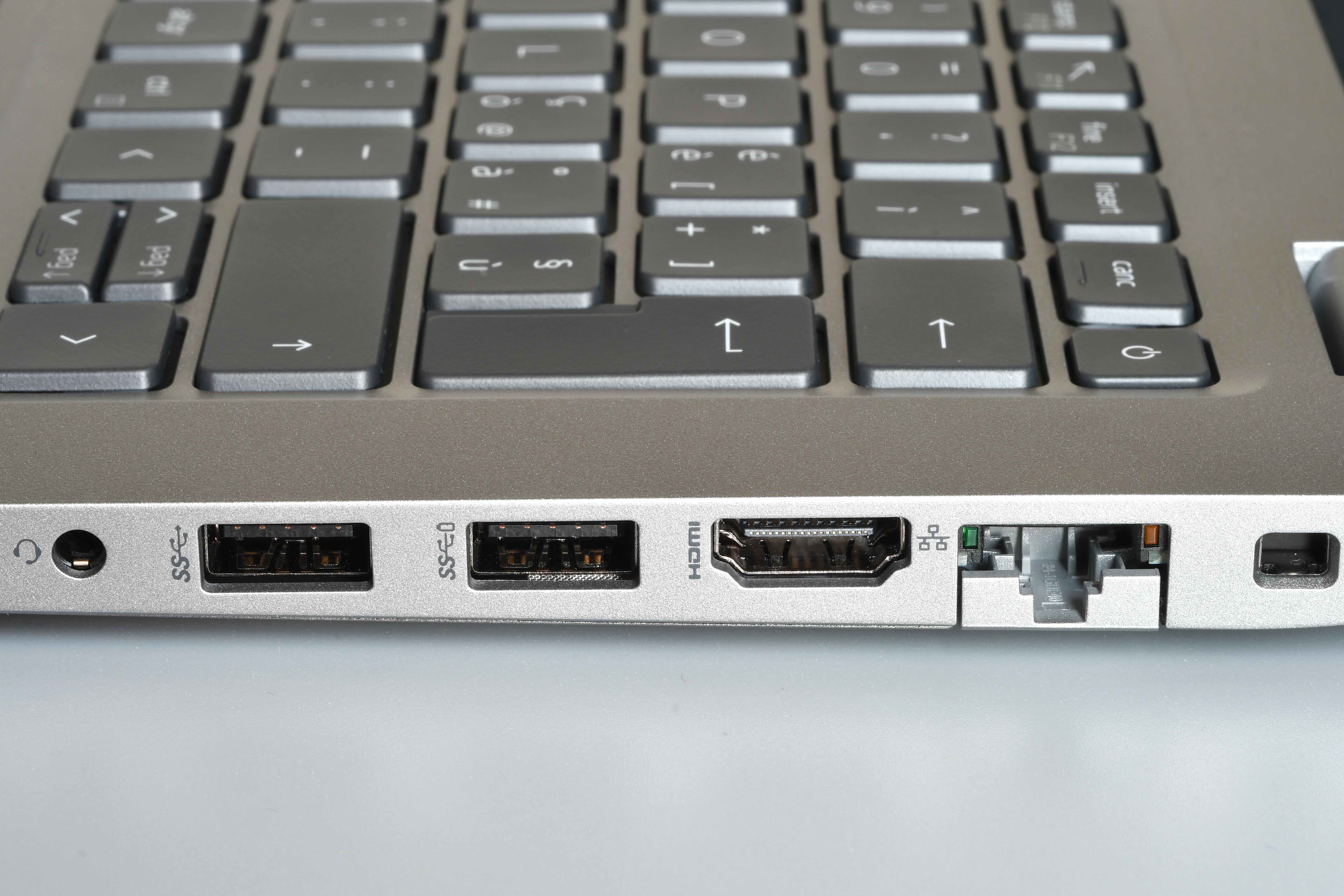
HDMI comes in a few different connector sizes, and computers can use more than one depending on the device. Standard HDMI, also called Type A, is the full-size connector you see on most desktop computers, monitors, and televisions. Mini HDMI, or Type C, appears on some older laptops and tablets. Micro HDMI, Type D, is less common but shows up on compact devices. Most modern laptops use either full-size HDMI or have moved to USB-C with HDMI alt mode, which requires an adapter or a USB-C to HDMI cable. Knowing which connector your device has before buying a cable is a basic step that people overlook more often than you would think.
Key Advantages of Using HDMI on a Computer
There are real, practical reasons why HDMI has become the default connection standard for computer displays. The benefits go beyond just plug-and-play convenience. Consider what you actually get when you connect via HDMI:
- Single cable for both audio and video eliminates the need for a separate audio output connection
- Wide device compatibility across monitors, TVs, projectors, and AV receivers
- Support for high resolutions and refresh rates depending on the HDMI version used
- Consumer Electronics Control (CEC) allows some devices to communicate control signals over the same cable
- Broad support across virtually every operating system including Windows, macOS, and Linux
- Reliable signal integrity over standard cable lengths up to about 25 feet without signal boosting
That combination of simplicity, compatibility, and performance is hard to argue with, especially when you factor in how affordable a solid HDMI cable can be relative to what it delivers.
Common Drawbacks and Limitations to Be Aware Of
HDMI is not perfect, and being honest about its limitations helps you make smarter setup decisions. One thing that catches people off guard is cable length. Standard passive HDMI cables begin to show signal degradation around 25 to 30 feet. For longer runs, you need either an active HDMI cable, a signal extender, or a fiber optic HDMI cable. Another consideration is that older HDMI versions simply cannot push the bandwidth required for newer high-resolution, high-refresh-rate displays, so a cable that worked fine with your old monitor might not cut it with a newer one. Also worth noting, some ultrabooks and thin laptops have dropped the full-size HDMI port entirely in favor of USB-C or Thunderbolt, which means adapters are part of the picture. And finally, HDMI does not natively support daisy-chaining multiple monitors the way DisplayPort does, which can be a limiting factor for multi-monitor workstation setups.
How to Choose the Right HDMI Cable for Your Computer Setup
The right HDMI cable comes down to three things: your source device, your display, and the distance between them. Start by identifying the HDMI version supported by your graphics card or integrated GPU. Then check the specs on your monitor or TV to see what it accepts. Match the cable spec to the lower of the two. There is no benefit to buying an HDMI 2.1 cable if your display only outputs HDMI 2.0, though it does not hurt to buy ahead if you plan to upgrade your display later. For cable length, stay under 25 feet with passive cables and opt for active or fiber optic cables for longer runs. For resolution and frame rate targets, HDMI 2.0 cables cover the majority of 4K at 60Hz use cases. HDMI 2.1 is the move if you are targeting 4K at 120Hz or 8K content.
HDMI vs. DisplayPort for Computer Monitors
This question comes up constantly and for good reason. Both HDMI and DisplayPort are capable digital connections, but they serve slightly different use cases. DisplayPort is generally preferred for desktop PC gaming because it supports higher refresh rates at high resolutions and allows daisy-chaining. HDMI tends to be more universal across consumer electronics, making it the better choice when connecting a computer to a television, projector, or AV system. For pure monitor-to-computer connections in a professional or creative environment, DisplayPort often wins on raw bandwidth. For versatility and compatibility across a wider range of display devices, HDMI is the practical choice. Many setups actually benefit from using both, depending on what you are connecting.
Why Monoprice HDMI Cables Deserve a Spot in Your Setup
Here is the thing about HDMI cables: the performance gap between a budget cable and a properly built one is real, but you should never have to overpay to close it. Monoprice has built its reputation on exactly that premise, delivering certified, high-performance HDMI cables that meet or exceed industry standards without the inflated price tags attached to retail brand names. Whether you need a standard HDMI 2.0 cable for a home office display, a high-speed HDMI 2.1 cable for a gaming rig pushing 4K at 120Hz, or an ultra-long active HDMI cable for a commercial AV installation, Monoprice has the cable built to spec and priced to make sense. Every cable is engineered with shielding, proper conductor sizing, and the build quality that professional installers and everyday users can both rely on. When you are ready to connect your computer to any display with confidence, explore the full line of high-speed HDMI cables for computers and displays and find the right cable for your exact setup without compromise.
Frequently Asked Questions About HDMI Cables for Computers
What HDMI version do I need for a 4K monitor connected to my computer?
For 4K resolution at 60Hz, you need at least an HDMI 2.0 cable. For 4K at 120Hz, you need HDMI 2.1. Check both your graphics card output and your monitor input to confirm which version is supported.
Can I use any HDMI cable with my computer or does it have to be a specific type?
Not all HDMI cables support the same bandwidth. The cable must match or exceed the HDMI version required by your target resolution and refresh rate. Using an older cable with a newer display can result in a downgraded signal or no signal at all.
Why is there no picture when I connect my computer to a TV with an HDMI cable?
First check that the TV is set to the correct HDMI input channel. Then confirm the cable is fully seated on both ends. If that does not resolve it, check your computer display settings to detect or configure the external display output.
How long can an HDMI cable be before it loses signal quality?
Standard passive HDMI cables reliably carry signal up to about 25 feet. For runs beyond that, active HDMI cables or fiber optic HDMI cables are recommended to maintain signal integrity.
Does HDMI carry audio as well as video from a computer?
Yes. HDMI carries both audio and video over the same single cable. Your computer will typically route audio output through the HDMI connection automatically once a display is detected, though you may need to select it as your audio output device in system settings.
Is HDMI 2.1 backward compatible with HDMI 2.0 ports?
Yes. HDMI 2.1 cables and ports are backward compatible with earlier versions. An HDMI 2.1 cable used with an HDMI 2.0 port will simply operate at HDMI 2.0 speeds, which is still sufficient for 4K at 60Hz.
My laptop only has a USB-C port. Can I still use HDMI?
Yes. If your laptop supports USB-C with DisplayPort alt mode or Thunderbolt, you can use a USB-C to HDMI adapter or cable to connect to any HDMI display. Confirm your laptop supports video output over USB-C before purchasing.
What is the difference between standard HDMI and high-speed HDMI cables?
Standard HDMI cables support bandwidth up to about 5 Gbps, suitable for 1080p. High-speed HDMI cables support up to 18 Gbps, covering 4K at 60Hz with HDR. Ultra high-speed HDMI cables reach 48 Gbps and are required for HDMI 2.1 performance.
Can I run two monitors from one HDMI port on my computer?
HDMI does not natively support daisy-chaining multiple monitors from a single port. To run multiple displays, you would need multiple HDMI outputs, a docking station, or a multi-monitor adapter. DisplayPort is generally better suited for multi-monitor configurations.
Does cable brand or quality actually affect HDMI performance?
Cable construction quality does matter. Poor shielding, undersized conductors, and loose connectors can cause signal issues, especially at higher resolutions and refresh rates or over longer cable runs. A well-built cable from a reputable manufacturer delivers consistent, reliable performance without overpaying for a name.


