

Faulty Display Cable: Symptoms, Fixes & Upgrades
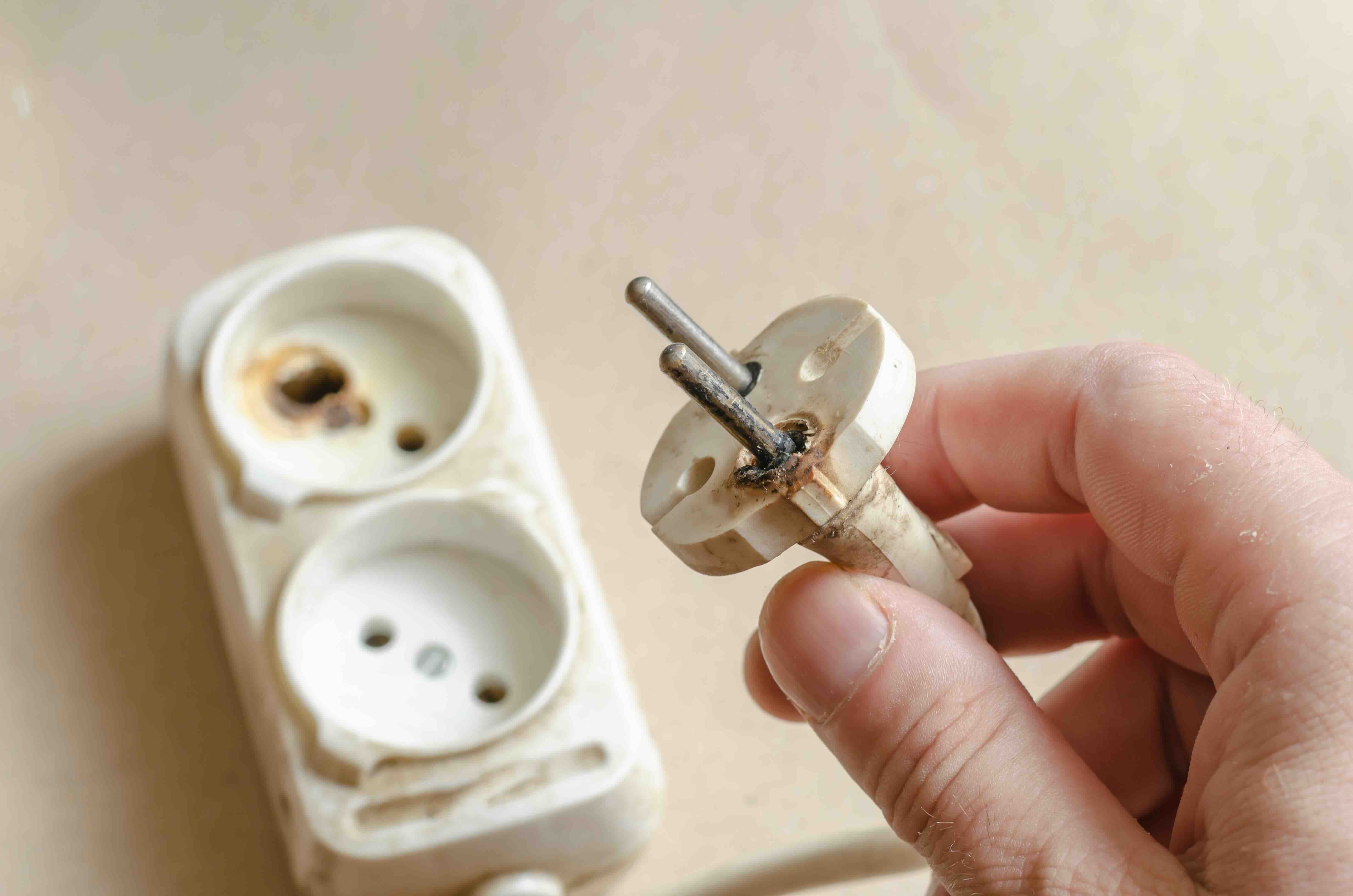
When Your Screen Goes Wrong: Understanding the Faulty Display Cable Problem
So your monitor is flickering. Or maybe the image cuts out entirely, comes back, cuts out again. Maybe there are weird colored lines running across the screen, or the display just refuses to show anything at all. Before you start assuming the worst about your GPU or your monitor itself, there is a pretty good chance the culprit is something a lot simpler and a lot cheaper to fix: a faulty display cable. It sounds almost too basic, right? But this is genuinely one of the most common and most overlooked causes of display issues across every kind of setup, from home workstations to commercial AV installations. Understanding what a display cable actually does, how it fails, and what you can do about it can save you a frustrating amount of time and money.
What Is a Display Cable and What Does It Actually Do
A display cable is the physical connection between your video source, which could be a computer, gaming console, media player, or AV receiver, and your output display, meaning your monitor, television, or projector. The cable carries video signal data, and in many modern formats, audio as well. The most common types you will encounter today are HDMI, DisplayPort, DVI, and USB-C with video output capability. Each of these standards has its own connector shape, signal protocol, and bandwidth ceiling. What they all share is the same fundamental vulnerability: they are physical objects, and physical objects degrade. Connectors bend, internal wires fray, shielding breaks down, and over time, what was once a clean signal path becomes a noisy, unreliable one.
How a Faulty Display Cable Behaves in the Real World
This is where things get interesting, and also a little frustrating, because a bad display cable does not always fail the same way. Sometimes it is dramatic and obvious. Other times it is subtle enough that you spend two weeks assuming your graphics card is failing. Here are the most common symptoms of a faulty display cable:
- Intermittent flickering or screen blanking, especially when the cable is moved or touched
- Random color distortion, banding, or artifact patterns on the display
- Complete signal loss where the monitor shows no input detected
- Display resolution or refresh rate dropping below the expected output
- One or more audio channels disappearing when the cable carries audio
- Screen tearing or image instability during high-bandwidth content like 4K or high refresh rate gaming
The intermittent nature of many of these symptoms is what makes cable faults tricky. A connection that is partially degraded may work fine under low-bandwidth conditions but fail when you push higher resolutions or refresh rates. That 1080p desktop might display just fine while 4K HDR content causes the signal to drop immediately. The cable is struggling to carry the data load, and that tells you something very specific about what is going wrong.
The Most Common Reasons Display Cables Fail
Physical stress is the number one cause. Cables that are bent sharply, pinched behind furniture, or repeatedly plugged and unplugged develop internal wire breaks that may not be visible from the outside. The outer jacket can look completely fine while the conductors inside are compromised. Connector damage is another major factor. If a cable has been pulled out at an angle repeatedly, the connector pins can become bent or the locking tabs can break, resulting in a loose connection that introduces signal noise. Beyond physical damage, cable quality plays a significant role. Cheap, unshielded, or poorly constructed cables are far more susceptible to electromagnetic interference and signal degradation over distance. A cable that barely meets spec when new can fail well before its time when build quality is low. Finally, firmware or handshake incompatibilities between devices can mimic cable faults, so it is worth ruling those out before replacing hardware.
How to Diagnose a Faulty Display Cable at Home
The good news is that diagnosing a bad display cable is usually pretty straightforward if you approach it methodically. Start by substituting a known-good cable of the same type. If the problem disappears immediately, the original cable is almost certainly the cause. If you do not have a spare, try wiggling the cable gently at both ends while the display is active. A signal dropout or flicker that corresponds to movement is a strong indicator of a failing cable. Check the connector ends for visible damage, bent pins, or debris in the port. Try a different port on your GPU or a different input on your monitor if available. If none of those steps isolate the issue, you may be dealing with a port-level hardware fault rather than the cable itself, but the cable should always be the first thing you eliminate.
Key Advantages of Upgrading to a Quality Display Cable
Here is something that does not get said enough: not all display cables are equal, and upgrading to a properly built, well-shielded cable is not a minor thing. A quality cable built to full specification will support the bandwidth your devices were designed to deliver. That means stable 4K at 120Hz, proper HDR passthrough, accurate color depth, and consistent audio channel integrity. A well-shielded cable also resists interference from nearby power cables, networking hardware, and other electronics that can introduce noise into the signal path. Durability is another real advantage. Cables with reinforced connectors, braided jackets, and strain relief at the termination points last significantly longer than bare-minimum alternatives. When you factor in the cost of troubleshooting, downtime, and potential misdiagnosis of other hardware, spending a little more on a reliable cable upfront is genuinely the smarter economic decision.
Common Drawbacks and Limitations to Know
Display cables do have real limitations worth understanding before you buy. Cable length is one of the most important. Passive HDMI and DisplayPort cables have maximum reliable lengths before signal degradation becomes a problem. For HDMI 2.1, that practical limit is often around 10 feet for full bandwidth support without active signal assistance. Going longer generally requires an active cable or a fiber optic solution. Version compatibility is another consideration. An older HDMI 1.4 cable plugged into a device expecting HDMI 2.1 bandwidth will not deliver the performance the device is capable of. The connection may still work, but you will be leaving resolution, refresh rate, or HDR capability on the table. Always match your cable version to your device's output capability. And finally, even a premium cable can only perform as well as the ports on either end of it will allow.
Practical Tips for Choosing and Maintaining Your Display Cable
Choosing the right display cable does not need to be complicated. Match the cable type and version to your devices and your intended use case. For modern setups running 4K at high refresh rates, look for HDMI 2.1 or DisplayPort 1.4 certified cables. Buy from reputable sources that back their cables with warranties and verified specifications. When installing, avoid tight bends and leave enough slack that the cable is not under tension at the connectors. Use cable management solutions to keep display cables away from power lines when possible. If you are running longer distances, investigate active cable options rather than stretching a passive cable beyond its reliable range. And when a cable shows any sign of physical damage, replace it rather than trying to extend its life with tape or repositioning. These are low-cost items relative to the hardware they connect.
Why Monoprice Should Be Your First Stop for Display Cable Solutions
If you have been dealing with signal issues, screen flicker, or the chronic frustration of a display setup that refuses to behave consistently, it is worth taking the cable question seriously, and it is worth sourcing your replacement from a brand that actually builds cables to specification. Monoprice has spent years earning the trust of both everyday consumers and professional AV integrators by delivering exactly what a product claims to deliver, at a price point that does not require budget gymnastics. Whether you need a certified HDMI 2.1 cable for a high-refresh-rate gaming monitor, a reliable DisplayPort solution for a multi-display workstation, or a fiber optic active cable for a longer commercial AV run, Monoprice has the product to match your actual use case. When you are ready to stop guessing and start solving, browse the full selection of high-performance display cables and AV connectivity solutions at Monoprice and get your setup working the way it was designed to.
Frequently Asked Questions About Faulty Display Cables
How do I know if my display cable is the cause of my flickering screen?
The fastest way to confirm a faulty display cable is to substitute it with a known-good cable of the same type and standard. If the flickering stops, the original cable was the problem. You can also try gently flexing the cable near each connector while the display is active. Signal dropout that corresponds to movement is a strong indicator of internal cable damage.
Can a bad HDMI cable cause no signal at all?
Yes. A sufficiently degraded HDMI cable can fail to establish a handshake with the connected devices entirely, resulting in a no signal message on the display. This is especially common when the internal conductors or the connector pins are significantly damaged.
Does cable length affect display quality?
It can, particularly with passive cables at higher bandwidth standards. Passive HDMI 2.1 cables, for example, have practical length limits of roughly 10 feet for full specification performance. Beyond that, signal attenuation can cause instability, resolution drops, or complete signal loss. Active or fiber optic cables are recommended for longer runs.
Is DisplayPort better than HDMI for monitors?
Both are capable standards, and the better choice depends on your specific hardware. DisplayPort generally offers advantages for high refresh rate PC monitor setups, including support for daisy chaining and higher bandwidth in some versions. HDMI is more universally compatible across consumer electronics including televisions and AV receivers. Always check what your GPU and monitor actually support.
Can a display cable affect audio quality or cause audio dropouts?
Yes. HDMI cables carry both video and audio signals on the same conductor bundle. A failing cable can cause audio channels to drop, introduce static, or cause the audio signal to cut out entirely while video remains, or vice versa. If you are experiencing audio issues alongside video instability, the cable is a logical first point of investigation.
What is the difference between active and passive display cables?
A passive display cable carries the signal as-is between two connectors with no electronic assistance. An active cable includes signal conditioning or amplification circuitry, usually near one of the connectors, to maintain signal integrity over longer distances or across certain format conversions. Active cables are generally required for runs exceeding the passive cable's reliable range.
Do I need a certified cable or will any cable work?
Certification matters more than most people realize. Certified cables, such as those carrying HDMI certification from HDMI.org, have been tested to meet the actual specification they claim to support. Uncertified cables may be labeled as HDMI 2.1 or 8K capable without ever being tested to those standards, which means real-world performance can fall well short of what is advertised.
How long should a good quality display cable last?
A well-built cable with quality connectors and a durable jacket, installed without physical stress, can last many years. Cables that are frequently moved, pulled, or bent near the connectors have a significantly shorter lifespan. If your cable is showing any physical signs of wear or causing intermittent symptoms, replacement is the practical choice.
Can a faulty display cable damage my monitor or GPU?
In the vast majority of cases, no. A failing cable will cause signal issues but will not introduce harmful electrical conditions to connected hardware. That said, some very cheap or non-compliant cables have been known to cause handshake errors that stress components over time. Using certified, specification-compliant cables eliminates that concern entirely.
What should I look for when buying a replacement display cable?
Match the cable type and version to your device's ports and your target resolution and refresh rate. Look for certification markings, reinforced connectors with strain relief, and a reputable warranty. For most modern 4K and high refresh rate setups, you want HDMI 2.1 or DisplayPort 1.4 at minimum. Buy from a brand that stands behind its specifications with real testing and warranty support.


