

DVI-D Single Link vs Dual Link: What You Need to Know
DVI-D Single Link vs Dual Link: What You Need to Know Before You Buy
If you have ever stared at the back of a monitor or graphics card and wondered what that oddly shaped connector actually does, you are not alone. DVI-D is one of those connectors that has been around long enough to become standard infrastructure in a lot of setups, but most people still do not fully understand the difference between a single link and a dual link configuration. And honestly, that difference matters more than most people realize, especially when you start pushing higher resolutions or refresh rates. So let us break this down properly.
What Is DVI-D and How Does It Actually Work
DVI stands for Digital Visual Interface. The D in DVI-D specifically means it carries only a digital signal, which is a key distinction from DVI-I, which handles both analog and digital. When a signal travels through a DVI-D cable, it is transmitted over what are called TMDS channels, which stands for Transition Minimized Differential Signaling. Without getting too far into the weeds here, each TMDS channel essentially carries a portion of your image data at high speed. Single link DVI-D uses one set of TMDS channels, and dual link uses two. That distinction is what controls the ceiling on resolution and refresh rate performance, and it is what most buyers miss when they are just grabbing whatever cable is on sale.
Single Link DVI-D: The Basics and What It Supports
Single link DVI-D is the more common and more affordable option. A standard single link connection operates at a maximum bandwidth of around 165 MHz, which translates to a practical resolution ceiling of 1920 x 1200 at 60Hz. That covers a wide range of everyday use cases, from office workstations to general-purpose monitors. For anyone running a 1080p display or even a modest WUXGA panel, single link DVI-D is more than capable of handling the job cleanly. The connector itself has a specific pin configuration with 18 pins arranged in a grid plus one flat blade pin. It is worth noting that the connector physically fits into a dual link port, but it will still only push single link bandwidth regardless of what it is plugged into.
Dual Link DVI-D: When You Need More Bandwidth
Dual link DVI-D effectively doubles the available bandwidth by adding a second set of TMDS channels to the equation. This brings the maximum bandwidth up to around 330 MHz and allows for resolutions up to 2560 x 1600 at 60Hz. If you are running a 2K or high-resolution professional display, a dual link cable is not optional, it is required. The physical connector for dual link includes 24 pins plus the flat blade, so visually you can actually identify the difference just by looking at the pin count. If you plug a single link cable into a dual link source and display, the system will technically work, but it will fall back to single link limitations, which can result in signal degradation or a hard cap on the resolution you can actually use.
How to Tell the Difference at a Glance
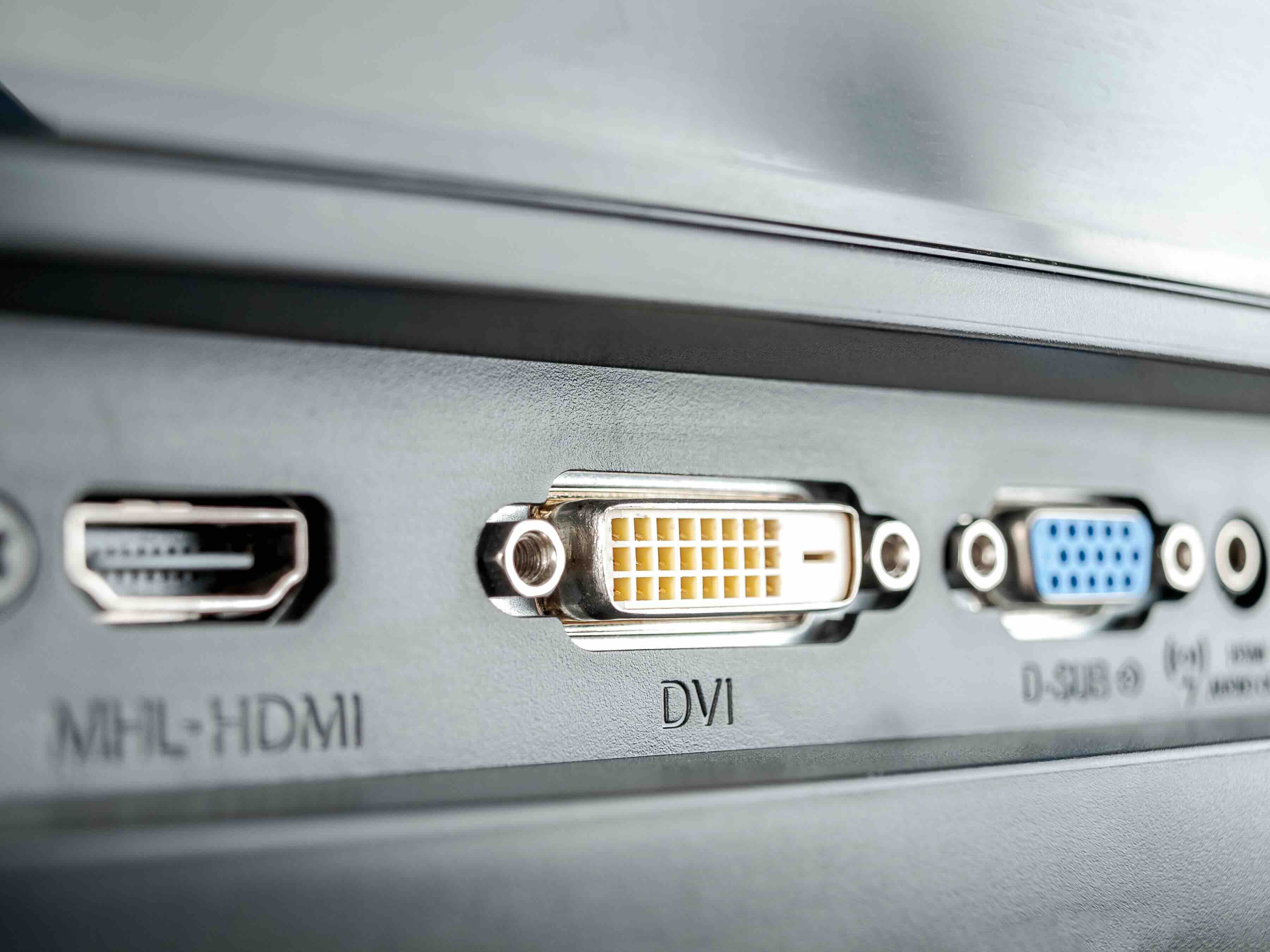
Identifying which type of DVI-D cable or port you are dealing with comes down to the pin layout. Here is a quick reference to help you sort it out before you buy or install anything:
- Single link DVI-D has 18 data pins plus one flat pin, totaling 19 contact points
- Dual link DVI-D has 24 data pins plus one flat pin, totaling 25 contact points
- Single link connectors will physically fit dual link ports, but bandwidth remains single link
- Dual link connectors require dual link ports to take advantage of the additional channels
- Look for the filled pin grid with no empty slots, that indicates dual link
It takes maybe ten seconds to count pins before you order or install, and it can save a lot of frustrating troubleshooting later. That said, most manufacturers print the type directly on the cable packaging, so as long as you are buying from a reliable source, you should not have to guess.
Key Advantages of Each Configuration
Single link DVI-D carries a real advantage in cost and compatibility. It is widely supported across legacy hardware, it is simple to source, and for standard HD or near-HD use cases it performs without any noticeable compromise. If a business is outfitting a fleet of workstations with 1080p monitors, single link is a perfectly rational and efficient choice. Dual link, on the other hand, is built for performance-oriented environments. Video editors working on high-resolution timelines, CAD operators using wide-format displays, and anyone who has made the investment in a 2560 x 1600 panel will need dual link to actually access the display's full capability. The bandwidth headroom it provides is not theoretical, it is functionally necessary for those environments to operate correctly.
Common Drawbacks and Limitations to Keep in Mind
DVI-D as a format does have real limitations that are worth acknowledging, and they affect both single and dual link equally in some respects. DVI does not carry audio, which is a notable gap compared to HDMI or DisplayPort. It also does not support HDCP 2.2, which matters for certain protected content streams. Cable length is another constraint since DVI signal integrity tends to degrade over longer runs, and most passive cables are only reliable up to around 15 feet without signal boosting. For longer installations, an active cable or extender is typically required. Additionally, the DVI ecosystem has been gradually phased out of newer hardware, so while it remains common in existing infrastructure, new monitors and graphics cards increasingly favor DisplayPort and HDMI as their primary outputs.
Which One Should You Choose for Your Setup
The honest answer is that your display resolution makes the decision for you. If your monitor tops out at 1920 x 1080 or 1920 x 1200, single link DVI-D will serve you well and there is no need to spend extra on dual link. If your monitor supports 2560 x 1440, 2560 x 1600, or anything higher in the DVI ecosystem, dual link is not a luxury, it is a requirement. Also check both ends of your connection, meaning both your graphics card output and your monitor input. Both need to support dual link for it to function at full bandwidth. Buying a dual link cable is pointless if either end of the chain only supports single link, so verify the hardware specs before purchasing.
DVI-D in Modern and Legacy Infrastructure
Despite its aging status, DVI-D remains actively relevant in a lot of commercial and industrial settings. Medical imaging systems, broadcast environments, and legacy enterprise workstations still rely on DVI infrastructure, and replacements or additions to those setups require a solid understanding of single vs dual link. For AV integrators and IT procurement teams managing large installations with older display hardware, having reliable DVI-D cabling sourced at scale remains a practical and cost-effective need. Understanding this technology is not just academic, it is a working requirement for anyone responsible for maintaining or expanding a mixed-generation display infrastructure.
Why Monoprice Is the Right Source for DVI-D Cables and Display Connectivity
When it comes to sourcing display cables that actually perform at the spec listed on the box, Monoprice has built a reputation for delivering exactly that without inflating the price to do it. Whether you need single link cables for a bulk workstation rollout or dual link cables for high-resolution professional displays, the product lineup is designed to meet both performance and budget requirements without compromise. For IT buyers, AV integrators, and individual users who want dependable signal transmission the first time and every time, exploring DVI-D single link and dual link cables built for professional display installations through Monoprice is a smart, straightforward decision backed by real product quality and fair pricing at every order volume.
Frequently Asked Questions About DVI-D Single Link vs Dual Link
What is the main difference between DVI-D single link and dual link?
Single link DVI-D supports resolutions up to 1920 x 1200 at 60Hz using one set of TMDS channels. Dual link DVI-D doubles the available bandwidth using two sets of TMDS channels, supporting resolutions up to 2560 x 1600 at 60Hz.
Can I use a single link DVI-D cable in a dual link port?
Yes, a single link cable will physically fit into a dual link port, but the connection will only operate at single link bandwidth. You will not gain dual link performance by plugging a single link cable into a dual link port.
How do I know if my monitor requires a dual link DVI-D cable?
Check your monitor's specifications for its native resolution. If it exceeds 1920 x 1200, such as 2560 x 1440 or 2560 x 1600, you will need a dual link DVI-D cable to operate it at full resolution.
Does DVI-D carry audio?
No. DVI-D is a video-only interface and does not transmit audio signals. If your setup requires both video and audio over a single cable, HDMI or DisplayPort are more appropriate choices.
How can I physically identify a dual link DVI-D cable?
Count the pins on the connector. A dual link DVI-D cable has 24 data pins plus one flat blade pin, totaling 25 contact points. A single link has 18 data pins plus the flat pin, totaling 19 contact points.
What is the maximum cable length for a DVI-D connection?
Passive DVI-D cables are generally reliable up to approximately 15 feet before signal quality begins to degrade. For longer runs, an active DVI-D cable or signal extender is recommended to maintain image integrity.
Is DVI-D still relevant for modern displays?
DVI-D is being phased out of newer consumer hardware, but it remains relevant in legacy enterprise environments, medical imaging, broadcast setups, and industrial display infrastructure where existing equipment still relies on DVI connections.
Does dual link DVI-D support HDR or high refresh rates like 144Hz?
Dual link DVI-D does not support HDR. It can support higher refresh rates at lower resolutions, such as 1920 x 1080 at 144Hz, but for HDR and modern high-refresh-rate displays, DisplayPort or HDMI are the appropriate interfaces.
What graphics card output do I need for dual link DVI-D to work?
Your graphics card must have a dual link DVI-D output port. Both the source and the display need to support dual link for the full bandwidth to be available. A single link output on the GPU will limit performance regardless of the cable or monitor used.
Is there a performance difference between DVI-D and HDMI for 1080p displays?
For standard 1080p at 60Hz, both DVI-D single link and HDMI deliver comparable image quality. The practical differences emerge with audio support, HDCP compliance, and higher resolution capability, where HDMI holds clear advantages over DVI-D.


