

Dual Screen HDMI Setup: Cables, Tips & What Works
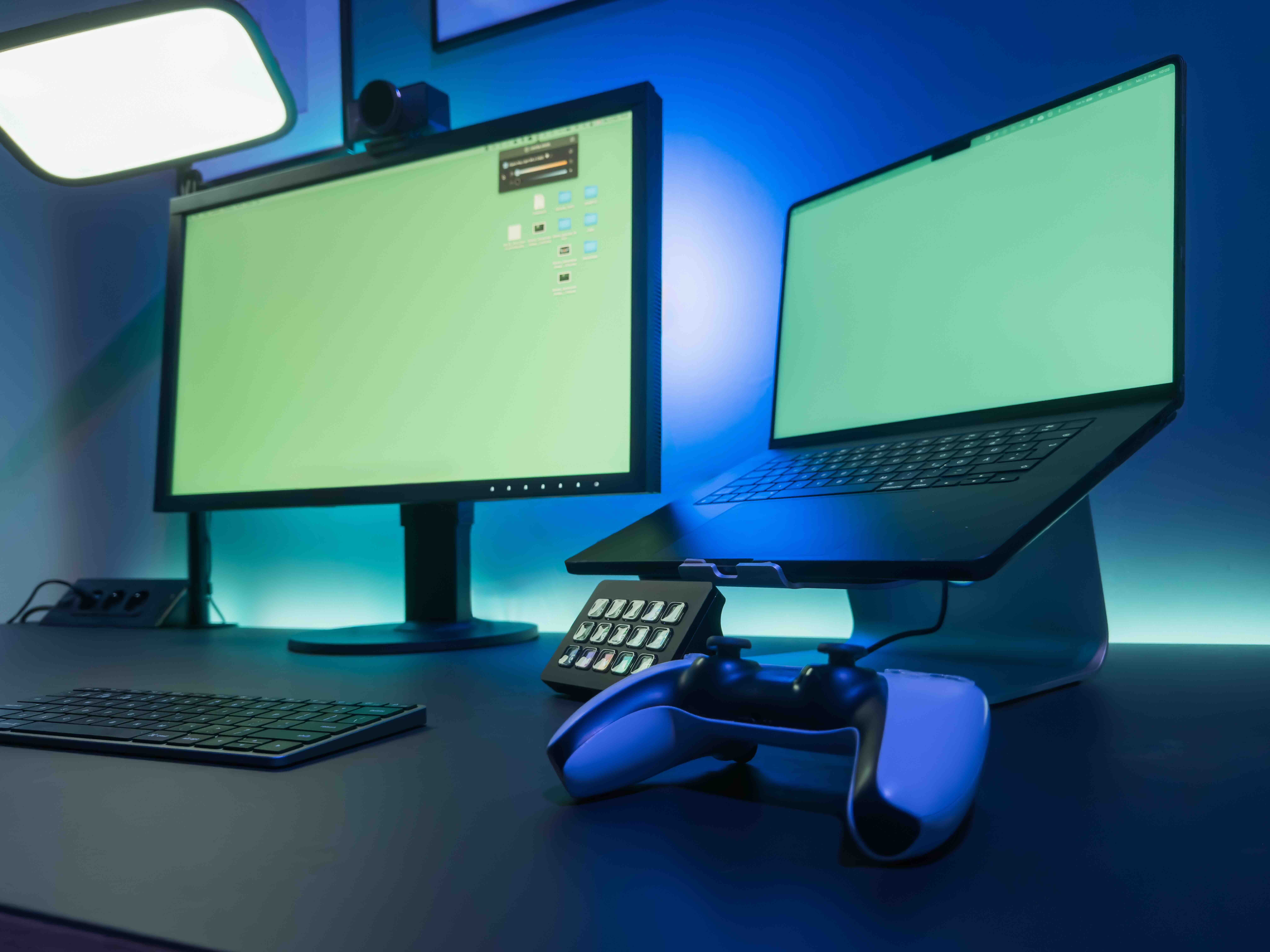
What Is a Dual Screen HDMI Setup and Why Does It Matter?
Running two monitors off a single source used to feel like a niche pro move. Now it is basically standard. Whether you are working across multiple applications, gaming with an extended view, or managing presentations alongside reference material, a dual screen HDMI configuration gives you the screen real estate to actually work the way your brain works. The concept is straightforward: you are using HDMI connections to drive two separate displays from one device, be it a laptop, desktop, game console, or AV source. But getting that setup right, without lag, signal loss, or compatibility headaches, takes a bit more understanding than just plugging in two cables and hoping for the best. This guide breaks it all down.
How Dual Screen HDMI Actually Works
At its core, a dual screen HDMI setup relies on your source device outputting video signal to two monitors simultaneously or independently. Most modern graphics cards and laptops support multiple display outputs, meaning the hardware side is usually fine. The complication comes from how you route and manage those signals. There are a few different methods. Some devices have two physical HDMI ports, which is the simplest case. Others have a mix of HDMI and DisplayPort outputs, and you use adapters to bring everything into HDMI. And then there are HDMI splitters versus HDMI switches, which people mix up constantly and should not. A splitter sends the same image to two screens. A switch lets you toggle between multiple sources on one screen. Neither is the same as simply connecting two displays for an extended desktop. The method you use determines everything from resolution to refresh rate to whether you actually get the dual screen experience you want.
HDMI Splitters vs. Dual Output: Knowing the Difference
This is where a lot of buyers get tripped up. If you purchase an HDMI splitter thinking it will give you two independent screens with different content, you are going to be disappointed. A splitter mirrors your display, meaning both monitors show the same thing. That is useful for conference rooms, digital signage, or presentations where audience members in different spots need to see the same content. For a productivity dual monitor setup, though, you need your device to support extended desktop output through two separate ports or a USB-C to dual HDMI adapter that properly handles the signal split at the source level. Knowing what you actually need before you buy saves real money and real frustration. If your laptop only has one HDMI port but you want two independent monitors, a powered USB-C hub or docking station with dual video output is the smarter path forward.
Key Advantages of a Dual Screen HDMI Configuration
There is a reason dual monitor setups have become the default in so many professional environments. The productivity gains are measurable, not just anecdotal. Research has consistently shown that working across two screens reduces task-switching time and cognitive load. But beyond productivity, the advantages span multiple use cases:
- Increased multitasking capacity without constant window minimizing and maximizing
- Extended desktop real estate for video editing, spreadsheet work, and code review
- Consistent signal quality through HDMI for resolutions up to 4K depending on the cable and version
- Lower latency compared to wireless display solutions
- Compatibility across a huge range of devices, from laptops and desktops to game consoles and media players
- Simpler cabling infrastructure compared to DisplayPort in mixed-device environments
HDMI also benefits from wide device support, so you are not dealing with adapter chains or obscure connectors in most setups. For a business deploying twenty workstations or a creative professional building a personal studio, that kind of standardization matters a lot.
Common Drawbacks and Limitations to Watch For
Nothing is perfect, and dual screen HDMI setups come with their own set of constraints. The most common issue is bandwidth. HDMI 1.4, which is still on a lot of older cables and devices, tops out at 4K/30Hz. If you are driving two 4K monitors at 60Hz, you need HDMI 2.0 at minimum, ideally HDMI 2.1 for anything higher. Running mismatched cable versions between two monitors can result in one display performing fine while the other drops resolution or refresh rate. Another pain point is HDCP handshake errors, which show up when one display in the chain does not properly authenticate. This is especially common with older monitors paired with new streaming devices. Cable quality also plays a bigger role than most people expect. A poorly shielded or length-limited HDMI cable introduces signal degradation that shows up as flickering, color banding, or complete signal dropout at longer runs.
Choosing the Right HDMI Cable for a Dual Display Setup
Not all HDMI cables are created equal, and with dual screen setups, the cable choice gets multiplied by two. For standard 1080p or 1440p dual monitor configurations, a reliable High Speed HDMI cable rated for at least 10.2 Gbps handles the job cleanly. For 4K dual screen work at 60Hz, you want Premium High Speed HDMI certified cables running at 18 Gbps. If you are pushing into 4K 120Hz or 8K territory on either display, Ultra High Speed HDMI 2.1 cables rated at 48 Gbps are the requirement, not the recommendation. Length matters too. HDMI signals start to degrade past about fifteen feet on passive cables, so for longer runs in commercial or enterprise environments, active HDMI cables or signal extenders become necessary. Buying certified cables from a reputable source is not optional here. It is the difference between a setup that works reliably and one that troubleshoots itself into your evening.
Setting Up Dual HDMI Monitors: Practical Tips
Once you have the right hardware and cables, the setup process is mostly straightforward, but a few things are worth knowing ahead of time. First, confirm your GPU or onboard graphics supports independent output on both ports simultaneously. Some integrated graphics solutions only support mirroring, not extended desktop. Second, connect both monitors before booting up. Hot-plugging the second monitor after startup can sometimes cause the system to misidentify display priorities. Third, go into your display settings immediately after connecting and verify both screens are detected independently, then configure your layout, primary display, and resolution per screen. On Windows, this is under Display Settings. On macOS, Arrangement in Display Preferences. Cable management also deserves a mention here, especially in dual screen setups where cable runs cross. Quality cables with secure locking connectors reduce accidental disconnects and signal issues over time.
Dual Screen HDMI for Business and Professional Environments
For IT managers, AV integrators, and office procurement teams, scaling dual screen HDMI deployments across multiple workstations introduces new variables. Standardizing on a single HDMI cable spec and connector type across a fleet of monitors simplifies troubleshooting. Docking stations with certified dual HDMI output ports have become a practical standard for hybrid work setups, allowing employees to dock a single laptop and instantly drive two monitors without reconfiguring anything. In boardrooms and presentation spaces, HDMI matrix switchers allow multiple sources to feed multiple displays independently, which is a step up from basic dual monitor configurations but built on the same HDMI foundation. Getting the cabling infrastructure right from the start saves hours of support calls down the line.
Why Monoprice Is the Smart Choice for Dual Screen HDMI Cables and Accessories
When you are building out a dual screen HDMI setup, whether for a personal workstation or a multi-seat enterprise deployment, the quality and consistency of your cabling infrastructure directly affects performance. Monoprice has built a reputation as one of the most reliable sources for certified, high-performance HDMI cables at pricing that does not penalize you for buying in volume. Every cable is built to spec, tested for signal integrity, and backed by the kind of warranty and customer support that procurement teams and individual buyers both need. If you are looking for HDMI 2.1 ultra high speed cables, certified Premium High Speed options, or full dual monitor setup accessories, exploring the complete lineup of professional-grade dual screen HDMI cables and display solutions at Monoprice gives you access to verified performance without the inflated retail markup. The value proposition here is straightforward: better cables, real specs, fair prices. That is what consistently sets Monoprice apart from generic alternatives flooding the market.
Frequently Asked Questions About Dual Screen HDMI
Can I use one HDMI port to connect two monitors?
Not directly for extended desktop use. With a single HDMI port, you can use an HDMI splitter to mirror the same image across two screens, but for independent content on each display, you need either a second video output port, a USB-C adapter with dual video support, or a docking station with multiple HDMI outputs.
What HDMI version do I need for dual 4K monitors at 60Hz?
You need HDMI 2.0 or higher, which supports 4K at 60Hz per connection. Both your source device outputs and your cables must support HDMI 2.0 bandwidth of 18 Gbps to maintain that resolution and refresh rate on each display.
What is the difference between an HDMI splitter and an HDMI switch?
An HDMI splitter takes one source and sends the same signal to multiple displays simultaneously. An HDMI switch takes multiple sources and routes one at a time to a single display. Neither replaces a proper dual output configuration for independent extended desktop use.
Why is one of my dual monitors flickering or showing a lower resolution?
This is usually a cable quality or version mismatch issue. Check that both HDMI cables are rated for the resolution and refresh rate you are targeting. Mismatched cable specs between two monitors in the same setup is a common cause of degraded performance on one screen.
Do HDMI cables lose signal quality over longer distances?
Yes. Passive HDMI cables typically maintain reliable signal integrity up to about fifteen feet. Beyond that, signal degradation can cause flickering, dropout, or color issues. For longer runs, use active HDMI cables or HDMI over fiber extenders designed for extended distance.
Can a laptop drive two external HDMI monitors?
It depends on the laptop. Some laptops have two physical video outputs, while others only have one HDMI port. In the latter case, a USB-C or Thunderbolt docking station with dual HDMI output is the most reliable solution for driving two independent external monitors.
Does HDMI support different content on each monitor simultaneously?
Yes, when using a proper dual output configuration from your device's GPU. Extended desktop mode in your operating system allows each connected display to show completely different content. This requires two independent video signals, not a splitter.
Is HDMI 2.1 necessary for a dual screen gaming setup?
If you are targeting 4K at 120Hz or higher refresh rates on either display, HDMI 2.1 is necessary. For standard gaming at 1080p or 1440p at 60Hz to 144Hz, HDMI 2.0 is generally sufficient, though display input compatibility also needs to match.
What causes HDCP errors in a dual monitor HDMI setup?
HDCP errors occur when a display in the chain does not successfully complete the content protection handshake with the source device. This is common with older monitors or non-certified HDMI cables. Replacing the cable or updating display firmware often resolves the issue.
Are expensive HDMI cables worth it for a dual screen setup?
You do not need overpriced cables, but you do need certified, spec-compliant ones. A properly certified Premium High Speed or Ultra High Speed HDMI cable from a reputable manufacturer delivers the same signal performance as cables sold at several times the price, as long as it meets the required bandwidth certification for your resolution and refresh rate.


