

DL DVI Cables: Dual-Link DVI Explained and Demystified
DL DVI Explained: What It Is, How It Works, and Whether You Actually Need It
If you have ever gone shopping for a monitor cable and stumbled across the term DL DVI, you probably paused for a second. Maybe you even Googled it and ended up more confused than when you started. That happens a lot with this particular connector type because the DVI standard itself has several versions, and dual-link is the one that tends to trip people up the most. So let's just walk through it clearly, because once you understand what it does, the decision becomes a lot easier.
What Is DVI and Why Does It Come in Different Versions
DVI stands for Digital Visual Interface. It was introduced back in 1999 by the Digital Display Working Group as a way to carry digital video signals between computers and displays. At the time, VGA was still everywhere, and DVI was designed to replace it with a cleaner, purely digital signal path. The problem is that the DVI standard never settled on just one configuration. You ended up with DVI-A, which carries only analog, DVI-D, which carries only digital, and DVI-I, which handles both. On top of that, each of those comes in single-link and dual-link versions. That is where DL DVI comes in. DL stands for dual-link, and it refers specifically to the higher-bandwidth version of the DVI-D or DVI-I connector that uses more of the available pins inside the plug.
How Dual-Link DVI Actually Works
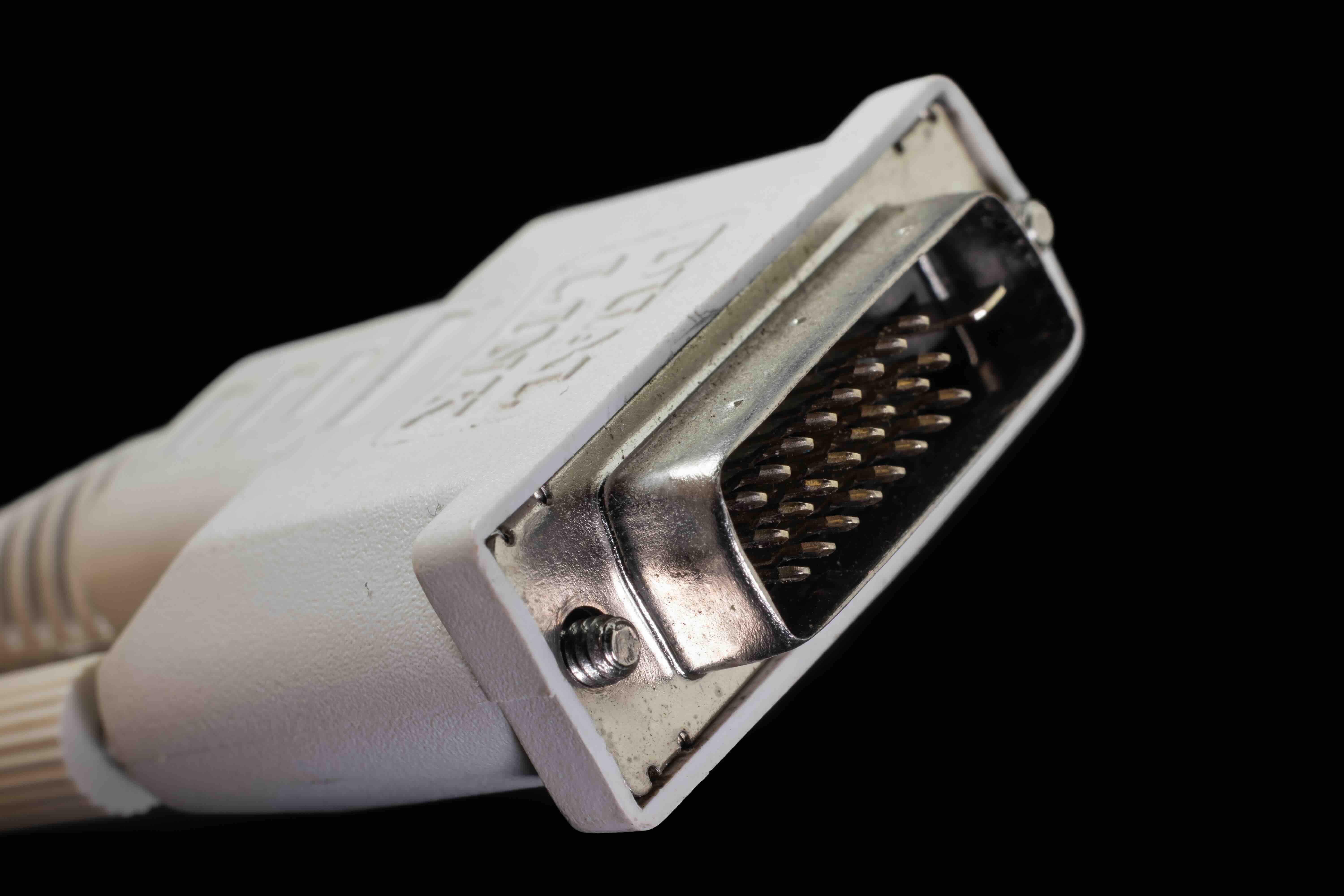
A standard single-link DVI connection uses one set of TMDS transmitters, which limits its maximum data throughput. In practical terms, that caps it at around 165 MHz of pixel clock bandwidth. For most resolutions up to 1920x1200 at 60Hz, that is enough. Dual-link DVI adds a second set of TMDS transmitters by activating additional pins in the connector. This effectively doubles the available bandwidth, pushing the ceiling to around 330 MHz. That higher ceiling is what allows DL DVI to push resolutions up to 2560x1600 at 60Hz, which was a genuinely impressive feat for its time. If you look at a DL DVI connector next to a single-link version, the dual-link plug will have more pins in the center cluster area, making the two physically distinguishable once you know what you are looking at.
Key Advantages of Dual-Link DVI
There are some real, tangible reasons people still reach for DL DVI cables depending on their setup. It is not the newest standard on the block, but it holds its own in specific contexts.
- Higher resolution support up to 2560x1600 at 60Hz
- Purely digital signal with no compression artifacts
- Low latency, which matters in gaming and professional display work
- Broad compatibility with older GPUs and monitors from major manufacturers
- No audio signal means simpler signal path for display-only setups
- Sturdy connector with screw-lock retention for secure, reliable connections
Common Drawbacks You Should Know Before Buying
DL DVI has some limitations worth acknowledging before you commit. It does not carry audio, so if your display has built-in speakers and you want sound, you will need a separate audio connection regardless. It also tops out at 2560x1600, which means it has no path to 4K resolution. If you are working with a modern 4K, 5K, or HDR-capable monitor, DVI is not the right interface for that. There is also no support for HDCP 2.2, which can create issues if you are dealing with protected content on certain displays. Beyond that, the physical connector is bulkier than modern alternatives like DisplayPort or USB-C, and it does not support adaptive sync technologies like FreeSync or G-Sync. For legacy systems though, none of that matters as much because you are already working within a defined set of constraints.
DL DVI Versus Single-Link DVI: The Practical Difference
The most important thing to understand here is that the two are not interchangeable in every scenario. A single-link DVI cable will technically plug into a dual-link port and vice versa in many cases, but you will only get the full resolution and refresh rate benefits if both the cable and both devices support dual-link. If you are trying to drive a 30-inch display at 2560x1600 using a single-link cable, the image may not display properly or the resolution option may simply not appear in your display settings. Always check both your GPU output and your monitor's input specifications before purchasing. It sounds tedious but it saves a lot of frustrating troubleshooting later.
When Dual-Link DVI Still Makes Sense Today
There is a segment of the market where DL DVI is still very relevant. Graphics professionals working on older workstations, simulation environments that use legacy display hardware, and industrial settings with equipment that was built around DVI infrastructure all represent real use cases. Some high-end monitors from the mid-2000s through the early 2010s, particularly from manufacturers like NEC and Eizo, were built specifically around dual-link DVI and remain in active use in color-critical workflows. If you have one of those monitors and a GPU with a DL DVI output, there is no compelling reason to replace the entire setup just to modernize the connector. The image quality is clean and the workflow is stable.
How to Identify a Dual-Link DVI Cable or Port
This is one of those things that trips people up constantly. On the cable end, look at the pin configuration in the rectangular connector. A single-link DVI-D connector has four pins arranged around a flat blade on one side and nine pins in a three-by-three grid on the other. A dual-link DVI-D connector has those same nine pins plus six additional pins in two rows above and below the central blade area. If the six extra pins are present, it is dual-link. On the monitor or GPU side, the port will reflect the same physical difference. Some manufacturers label their ports clearly, but not all of them do, which is why knowing the pin count is the more reliable method.
Tips for Getting the Most Out of DL DVI Connections
If you are setting up or maintaining a system that uses dual-link DVI, a few practical steps will help you get reliable performance out of it.
- Use cables no longer than necessary, ideally under 15 feet, to avoid signal degradation
- Make sure both the GPU and monitor are confirmed dual-link capable before purchasing
- Use the screw locks on the connector to prevent accidental disconnection
- Avoid passive adapters when converting from DisplayPort or HDMI to DVI at dual-link resolutions
- Test at full resolution immediately after connecting to confirm the link is operating correctly
- Replace any cable showing physical wear since bent pins in DVI connectors are a known failure point
Why Monoprice Is a Smart Choice for DL DVI Cables and Display Connectivity
When it comes to sourcing reliable DVI cables without paying inflated prices, Monoprice has built a well-earned reputation for delivering performance where it counts. The cables are constructed with the pin configurations and shielding you need to actually hit dual-link specs without second-guessing your purchase. Whether you are stocking a workstation lab, maintaining aging infrastructure, or just connecting a legacy display to a modern GPU that still supports DVI output, Monoprice has the right cable at the right price. For anyone looking to shop a full catalog of professional-grade DVI and display connectivity cables without inflated retail markups, Monoprice is the kind of supplier that earns repeat business through consistency and transparency. The quality does not waver between orders, and the pricing reflects a company that understands budget matters whether you are buying one cable or one hundred.
Frequently Asked Questions About DL DVI
What does DL DVI stand for?
DL DVI stands for Dual-Link Digital Visual Interface. It refers to the higher-bandwidth version of the DVI connector that uses an additional set of TMDS transmitters to support higher resolutions than single-link DVI.
What is the maximum resolution supported by dual-link DVI?
Dual-link DVI supports a maximum resolution of 2560x1600 at 60Hz. It cannot support 4K or higher resolutions.
Can I use a single-link DVI cable in a dual-link port?
Yes, a single-link cable will physically connect to a dual-link port, but you will only get single-link bandwidth. If you need resolutions above 1920x1200, you must use a dual-link cable with a dual-link source and display.
Does DVI carry audio?
No, the DVI standard does not support audio transmission. You will need a separate audio connection if your display includes speakers.
How do I tell if my GPU has a dual-link DVI output?
Check the pin configuration on the DVI port. A dual-link port will have six additional pins arranged around the central flat blade area compared to a single-link port. You can also check the GPU manufacturer's specification sheet.
Is dual-link DVI still worth using in a modern setup?
For legacy monitors and workstations that were built around the DVI standard, dual-link DVI remains a viable and clean signal path. For new builds targeting 4K or HDR, DisplayPort or HDMI would be more appropriate choices.
Can dual-link DVI support HDR or high refresh rates?
No. Dual-link DVI does not support HDR content and is generally limited to 60Hz at its maximum resolution. It does not support adaptive sync technologies either.
What is the difference between DVI-D dual-link and DVI-I dual-link?
DVI-D dual-link carries only digital signals, while DVI-I dual-link carries both digital and analog signals. DVI-I connectors include four additional pins around the flat blade that support the analog channel.
How long can a dual-link DVI cable be before signal quality degrades?
Signal integrity can start to degrade beyond approximately 15 feet on passive cables. For longer runs, active signal boosters or signal extenders designed for DVI are recommended.
Are DVI cables compatible with HDMI displays using an adapter?
DVI-D and HDMI share the same digital video signal structure, so passive adapters work for video at compatible resolutions. However, because DVI does not carry audio, you will not get sound through that adapter without a separate audio connection.


