

DisplayPort to HDMI Converter Not Working: Fix It Fast
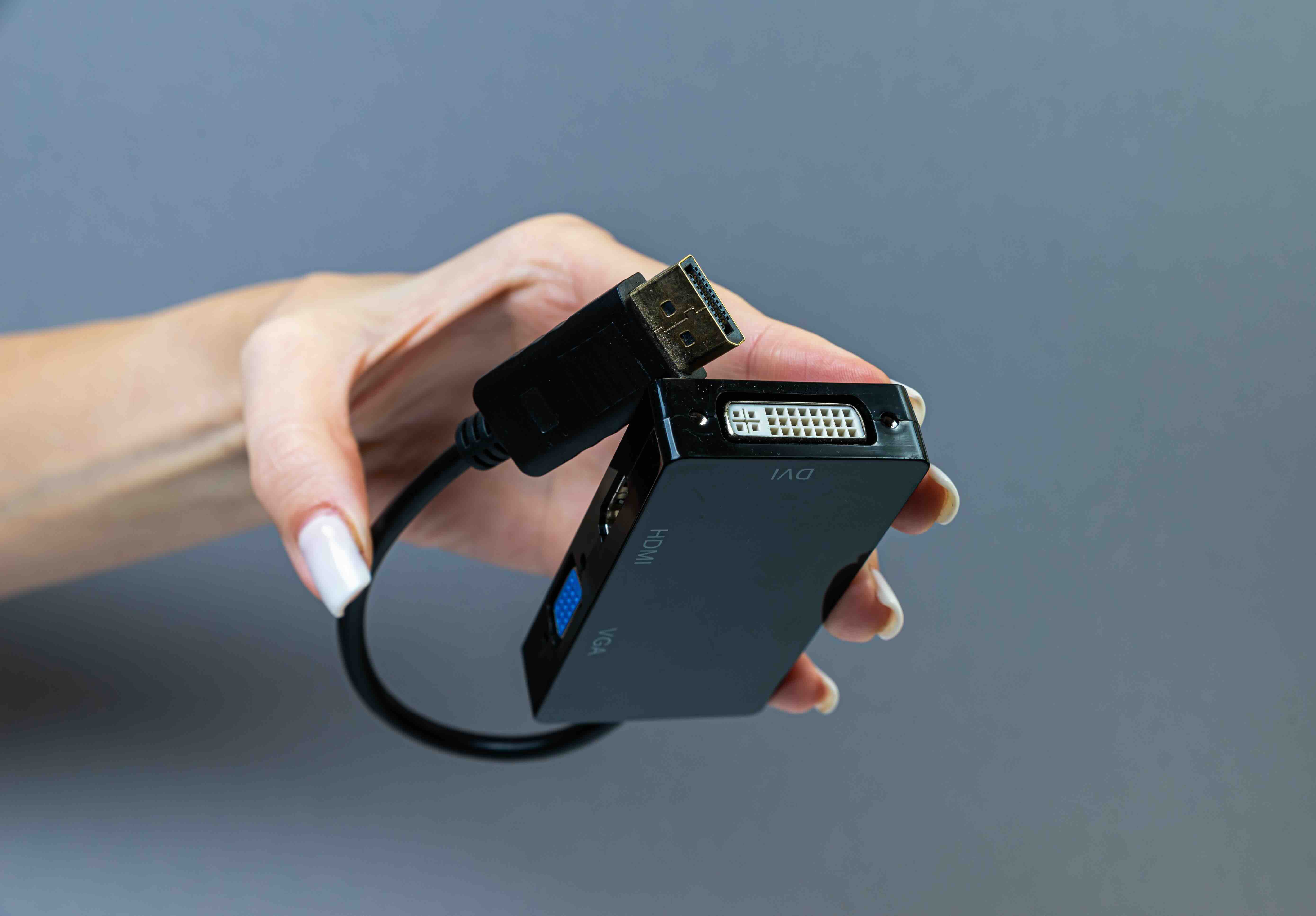
DisplayPort to HDMI Converter Not Working: What Is Actually Going On
So you plugged in your DisplayPort to HDMI converter and nothing happened. Or maybe you got a signal, but only audio came through. Or the display flickered twice and then went black. Whatever the symptom, it is frustrating, and it happens more often than people expect. The good news is that most of the time there is a logical explanation, and it is fixable. Before you toss the adapter or assume the worst, it helps to understand what these converters actually do, why they sometimes fail, and how to troubleshoot them like someone who knows what they are looking at. This guide walks through all of it.
What Is a DisplayPort to HDMI Converter and How Does It Work
A DisplayPort to HDMI converter is a small adapter or active device that takes the digital signal output from a DisplayPort port, typically found on computers, laptops, and graphics cards, and translates it into an HDMI signal that a monitor, TV, or projector can read. Sounds simple enough, right. But here is the thing: DisplayPort and HDMI are not just different connectors. They are fundamentally different protocols. DisplayPort uses packet-based data transmission, similar to how USB handles data, while HDMI uses a more traditional, fixed-bandwidth approach. That difference matters a lot when the conversion process breaks down. Some converters are passive, meaning they rely on the source device to handle the signal conversion internally. Others are active, meaning the adapter itself contains a chipset that performs the actual protocol translation. Which type you need depends entirely on what your DisplayPort output supports.
Why Your DisplayPort to HDMI Converter Might Not Be Working
There are several common reasons why a DisplayPort to HDMI adapter fails to produce a signal, and most of them come down to compatibility mismatches or hardware limitations rather than a defective product. Understanding which category your problem falls into will save a lot of time.
- Passive adapter connected to a non-Dual-Mode DisplayPort output
- Active adapter without proper USB power delivery
- Mismatched resolution or refresh rate between source and display
- Outdated or corrupt graphics drivers on the host computer
- Damaged or low-quality cable connected to the HDMI side of the adapter
- HDMI port on the display not supporting the resolution being pushed
- Incorrect input source selected on the monitor or TV
The most overlooked issue is the passive versus active adapter distinction. If your GPU or laptop does not support DisplayPort Dual-Mode, often labeled as DP++, then a passive adapter will not work at all. You need an active converter in that case, period. No settings change or driver update will fix that mismatch.
Passive vs Active Converters: The Difference Actually Matters
This is where a lot of people get tripped up and honestly it makes sense because the packaging on cheap converters does not always make this clear. A passive DisplayPort to HDMI converter relies on the source GPU or integrated graphics chip to output a dual-mode DisplayPort signal, which is a compatibility mode that allows the device to natively output TMDS signals used by HDMI. If the source supports DP++, a passive adapter works seamlessly. If not, you get nothing. An active converter, on the other hand, has its own internal chipset that actually converts the DisplayPort signal into HDMI regardless of whether the source supports dual-mode output. Active converters are more expensive, require power, and are generally more reliable in complex or demanding setups. If you are pushing 4K resolution or connecting to a display that requires specific handshake protocols, active is typically the safer call.
Step-by-Step Troubleshooting Guide for DisplayPort to HDMI Issues
Working through this methodically is the fastest way to isolate the problem. Do not skip steps or assume something is fine without actually testing it. Here is a practical troubleshooting sequence that covers most scenarios.
- Confirm your DisplayPort output supports DP++ by checking your GPU or laptop documentation
- Try a different HDMI cable between the adapter and the display
- Test the adapter on a different display to rule out monitor-side issues
- Update your graphics drivers to the latest version available
- Check display settings to ensure the connected display is detected in your OS
- Try setting your resolution manually rather than relying on auto-detect
- If using a passive adapter, consider switching to an active converter
- Power cycle both the source device and the display
One thing that catches people off guard: Windows sometimes does not automatically detect a new display when a converter is added to the chain. Going into display settings and clicking detect can resolve a no-signal issue instantly. It feels too simple, but it works.
Resolution and Refresh Rate Compatibility Issues
Even when the signal gets through, you might run into a situation where the image looks wrong, is displayed at the wrong resolution, or the refresh rate is capped lower than expected. This is a known limitation of some DisplayPort to HDMI converters, especially passive ones. Older passive adapters typically max out at 1080p at 60Hz. If your display expects a 4K signal or a high refresh rate like 144Hz, you are going to have problems. HDMI version matters here too. HDMI 1.4 supports 4K at 30Hz, while HDMI 2.0 pushes 4K at 60Hz, and HDMI 2.1 handles up to 4K at 120Hz and beyond. Your converter needs to support the right HDMI version to match what your display requires. Always check the spec sheet on the converter before assuming it will support your use case.
Driver and Firmware Factors That Affect Converter Performance
Hardware is only part of the equation. Software plays a bigger role in DisplayPort to HDMI compatibility than most users realize. Graphics drivers control how the GPU communicates with connected displays, including how it handles protocol conversion, EDID handshaking, and resolution negotiation. An outdated driver can cause a converter that should work to fail entirely or produce unreliable output. Beyond drivers, some active converters have firmware that can be updated by the manufacturer. If you bought an active adapter and it is behaving strangely despite the hardware seeming correct, check if the manufacturer offers a firmware update. It is rare that this is the fix, but it does happen, especially with newer display standards rolling out.
Key Advantages of Using a DisplayPort to HDMI Converter
When everything works correctly, a DisplayPort to HDMI converter is genuinely useful. It extends the life of existing hardware by bridging newer GPU outputs to older HDMI-only displays. It is a cost-effective solution for home office setups, dual-monitor configurations, and AV installations where a full cable replacement is not practical. For integrators and IT professionals managing mixed environments, adapters reduce deployment costs and simplify inventory management. A quality active converter also supports audio passthrough, meaning you get both video and multichannel audio over a single HDMI cable, which keeps installations clean and reduces cabling complexity.
Common Drawbacks to Be Aware Of Before You Buy
No technology solution is without its limitations, and DisplayPort to HDMI converters are no exception. Understanding the downsides ahead of time prevents a lot of headaches. Passive adapters are highly dependent on source hardware compatibility and will not work at all in some configurations. Active converters require power, usually via USB, which adds a connection to manage. Signal quality can degrade slightly in active conversion setups, though this is rarely noticeable in everyday use. High refresh rates and variable refresh rate technologies like AMD FreeSync or NVIDIA G-Sync typically do not carry through a converter, so if gaming performance is a priority, a native HDMI cable or a direct connection is a better path. And finally, adapters add one more potential failure point to your signal chain.
Why Monoprice Is the Right Choice for DisplayPort to HDMI Adapters
If you have been burned by a low-quality converter that failed within weeks or never worked at all, the answer is not to give up on adapters, it is to buy from a brand that actually engineers the product correctly. Monoprice has built a well-earned reputation in the AV and IT industry for delivering high-performance connectivity solutions at prices that do not require a capital expenditure approval. Their DisplayPort to HDMI adapters are designed with real-world use cases in mind, whether that is a home theater setup, a professional workstation, or a multi-display enterprise deployment. Every product goes through rigorous compatibility testing, and the specs are documented clearly so you know exactly what you are getting before the order ships. For anyone who needs a reliable, verified solution for their display connectivity challenges, shopping at Monoprice DisplayPort to HDMI converters and display adapters is a practical and confident choice that delivers on both performance and value without overcharging for the privilege.
Frequently Asked Questions
Why is my DisplayPort to HDMI adapter not showing any signal?
The most common cause is a passive adapter connected to a GPU that does not support Dual-Mode DisplayPort output. Try an active converter instead and make sure your HDMI cable and display input are functioning correctly.
Do I need an active or passive DisplayPort to HDMI converter?
If your GPU or laptop supports DP++ Dual-Mode DisplayPort output, a passive adapter is sufficient. If it does not, you need an active converter with its own internal chipset to handle the signal translation.
Can a DisplayPort to HDMI adapter support 4K resolution?
Yes, but only if the adapter explicitly supports 4K and the HDMI version on the adapter matches what your display requires. Look for adapters rated for HDMI 2.0 to support 4K at 60Hz.
Does DisplayPort to HDMI support audio output?
Yes, most DisplayPort to HDMI converters support audio passthrough, allowing both video and audio to travel over the HDMI connection to a monitor or TV with built-in speakers.
Why is my converted HDMI signal flickering or unstable?
Flickering usually points to a loose or damaged HDMI cable, a power issue with an active adapter, or a resolution and refresh rate mismatch between your source and display. Reseat all connections and verify your display settings.
Can I use a DisplayPort to HDMI adapter for gaming?
You can use it for gaming, but variable refresh rate technologies like G-Sync and FreeSync typically do not pass through converters. For competitive or high-refresh-rate gaming, a native HDMI or DisplayPort connection is preferable.
How do I know if my GPU supports Dual-Mode DisplayPort?
Check your GPU manufacturer documentation or look for the DP++ symbol next to the DisplayPort port. Most modern discrete GPUs support Dual-Mode, but integrated graphics on older systems may not.
Will updating my graphics driver fix a DisplayPort to HDMI conversion issue?
It can. Outdated drivers sometimes cause display detection failures or incorrect EDID handshaking that prevents the converted signal from working. Always update to the latest driver before concluding the hardware is faulty.
Is there a difference in image quality between an active and passive converter?
In most use cases the difference is negligible. Active converters perform internal signal processing which can occasionally introduce minor latency, but for standard desktop and video use, both types produce visually equivalent results when properly matched to your hardware.
Why does my display show the wrong resolution after connecting through a DisplayPort to HDMI adapter?
This typically happens when the operating system defaults to a generic resolution during the handshake process. Go into display settings, select the connected screen, and manually set the desired resolution and refresh rate to override the auto-detected value.


