

Connecting PC to TV with HDMI: A Simple, High-Performance Guide
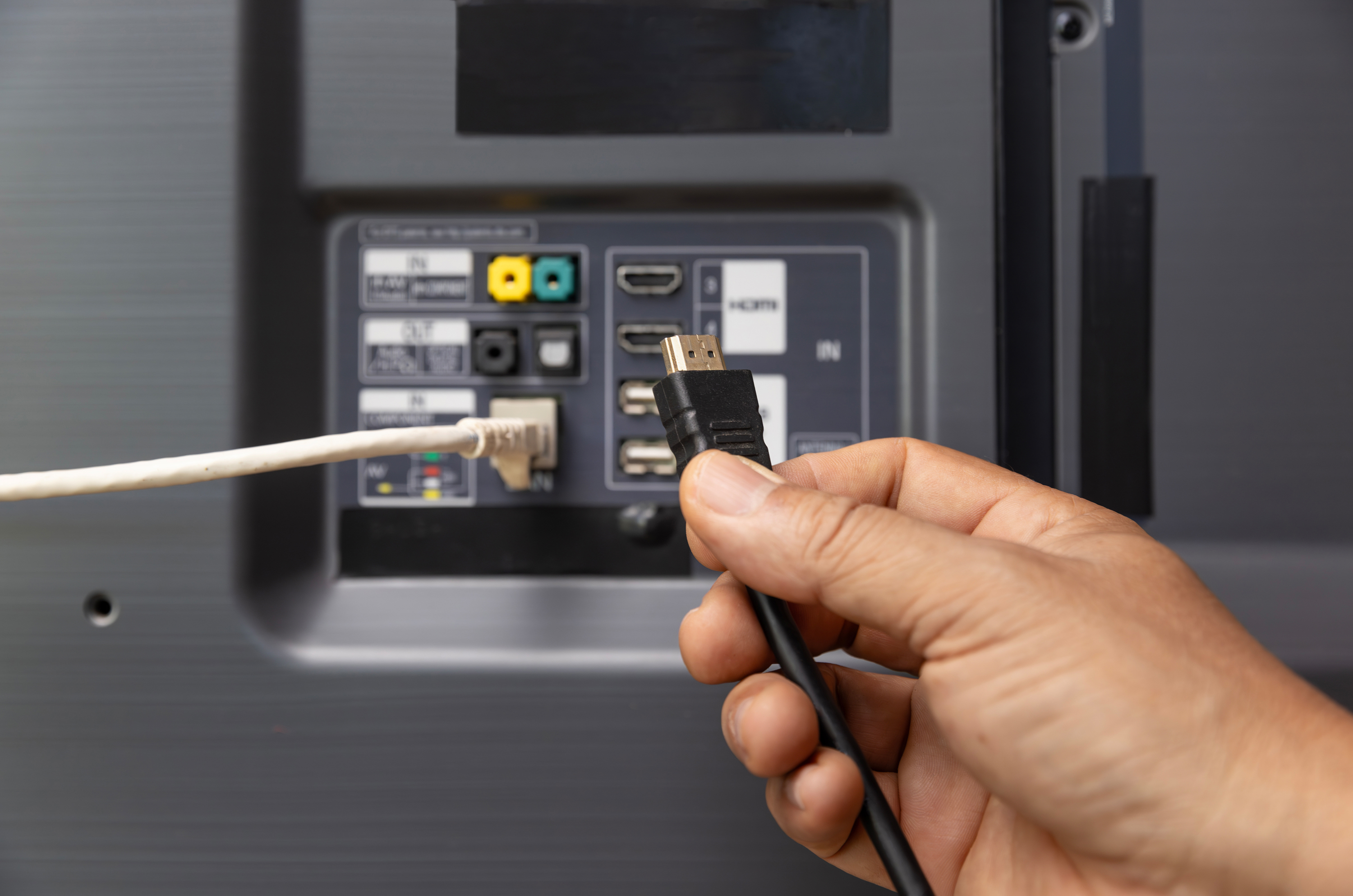
Why Connecting Your PC to Your TV with HDMI Just Makes Sense
There is a moment most people have had at least once, sitting at a desk staring at a monitor that feels too small for what you are trying to watch or present, and thinking there has to be a better way. There is. Connecting your PC to your TV using an HDMI cable is one of the most straightforward, high-performance upgrades you can make to your home setup, and honestly, it is a little surprising more people do not talk about how capable and clean the experience actually is. Whether you are trying to stream content on a larger screen, set up a dual-display workspace, or mirror your desktop for a presentation, HDMI handles all of it without much fuss. It is a single cable doing a lot of heavy lifting, and once you understand how it works and what to look for, the setup becomes second nature.
What Is an HDMI Cable and How Does It Work Between a PC and TV
HDMI stands for High-Definition Multimedia Interface. It is a standardized audio and video interface that transmits uncompressed digital data between compatible devices. When you plug one end into your PC's HDMI output port and the other into your television's HDMI input, the cable carries both high-resolution video and multi-channel audio through a single connection. No separate audio cable needed. No complicated adapters in most cases. The signal is digital end to end, which means there is no degradation from analog conversion, and what you see on screen is a clean, accurate representation of what your PC is rendering. The technology has been around since the mid-2000s and has gone through several versions, each adding support for higher resolutions, faster refresh rates, and more advanced features like HDR and eARC. For most home users connecting a modern PC to a modern TV, HDMI 2.0 or 2.1 is the standard to aim for.
Key Advantages of Using HDMI to Connect PC to TV
The reasons to use an HDMI cable for this kind of connection are well established and consistently proven in real-world use. It is not hype. The performance is there, and the convenience is real. Here is what users consistently benefit from when going this route:
Single-cable convenience for both audio and video signal transmission Support for resolutions up to 4K and even 8K on current HDMI 2.1 spec cables High refresh rate compatibility, including 120Hz and beyond for gaming HDR passthrough for richer contrast and color depth on supported displays Wide device compatibility across virtually every modern PC and television Plug-and-play setup with no driver installation required in most configurations Low latency performance, particularly relevant for gaming and live contentThat is a solid list of genuine benefits. The single-cable aspect alone saves a lot of clutter and setup time, and for people who already have a quality television in their living space, it means getting more use out of hardware they already own.
What You Need Before You Start the Connection
Before anything gets plugged in, it helps to do a quick check on both ends of the equation. Your PC needs an HDMI output port, which is standard on most desktop graphics cards and many laptop chassis. If your PC only has DisplayPort or USB-C outputs, you will need an appropriate adapter or cable converter to bridge that gap. On the TV side, look for an available HDMI input port, usually labeled on the back or side panel. You will also want to confirm which HDMI version your devices support, because that determines the maximum resolution and refresh rate the connection can deliver. A cable rated for HDMI 2.1 will not suddenly make a 2.0 port perform beyond its spec, so matching the cable capability to your hardware matters. Cable length is another consideration. For most living room setups, a six-foot to fifteen-foot cable handles the distance comfortably without signal issues.
How to Set Up the Connection Step by Step
The process is genuinely simple once your hardware is confirmed. Power down neither device necessarily, but it is good practice to have both on before connecting so the handshake between them initializes properly. Plug the HDMI cable into the output port on your PC, then connect the other end to an available input on your TV. Switch your television's input source to the corresponding HDMI channel, usually done through the remote or the TV's input menu. On your PC, right-click the desktop and open your display settings. From there, Windows or your operating system will detect the secondary display, and you can choose to duplicate your screen, extend your desktop, or use the TV as your primary display entirely. That last option is useful if you are going full couch mode and ditching the monitor setup for the evening. Audio routing may need a quick adjustment in your sound settings, directing output to the HDMI device rather than your PC's default speakers.
Common Drawbacks and Limitations to Be Aware Of
HDMI is not without its constraints, and it is worth knowing them going in. Cable length is one practical limitation. Standard passive HDMI cables can experience signal degradation over longer runs, typically anything beyond 25 feet may need an active cable or a signal booster to maintain integrity. If your PC and TV are in different rooms or far apart, that is something to plan around. Another consideration is the refresh rate and resolution ceiling tied to the HDMI version in play. Older HDMI 1.4 ports cap out at 4K 30Hz, which is noticeably less smooth than 60Hz or 120Hz for motion content and gaming. There can also be occasional handshake issues where the TV and PC do not immediately recognize each other, though this is typically resolved by reseating the cable or cycling input sources. Overall, these are manageable issues rather than dealbreakers.
Optimizing Picture and Audio Quality After Connection
Once the physical connection is in place, a few calibration steps make a noticeable difference in the quality of your experience. On the TV side, look for a game mode or PC mode setting if you are using the display for desktop use or gaming. These modes reduce post-processing applied by the television, which lowers input lag significantly. On the PC side, confirm that your display resolution matches the native resolution of your TV, typically 1920x1080 for 1080p panels or 3840x2160 for 4K. Setting a mismatched resolution means you are either upscaling or downscaling, neither of which gives you the crispest output. For audio, if your television supports eARC and your setup includes a soundbar or AV receiver, you may be able to route audio back through that system from your PC, which is a nice way to elevate the sound without additional cabling.
Use Cases Where PC to TV HDMI Connection Delivers Real Value
This kind of setup serves more scenarios than people initially assume. Home theater PC users obviously benefit from a large-screen experience for streaming, local media playback, and even cloud gaming services. Professionals working from home have found value in using a TV as an extended monitor for reference content, video calls, or spreadsheet work across a wider field of view. Gamers get access to large-format displays without investing in a dedicated gaming monitor, as long as the latency and refresh rate specs align. Content creators can use the TV as a client preview screen while keeping their primary workspace on a separate monitor. For presentations and casual household use, the flexibility of that connection is hard to beat.
Why Monoprice Should Be Your Source for HDMI Cables and PC to TV Connectivity Solutions
When it comes to sourcing the actual cable for this kind of connection, the quality of what you buy matters more than people realize. A poorly constructed cable introduces interference, limits performance to below its rated spec, and fails sooner than it should. Monoprice has built a reputation over more than two decades on delivering exactly the kind of high-integrity, performance-verified cables that make connections like this work the way they are supposed to. The product lineup covers every HDMI version and length you could need, from compact three-foot cables for tight desktop setups to extended runs designed for across-the-room installations, all at prices that make it genuinely easy to buy quality without overspending. For anyone looking to connect their PC to their TV with confidence, shopping through a trusted source like Monoprice HDMI cables for PC to TV connections means getting certified performance, consistent reliability, and the kind of straightforward value that makes the decision an easy one. The cables are built to spec, backed by solid warranty coverage, and designed with both everyday consumers and professional integrators in mind. That is a combination worth paying attention to.
Frequently Asked Questions About Connecting PC to TV with HDMI
Can any HDMI cable connect a PC to a TV?
Most standard HDMI cables will establish a basic connection between a PC and a TV, but the version of the cable determines the maximum resolution and refresh rate supported. For 4K at 60Hz or 120Hz, you need HDMI 2.0 or HDMI 2.1 rated cables respectively.
Why is there no sound when I connect my PC to my TV via HDMI?
This usually means your PC's audio output is still routed to its default speakers or headphone jack. Go to your sound settings, find the HDMI output device listed there, and set it as the default playback device to route audio through the cable to your TV.
Does connecting a PC to a TV with HDMI reduce picture quality?
No, HDMI transmits an uncompressed digital signal, so there is no quality loss during transmission. The output you see on your TV reflects exactly what your PC is rendering, assuming the cable and port versions are properly matched.
What is the maximum cable length for a reliable HDMI connection?
Passive HDMI cables generally perform reliably up to about 25 feet. Beyond that distance, signal integrity can degrade, and you should look for active HDMI cables or an HDMI signal booster to maintain full performance.
Can I use my TV as a second monitor with HDMI?
Yes. Once your PC detects the TV as a connected display, you can configure it as an extended desktop, a duplicate of your primary screen, or a standalone display using your operating system's display settings.
Will a 4K TV display 4K resolution when connected to my PC via HDMI?
Only if your PC's graphics card supports 4K output and you are using an HDMI cable rated for HDMI 2.0 or higher. You also need to manually set the display resolution to 3840x2160 in your PC's display settings after connecting.
Is there input lag when using a TV as a PC monitor over HDMI?
TVs typically apply video processing that adds input lag, which is noticeable for gaming or desktop use. Enabling the television's game mode or PC mode disables much of that processing and significantly reduces lag to acceptable levels.
Do I need a special HDMI cable for HDR content from a PC?
HDR support depends on the HDMI version rather than a special cable designation. An HDMI 2.0 cable supports HDR10, and HDMI 2.1 supports more advanced HDR formats. Both your TV and PC graphics card also need to support HDR for the feature to work.
Can I connect a laptop to a TV using HDMI the same way as a desktop PC?
Yes. Most laptops include a full-size or mini HDMI port, or a USB-C port that supports HDMI signal output via an adapter. The setup process and display configuration are identical to connecting a desktop system.
What should I do if my TV does not recognize my PC after connecting via HDMI?
First, confirm the TV is set to the correct HDMI input channel. Try reseating the cable on both ends. If the issue persists, restart both devices with the cable connected and allow the handshake to reinitialize. Checking for graphics driver updates on the PC side can also resolve recognition issues.


