

Connecting PC to TV: Unleash HDMI Cable Potential
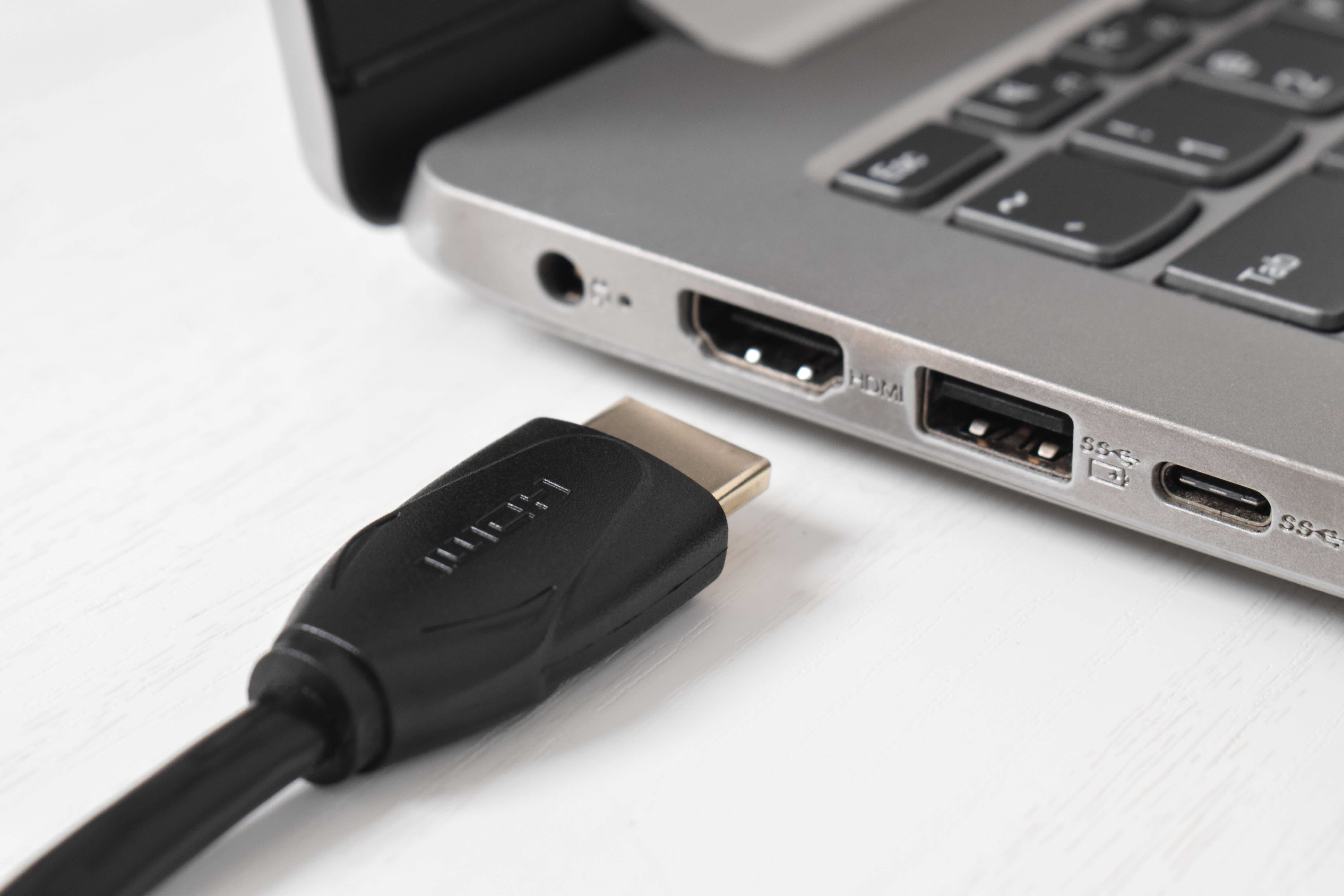
Why Connecting Your PC to Your TV With an HDMI Cable Is Worth Doing Right
There is a moment -- and most people have had it -- where you are sitting at your desk squinting at a monitor that feels suddenly too small, and you just think, why is my 65-inch television sitting there doing nothing? Connecting your PC to your TV using an HDMI cable is one of those genuinely underrated upgrades that changes how you work, game, stream, and honestly just live in your space. It is not complicated. But doing it well, choosing the right cable, understanding what the connection actually supports, that part matters more than people realize. So let us walk through it properly.
What Is an HDMI Cable and How Does It Work Between a PC and TV
HDMI stands for High-Definition Multimedia Interface, and it was designed to carry both high-quality video and audio through a single cable. That single-cable approach is a big deal. Before HDMI became standard, connecting a computer to a television required separate cables for audio and video, sometimes adapters, sometimes converters. HDMI consolidated all of that. When you plug an HDMI cable from your PC into your television, the cable transmits a digital signal that includes picture data, sound data, and even device control information in some configurations. The signal travels in one direction -- from source to display -- and the receiving device decodes it into the content you see and hear. Modern HDMI versions support resolutions from 1080p all the way through 4K and 8K, depending on the cable specification and what your hardware can output.
HDMI Versions Explained -- What Actually Matters for Your Setup
Not all HDMI cables are built the same, and this is where a lot of people get tripped up. HDMI 1.4 handles 1080p and basic 4K at 30Hz -- fine for general use, not ideal for gaming or high-refresh-rate content. HDMI 2.0 brought 4K at 60Hz to the table, which is a meaningful improvement for anyone watching detailed content or running a modern GPU. HDMI 2.1 is the current standard for serious performance, supporting 4K at 120Hz and 8K at 60Hz with HDR passthrough. If your PC has a recent graphics card and your television supports HDMI 2.1, pairing them with the right cable is the only thing standing between you and an exceptional experience. Always check what ports your devices have before purchasing, because the cable version only matters if both ends of the connection can support it.
Key Advantages of Running Your PC Through a TV Display
There are more reasons to do this than you might expect, and they go beyond just having a bigger screen.
- Larger viewing area without buying a second monitor
- Consolidated audio output -- your TV speakers or connected soundbar handle everything
- Ideal for presentations, sharing content with others in the room
- Full 4K or higher resolution gaming on a display built for it
- Streaming services look dramatically different at TV scale
- Work from the couch with a wireless keyboard and mouse
- One cable connects everything -- no signal splitters, no adapters
The convenience factor alone is worth talking about. When you connect your PC to your television with a quality HDMI cable, you are essentially turning your living room into a flexible workspace and entertainment hub without any complicated infrastructure. That is a real, practical value that compounds over time.
Common Drawbacks and Limitations to Know Before You Start
It is fair to be honest about the trade-offs here. Televisions are typically designed with a different pixel density than monitors, which means text can sometimes look softer or less sharp at close range -- especially if you are sitting at a desk rather than across the room. Input lag is another consideration. Many TVs introduce a processing delay that is invisible when watching movies but genuinely noticeable during fast-paced gaming. Most modern televisions include a Game Mode setting that reduces this delay significantly, so that is worth enabling if gaming is part of your use case. Cable length is also something to plan for. Running a very long HDMI cable, beyond 15 or 25 feet depending on the spec, can degrade signal quality if the cable is not rated for that distance. For longer runs, look for cables explicitly rated for the length you need, or consider an active HDMI cable that includes signal amplification built in.
How to Set Up the Connection Correctly From the Start
The physical connection is straightforward -- plug one end into your PC's HDMI output port and the other into an available HDMI input on your television. Once connected, your operating system should detect the display automatically. In Windows, right-click the desktop, open Display Settings, and you will see options to duplicate your screen, extend it, or use only the TV. For most living room setups, using the TV as the primary or sole display makes the most sense. On the television side, switch the input source to match the HDMI port you used. Audio routing sometimes needs a manual adjustment -- in Windows, go to Sound Settings and select your TV as the output device if it does not switch automatically. That is genuinely most of the setup. The complexity people worry about rarely materializes.
Choosing the Right HDMI Cable Length and Build Quality
Cable length depends entirely on your room layout. Measure the actual distance from your PC to your television before ordering, and add a little slack -- a cable pulled tight against a corner can stress the connectors over time. For most desktop-to-TV setups in the same room, a 6-foot or 10-foot cable covers the majority of situations. If your PC is in a media console or entertainment center positioned near the television, a 3-foot cable may be all you need. Build quality is not just marketing language -- connectors that are properly shielded and strain-relieved at the ends hold up significantly longer, especially in setups where the cable might be moved or adjusted occasionally. Gold-plated connectors resist oxidation and maintain a clean contact point over years of use. These details matter at the component level even if they are invisible from the outside.
Practical Tips for Getting the Best Picture and Audio Quality
Once the connection is live, there are a few settings worth adjusting to get the most out of it. On your PC, make sure your display resolution in settings matches your television's native resolution -- 1920x1080 for a 1080p TV, 3840x2160 for a 4K panel. Mismatched resolution is a common reason the picture looks off even with a good cable. On your television, turn off any motion smoothing or post-processing features that add artificial effects to the image -- these are designed for broadcast content and often degrade the look of PC output. If you are using the TV for audio, confirm the HDMI port you are using on the television supports audio return or standard audio passthrough. Some ports on certain TVs are video-only, which would explain why you are getting picture but no sound. Refresh rate is also worth confirming on the PC side -- match it to what your television and cable version actually support.
Who Benefits Most From a PC-to-TV HDMI Setup
Remote workers who want a larger display for video calls and spreadsheets without investing in a dedicated external monitor will find this genuinely useful. PC gamers who already own a 4K or high-refresh television get access to a quality gaming display at no additional cost. Home theater enthusiasts can use a PC as a flexible media player that handles any file format or streaming service without the limitations of a smart TV's built-in software. Students, creators, and anyone who presents content to others in a living room or small meeting space benefit from the simplicity of a one-cable solution. The reality is this setup scales to almost any use case, which is part of what makes it so consistently relevant regardless of how you use your computer.
Why Monoprice HDMI Cables Are the Right Choice for This Connection
When the cable itself is the only thing standing between your PC and a great viewing experience, cutting corners on it does not make sense. Monoprice has built a well-earned reputation for delivering high-performance cables at prices that do not require justification. Their HDMI cables are built to spec, properly shielded, and available across the full range of versions including HDMI 2.0 and 2.1, so you can match the cable exactly to what your hardware supports. If you are ready to set this up properly and want a cable you will not have to think about again, connecting your PC to your TV with a reliable, high-performance HDMI cable from Monoprice HDMI cables for PC to TV connections is the straightforward, value-driven choice that just makes sense. Performance that stands up, pricing that does not sting, and the confidence that comes from buying from a brand that knows this category as well as anyone in it.
Frequently Asked Questions About Connecting a PC to a TV With an HDMI Cable
Can any HDMI cable connect a PC to a TV?
Most standard HDMI cables will establish a connection, but the version of the cable determines what resolution and refresh rate you can achieve. For 4K at 60Hz or higher, you need an HDMI 2.0 or 2.1 cable and compatible ports on both devices.
Why is there no sound coming through my TV when connected to my PC via HDMI?
This usually means your PC is not routing audio to the correct output. Go to Sound Settings in Windows, find your TV listed as a playback device, and set it as the default. Some TV HDMI ports are video-only, so also confirm your port supports audio.
Does HDMI cable length affect picture or sound quality?
Yes, at longer lengths signal degradation becomes a real factor. Standard passive HDMI cables are reliable up to around 15 to 25 feet depending on the version. For longer runs, use an active HDMI cable rated for that distance.
What HDMI version do I need for 4K gaming on a TV?
For 4K at 60Hz, HDMI 2.0 is the minimum requirement. For 4K at 120Hz, which many modern gaming televisions support, you need HDMI 2.1 along with a graphics card and TV that both support that specification.
Will connecting my PC to my TV damage either device?
No. HDMI connections are designed to be plug-and-play and safe for both devices. There is no risk of damage from simply connecting a PC to a TV using a properly rated HDMI cable.
How do I extend my desktop across both a monitor and a TV using HDMI?
In Windows, open Display Settings after connecting the TV via HDMI and select the Extend option. This allows you to use both your monitor and the TV as separate screens simultaneously, expanding your total desktop space.
Why does text look blurry on my TV when connected to my PC?
Televisions have lower pixel density than PC monitors, which can make small text appear soft, especially at close viewing distances. Increasing the display scaling in Windows settings or moving to a viewing distance better matched to the TV size usually resolves this.
Can I use HDMI to connect a laptop to a TV as well as a desktop PC?
Yes. Any laptop with a full-size or mini HDMI output port can connect to a television the same way a desktop PC does. If your laptop only has USB-C, a USB-C to HDMI adapter enables the same connection.
Do I need to install drivers to connect my PC to a TV via HDMI?
In most cases, no additional drivers are required. Modern operating systems detect HDMI displays automatically. If the TV is not recognized, updating your graphics card drivers through the manufacturer's software is the recommended first step.
What is the best HDMI cable for connecting a PC to a 4K TV?
For a 4K television, an HDMI 2.0 cable is the minimum and handles 4K at 60Hz reliably. If your TV and PC support HDMI 2.1, choosing a cable rated for that standard gives you access to higher refresh rates and HDR passthrough for the best possible image quality.


