

Computer Cables: Types, Speeds, and How to Choose Right
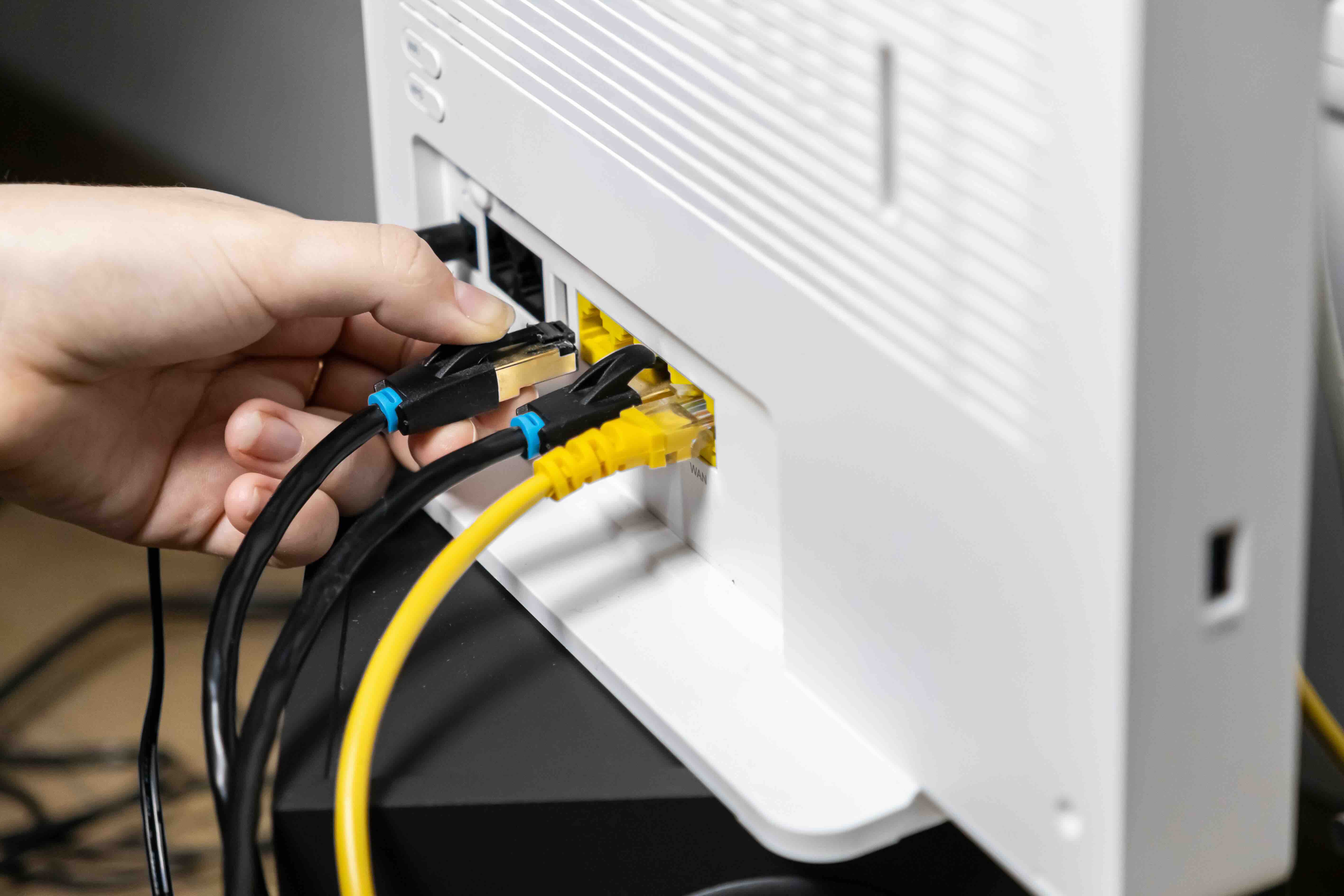
What Is a Computer Cable and Why Does It Matter More Than You Think
Computer cables are one of those things that just get taken for granted. You plug something in, it works, and you move on. But there is actually a lot going on underneath that braided jacket or PVC sleeve, and understanding the basics can save you real headaches down the road. Whether you are building a workstation, wiring up a home office, or managing infrastructure for a business, the cables connecting your gear matter more than most people realize. They affect signal integrity, data transfer speeds, power delivery, and long-term reliability. This guide covers what computer cables are, how the main types work, what to look for, and what to avoid. Let us get into it.
Understanding the Different Types of Computer Cables
There are several categories worth knowing. The broad landscape of computer cables breaks into a few major families based on function. You have data transfer cables, display output cables, networking cables, and power cables. Each one is built differently and serves a different role. USB cables handle both data and power across several generations of the standard. HDMI and DisplayPort cables carry high-definition video and audio signals to monitors and displays. Ethernet cables move network data between devices, routers, and switches. Power cables deliver AC or DC current from a source to a device. And within each category, there are further splits based on version, speed rating, shielding, and connector type. It sounds like a lot, but once you see the pattern, it clicks pretty fast.
How USB Cables Work and Which Version You Actually Need
USB has gone through a lot of revisions, and it gets genuinely confusing because the naming conventions have changed more than once. The short version is this: USB 2.0 tops out at 480 Mbps, USB 3.0 and its variants push up to 5 Gbps or higher, and USB4 can hit 40 Gbps depending on the cable and host hardware. USB-C is the connector shape, not the speed standard itself, which is where most people get tripped up. A USB-C cable can be USB 2.0 speed internally and still fit into a USB4 port. The physical connector tells you nothing about the performance. For device charging and basic peripherals, USB 2.0 is fine. For fast external storage or high-resolution displays, you need at minimum USB 3.2 Gen 2 or a Thunderbolt-rated USB-C cable. Matching the cable rating to the task is the whole game here.
Display Cables Explained: HDMI vs DisplayPort vs Others
When it comes to connecting monitors, TVs, or projectors to a computer, HDMI and DisplayPort are the dominant standards. HDMI is more common in consumer electronics and televisions, while DisplayPort tends to show up in professional monitors and PC graphics setups. HDMI 2.1 supports 4K at 120Hz and even 8K at 60Hz, making it suitable for modern gaming and high-end content work. DisplayPort 1.4 and 2.1 handle similar and in some cases higher bandwidth scenarios, and they also support daisy-chaining multiple monitors from a single port. VGA and DVI are legacy formats that are largely fading out, though you will still encounter them in older office environments and certain industrial applications. If you are building or upgrading a display setup today, HDMI 2.1 or DisplayPort 1.4 should be your baseline.
Networking Cables and Why Cat Rating Matters for Speed and Reliability
Ethernet cables are categorized by their Cat rating, which reflects their construction, shielding, and maximum supported bandwidth over a given distance. The most widely deployed standard right now is Cat6, which supports 1 Gbps at up to 100 meters and can push 10 Gbps over shorter runs. Cat6A extends that 10 Gbps capability to a full 100 meters and includes better crosstalk reduction. Cat7 and Cat8 exist for specialized high-speed environments. For most home and small business setups, Cat6 or Cat6A gets the job done cleanly without overspending. Shielded cables, designated as STP or F/UTP, help reduce electromagnetic interference in environments with a lot of electrical equipment nearby. Unshielded cables, or UTP, work well in typical residential and office environments. Choosing the right Cat rating and shielding level for your actual environment is a smarter move than just grabbing whatever is on the shelf.
Key Advantages of Using Quality Computer Cables
It is tempting to just buy the cheapest cable available. That approach tends to cost more over time. Well-constructed cables offer consistent signal integrity, which means fewer data errors, no dropped connections, and stable performance under load. The conductors inside a quality cable are made from pure copper or oxygen-free copper, which carries signal more efficiently than copper-clad aluminum alternatives. Good cables also use proper insulation and shielding to prevent signal bleed and interference. Physical durability matters too. Reinforced strain relief at the connector ends prevents cable breaks at the most common failure points. For permanent installations behind walls or under raised floors, cables with appropriate jacket ratings such as CM, CMR, or CMP ensure code compliance and safety. These details add up.
Common Drawbacks and Things to Watch Out For
Not every cable issue is obvious. Here are the most common problems people run into:
- Counterfeit or mislabeled cables that advertise specs they cannot actually deliver
- Copper-clad aluminum conductors sold as pure copper, which increases resistance and reduces performance
- Missing or inadequate shielding on cables labeled as shielded
- Short cable lengths that force awkward routing and add unnecessary stress to connectors
- Poor molding around connectors that leads to intermittent contact over time
- No certifications or compliance markings, which matters especially for power and safety-critical applications
The biggest trap is trusting a cable based on appearance alone. Packaging and connector finish can look identical between a well-made cable and a poorly constructed one. Looking for recognized certifications, checking manufacturer documentation, and buying from sources with clear product specifications helps avoid surprises.
Practical Tips for Choosing the Right Cable for Your Setup
There are a few habits worth building when it comes to selecting computer cables. First, always match the cable standard to the actual task, not the connector shape. Second, measure the run before you buy. A cable that is too short creates tension and stress, while one that is excessively long creates unnecessary slack that can introduce interference in some signal types. Third, think about the environment. Outdoor or high-interference locations call for shielded or weatherproofed cable options. Fourth, check the version of the ports on your devices before assuming a cable will deliver maximum performance. A new cable into an older port only performs as well as the older standard allows. Fifth, consider future needs. Buying a Cat6A cable for a network that currently only runs at 1 Gbps is not wasteful if you plan to upgrade infrastructure in the next few years. It is called buying ahead of the curve.
Why Monoprice Is the Practical Choice for Computer Cables and Connectivity
If you are looking for computer cables that actually perform the way they are labeled, without the inflated pricing that comes with big retail brand names, Monoprice has built a well-earned reputation in both consumer and professional markets. The product line covers everything from USB-C and HDMI cables to Cat6 and Cat6A networking solutions, all backed by clear specifications and consistent quality control. For integrators, IT departments, and home office builders alike, the value proposition is straightforward: performance you can count on, at a price point that makes large-scale deployments genuinely feasible. Whether you need a single cable for a monitor upgrade or hundreds of runs for a commercial installation, you can find high-performance computer cables and connectivity solutions for every application without compromising on quality to stay within budget. That combination is harder to find than it should be, and it is exactly what Monoprice consistently delivers.
Frequently Asked Questions About Computer Cables
What is the difference between USB-A and USB-C cables?
USB-A is the rectangular connector that has been standard on computers and chargers for many years. USB-C is a smaller, oval-shaped connector that supports reversible insertion and is capable of higher data transfer speeds and power delivery, depending on the internal cable rating.
Can I use an HDMI cable for both a TV and a computer monitor?
Yes. HDMI is compatible with both televisions and computer monitors. Just confirm that the HDMI version of the cable matches the resolution and refresh rate you need for your display.
What does cable shielding actually do?
Shielding wraps around the internal conductors to block electromagnetic interference from nearby electrical equipment. This is particularly important in server rooms, industrial environments, or anywhere with dense electrical activity that could degrade signal quality.
Is Cat6 cable good enough for a home network?
For most home networking needs, Cat6 is more than sufficient. It supports 1 Gbps at standard distances and can handle 10 Gbps over shorter runs, which is well above what most residential internet connections currently require.
Why does cable length matter for signal quality?
Longer cables introduce more resistance and can cause signal degradation past certain thresholds. Each cable standard has a maximum supported run length. Exceeding those limits can result in dropped signals, slower speeds, or complete connection failure.
What is the difference between Cat6 and Cat6A cable?
Cat6A is an augmented version of Cat6 that supports 10 Gbps data transfer over the full 100-meter standard distance. Cat6 can support 10 Gbps only over shorter runs. Cat6A also offers better alien crosstalk performance, making it preferable for dense network installations.
Do expensive cables actually perform better than affordable ones?
Not necessarily. Cable performance is tied to construction quality and adherence to the relevant standard, not price. A well-built affordable cable from a reputable manufacturer will outperform an overpriced cable with poor internal construction.
What does DisplayPort daisy-chaining mean?
Daisy-chaining allows multiple monitors to be connected in a chain from a single DisplayPort output on a graphics card. Each monitor in the chain passes the signal to the next, reducing the number of ports required on the host device.
How do I know if a USB-C cable supports Thunderbolt?
Thunderbolt cables are typically marked with the Thunderbolt lightning bolt logo. Not all USB-C cables support Thunderbolt speeds or protocols. Always check the cable packaging or product specifications for explicit Thunderbolt certification if that capability is needed.
What does CMR or CMP mean on a cable jacket rating?
CMR stands for Communications Multipurpose Cable, Riser rated, which means the cable is suitable for vertical runs between floors in a building. CMP stands for Communications Multipurpose Cable, Plenum rated, designed for use in air-handling spaces and offering higher fire resistance. Both ratings are relevant for commercial building code compliance.


