Adapter PC Solutions: Cables, Hubs & Docks That Work
What Is an Adapter PC and Why Does It Matter in Today's Tech Landscape
So, adapter PCs -- maybe you've heard the term thrown around and weren't entirely sure what it meant. That's fair. It's one of those phrases that gets used in a few different contexts, which can make it a little confusing at first glance. At its core, an adapter PC refers to a computing setup -- or a specific device -- that uses adapters to bridge connectivity gaps between hardware components, operating environments, or display outputs. Think of it as a translation layer. One piece of technology speaks one language, another speaks a different one, and the adapter PC or its associated adapter hardware makes sure both sides understand each other. It's not glamorous, but it's genuinely essential in modern computing, especially in enterprise settings, hybrid workspaces, and AV integration environments.
How an Adapter PC Actually Works
The mechanics here are worth understanding -- even at a surface level. An adapter PC typically relies on physical or protocol-based adapters to convert signals, extend connectivity, or enable compatibility between otherwise incompatible components. For example, a machine running older display outputs like VGA or DVI might use an adapter to connect to modern HDMI or DisplayPort monitors. On the more complex end, you've got USB-C to multi-port adapter setups that essentially transform a slim laptop into a full desktop workstation in seconds. The adapter -- whether it's a dongle, a hub, or a dedicated conversion card -- handles the signal translation. Some adapters are purely passive, meaning they just reroute pins. Others are active, containing small chipsets that actually process and convert the signal. The difference matters depending on what you're trying to accomplish and the resolution or data throughput you need.
Common Types of Adapters Used With PCs
There's a fairly wide spectrum of adapters that fall under this category, and knowing which type you're dealing with helps narrow down your options significantly. Here's a quick breakdown of what's most commonly encountered in both consumer and professional environments:
- USB-C to HDMI adapters for connecting modern laptops to external displays
- DisplayPort to HDMI adapters for desktop GPU outputs
- VGA to HDMI or HDMI to VGA converters for legacy display compatibility
- USB-A to USB-C adapters for peripheral compatibility
- Thunderbolt to USB or DisplayPort adapters for high-bandwidth workflows
- HDMI to DisplayPort active adapters for monitor daisy-chaining
- Mini DisplayPort to HDMI for older MacBook or Surface device users
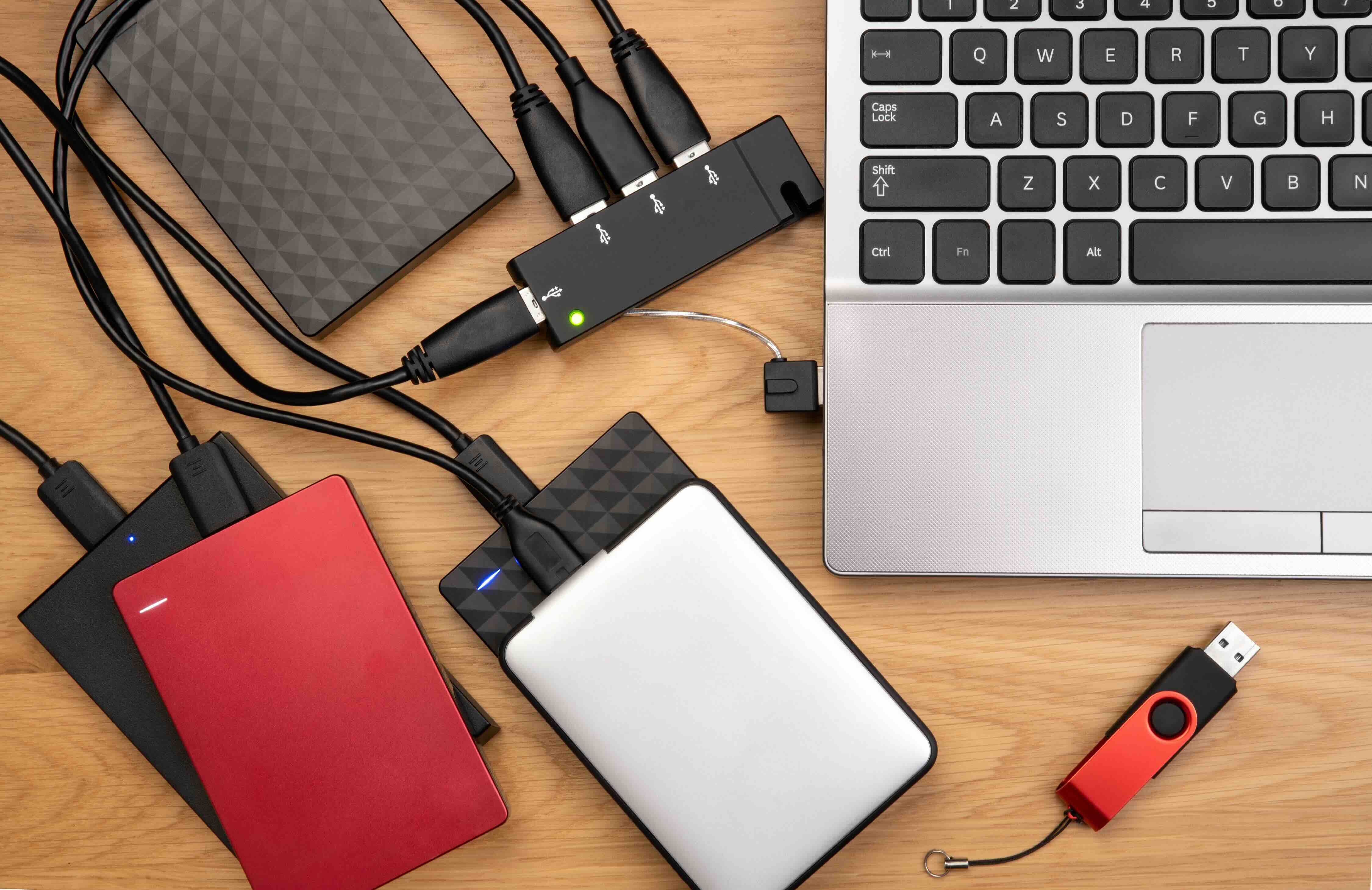
- USB hubs and docking stations that bundle multiple adapter functions into one unit
That last category -- hubs and docking stations -- is increasingly relevant. A lot of what people call an "adapter PC setup" today really means a laptop paired with a multi-function dock that handles power delivery, display output, USB expansion, and network connectivity all at once. It's efficient. It's how a lot of modern workspaces are configured.
Key Advantages of Using Adapter-Based PC Configurations
There's a reason this approach has become so popular across industries. Flexibility is probably the biggest one. You're not locked into a specific hardware configuration. Got a newer laptop with only USB-C ports? Fine -- an adapter gets you HDMI, ethernet, USB-A, and SD card access without replacing the machine. That's real cost savings. In enterprise and education environments especially, the ability to use existing infrastructure -- older monitors, legacy projectors, established cabling -- while pairing it with newer hardware is a massive operational advantage. You don't have to rip and replace everything at once. Adapters extend the useful life of your existing equipment while still letting you adopt newer technology on your own timeline.
Drawbacks and Limitations You Should Know About
Nothing's perfect, and adapter setups come with their share of tradeoffs. Signal quality can be one area of concern, particularly with passive adapters handling high-resolution or high-refresh-rate signals. If you're pushing 4K content through a cheap passive HDMI-to-DisplayPort adapter, you might run into issues with color accuracy, frame rate drops, or handshake problems. Compatibility is another factor -- not all adapters work with all systems, and driver or firmware support can occasionally cause headaches. Power delivery is worth watching too; some USB-C adapters draw power from the host device, which can affect battery life on laptops. And honestly, cable clutter is a real thing. A desk loaded with adapters and dongles starts to feel like a problem rather than a solution. Quality matters here -- a lot. Investing in well-built, certified adapters dramatically reduces the chance of running into these issues.
Adapter PCs in Professional and Enterprise Environments
This is where adapter-based computing really shows its value. IT managers and AV integrators deal with mixed hardware environments constantly -- different generations of display technology, varied device fleets, conference room setups that need to support a dozen different laptop models. Adapter solutions let those professionals standardize connectivity without standardizing every piece of hardware. A well-configured docking station or adapter kit at each workstation means any employee can walk in with their laptop, connect once, and have access to dual monitors, a wired network connection, full-size peripherals, and charging. That's a meaningful productivity gain. In AV integration specifically, adapters bridge the gap between source devices and displays or distribution systems, ensuring compatibility without costly signal extenders or system redesigns.
Tips for Choosing the Right Adapter for Your PC Setup
Before buying anything, it's worth taking a step back and mapping out exactly what you need the adapter to do. Matching the right adapter to the right use case saves time, money, and frustration. A few practical considerations worth keeping in mind:
- Identify your source port and destination port before purchasing -- know what you have and what you need
- Determine whether you need a passive or active adapter based on resolution and signal type requirements
- Check maximum supported resolution and refresh rate on the adapter's specification sheet
- Confirm power delivery requirements if using USB-C adapters with laptops
- Look for adapters that are certified by relevant standards bodies like HDMI.org or USB-IF
- Read compatibility notes carefully, especially for Thunderbolt versus standard USB-C ports
- Invest in build quality -- braided cables and aluminum housings typically indicate more durable construction
- For multi-device setups, consider a docking station instead of multiple individual adapters
Future-Proofing Your Adapter PC Strategy
Technology doesn't stand still, and adapter strategies need to evolve alongside it. USB4 and Thunderbolt 4 are becoming more standard on newer machines, offering dramatically higher bandwidth and more versatile connectivity than their predecessors. HDMI 2.1 and DisplayPort 2.1 are raising the ceiling on what's possible for display output. If you're building or upgrading an adapter-based setup today, it's worth choosing adapters and docks that support these newer standards even if you're not fully utilizing them yet. The incremental cost difference is usually modest, and the longevity gain is significant. Also worth noting -- USB-C's continued dominance as a universal port means the adapter ecosystem around it will only get more refined and capable over time.
Why Monoprice Is the Smart Choice for Adapter PC Solutions
When it comes to stocking up on adapters, cables, and docking solutions that actually perform at the level professionals expect, Monoprice has built a well-earned reputation for delivering exactly that -- without the inflated price tags that typically come with brand-name alternatives. Whether you're equipping a single home office setup or outfitting an entire enterprise deployment, the value proposition is consistent. Certified products, solid build quality, broad compatibility, and pricing that makes sense for both individual buyers and procurement teams. For anyone serious about building out a reliable adapter-based PC environment, exploring the full range of high-performance PC adapter and connectivity solutions at Monoprice is a practical first step that tends to pay off quickly -- both in performance and in budget.
Frequently Asked Questions About Adapter PCs
What is an adapter PC used for?
An adapter PC setup uses hardware adapters to bridge connectivity between different ports, displays, or devices, enabling compatibility between older and newer technology without replacing entire systems.
Do adapters affect PC performance or display quality?
Passive adapters can occasionally affect signal quality at high resolutions or refresh rates. Active adapters with onboard chipsets are more reliable for demanding applications like 4K or 144Hz display output.
What is the difference between a passive and active adapter?
A passive adapter physically reroutes signal pins without processing the signal. An active adapter contains a chipset that converts the signal, making it capable of handling more complex compatibility scenarios and higher bandwidth requirements.
Can I use a USB-C adapter with any laptop?
Most USB-C adapters work with any USB-C port, but functionality can vary. Thunderbolt-specific features require a Thunderbolt-enabled port, and power delivery support depends on both the adapter and the host device.
Is a docking station better than individual adapters?
For users who need multiple connections simultaneously, a docking station is generally more efficient, cleaner, and more reliable than stacking individual adapters. It also simplifies the single-cable connection experience at a workstation.
Are expensive adapters worth it compared to budget options?
Build quality and certification matter significantly. Certified adapters from reputable manufacturers are more reliable, more compatible, and less prone to signal issues than low-cost uncertified alternatives, especially at higher resolutions.
What adapter do I need to connect a laptop to an HDMI monitor?
This depends on your laptop's available ports. Common solutions include USB-C to HDMI, Mini DisplayPort to HDMI, or DisplayPort to HDMI adapters. Check your laptop's port type before purchasing.
Can adapters support 4K resolution?
Yes, many modern adapters support 4K at 30Hz or 60Hz, and some support 8K output. Always verify the adapter's maximum supported resolution and refresh rate in the product specifications before purchasing.
What should I look for when buying a PC adapter?
Key factors include port compatibility, maximum resolution support, active versus passive design, power delivery capability, build quality, and certification from recognized standards bodies like HDMI.org or USB-IF.
Are adapter PC setups suitable for business and enterprise use?
Absolutely. Adapter-based configurations are widely used in enterprise environments to standardize workstation connectivity across mixed hardware fleets, supporting dual-monitor setups, wired networking, and peripheral access from a single connection point.